iPhone, iPad and Mac
What is different in the Apple apps: the iPhone's quick editor on your Photos library, the iPad's two editors, and the Mac.
Numa for iPhone, iPad and Mac is one app and one purchase. It edits with the same engine as Numa for Linux, so a photograph looks the same on each, and the chapters of this guide apply to it; the notes marked iPhone, iPad and Mac say where it differs. Your libraries and edits stay on each device: Numa has no cloud of its own, so edits do not travel between devices.
iPhone
- Your Photos library is a library in Numa, next to any folders you add from Files.
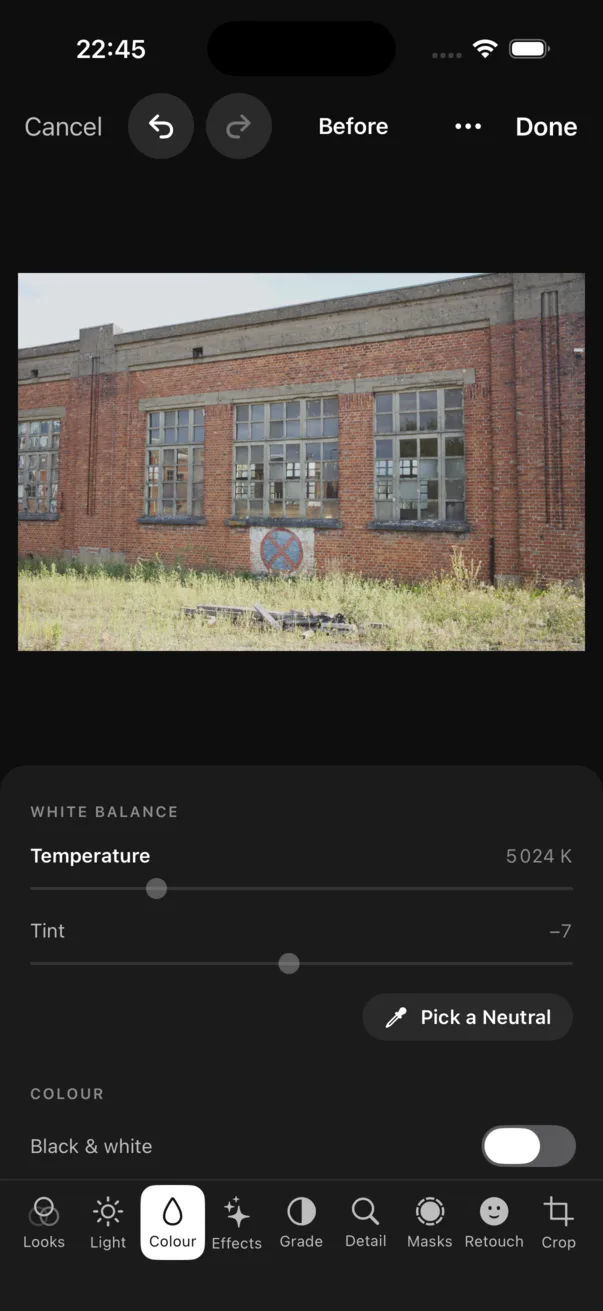
- The editor opens on Looks, with Original and Auto first, and has the same nine tabs as everywhere, in a bar at the bottom.
- Done asks, for a photograph from Photos, whether to keep your edit as an edit of the original (Photos can revert it, and Numa reopens it with your sliders) or as a copy.
- The flag is Favourite for photographs in Photos, the heart that Photos itself uses.
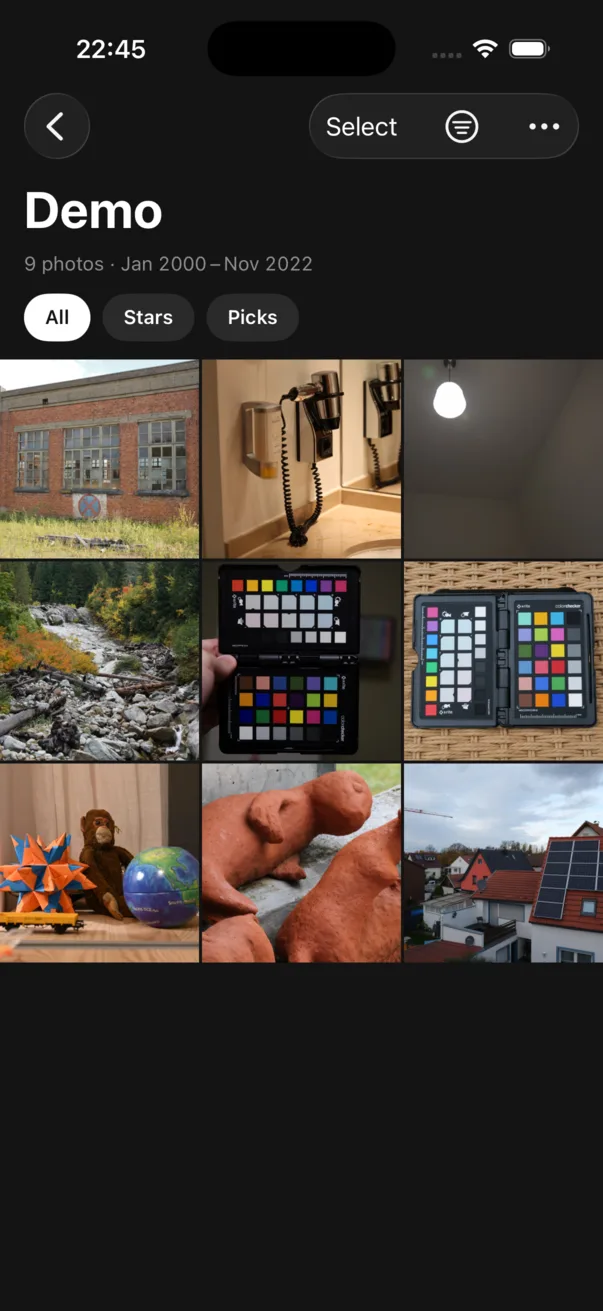
- Today is the first row of Libraries: a stack for each earlier year with photographs taken on this day, picks and 3 stars or more first, then each library with photographs that came into its folder in the last two weeks. A year shows its photographs one at a time; a library opens it. The row for Numa Home is Today at Numa Home.
- A library's photographs are in months, each under its name and how many.
- Select, at the top right of a library, chooses many photographs at once: tap them, then use the bar along the bottom, which says “Choose photographs” until you do and has Select All beside the count. In Photos it has Share, Send Home and the heart, and under ⋯ Add to Album, Remove from Album and Delete, which Photos asks about first. In a folder of your own it has Pick, Reject, the stars and Export, and the rest under ⋯, Send Home among it. On the iPad, Send Home is beside Export.
- New Album… ends the Albums shelf. Give the album a name, then choose its photographs among all your libraries and tap Add to and its name. Done before that makes no album.
iPad
The first time you edit, the iPad asks which editor you want; the ⋯ menu changes it later.
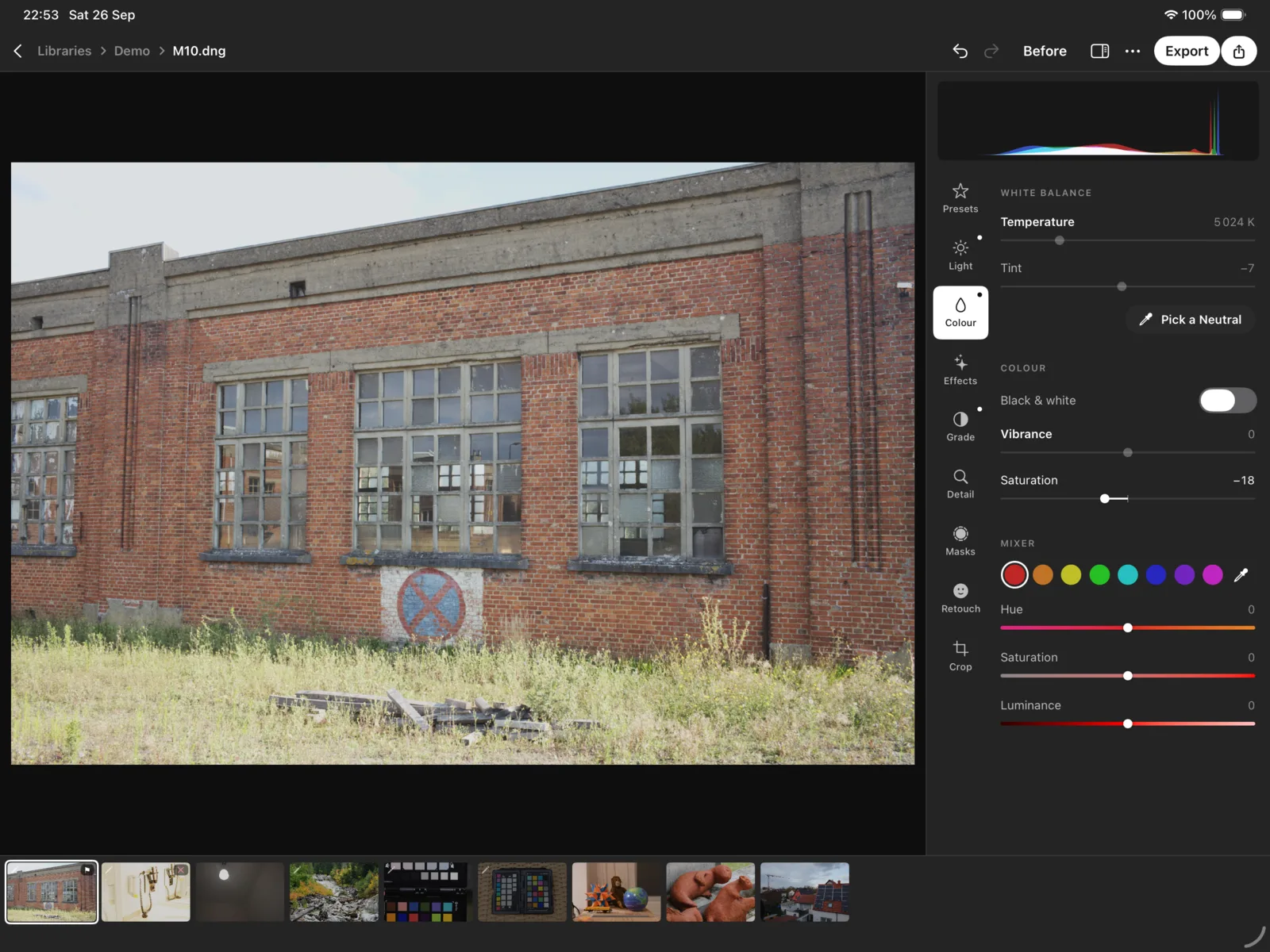
- Classic: the panel beside the photograph, with the rail of tabs and the filmstrip, as on a Mac or Linux. For a pencil, a keyboard or a finger.
- Modern: the photograph edge to edge, for holding the iPad in two hands: the tabs under one thumb, the sliders under the other. Swap Hands mirrors it for the left-handed. It has every slider; the curve, the mixer, presets and retouching are one tap away in the classic editor.
With a Magic Keyboard, the culling and navigation keys work as on Linux.
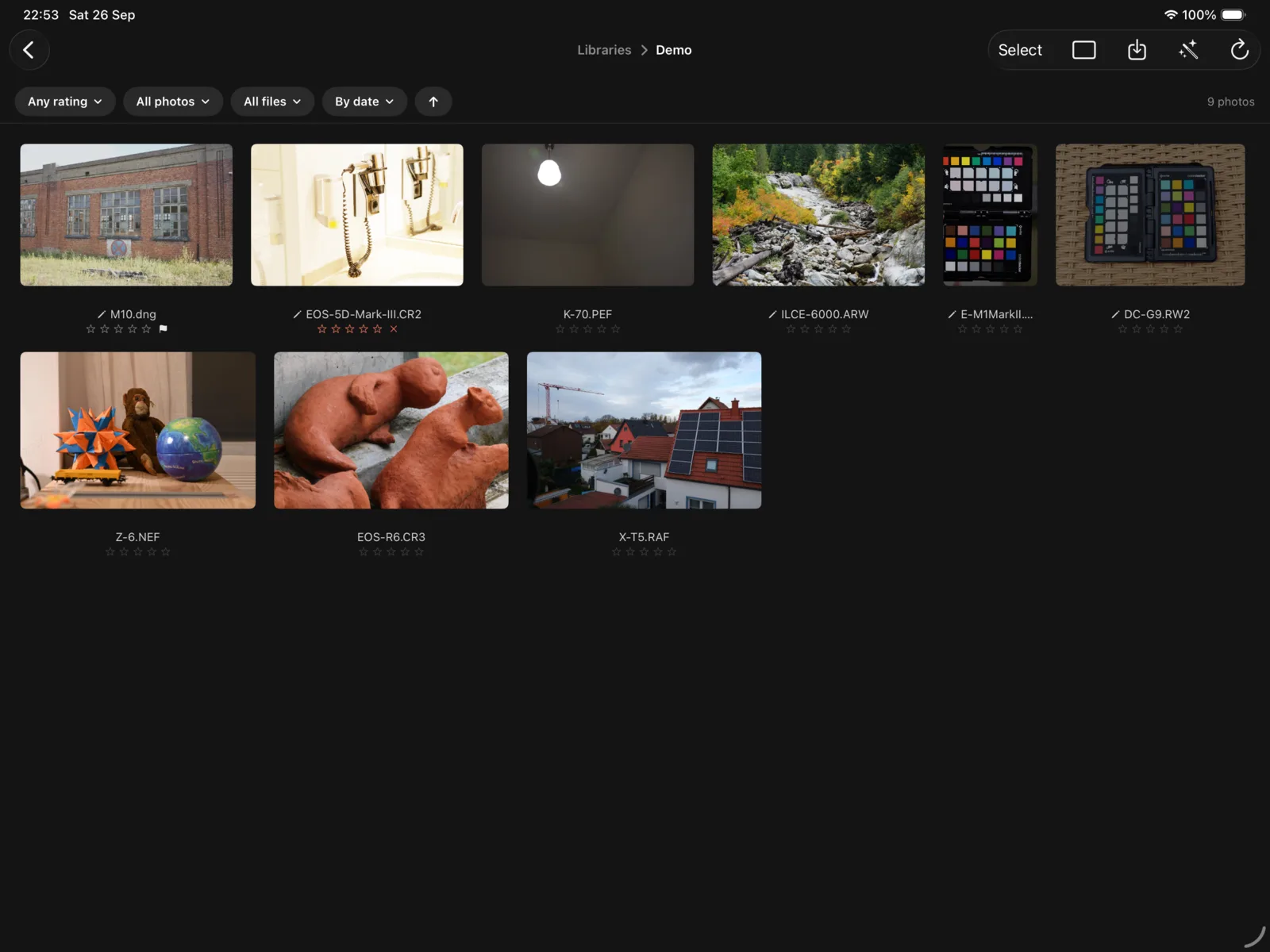
The library on the iPad and the Mac
The library is laid out as at Numa Home.
- The side list: Today, Photos (every library as one grid), Libraries, People and Albums. The arrow beside Libraries, People or Albums opens it to every one of them, with how many photographs each holds: a library with its colour, a person with their face, and New Album… under the albums. Numa remembers which are open. On a narrow iPad the side list is a page of its own; in the Mac's editor it is not there. Numa opens on Libraries.
- Today: the date, then On This Day, a stack for each earlier year with photographs taken on this day, picks and 3 stars or more first (“2 Years Ago · Mountains and Sea · 4 photos”); Just Arrived, each library's photographs that came into its folder in the last two weeks, by an import, a copy or a sync, as a strip with Open; and Waiting for You, faces to name, with Name for People. A part with nothing in it is left out. A stack, or a photograph of a strip, opens them in the editor.
- Libraries: every library as a stack. Select chooses libraries: tap their stacks, then use the bar along the bottom: Open and Rename… for one, Remove from Numa… for any number. Removing leaves the folders and the photographs where they are.
- People: the people you have named, then Not named yet, the groups of faces nobody has named: type who it is and choose Name, or Nobody to stop being asked.
- Albums: every album as a stack, and New Album…. Give the album a name, then choose its photographs on Photos and choose Add to and its name. Touch and hold an album (on the Mac, right-click it) for Rename… and Delete Album….
- A library's grid is in months, each under its name and how many. The row above it is Filter, then All, Picks and ★ 3+, then a chip for anything else Filter has set, whose × takes it off, and the count.
- Choosing: Select, then tap photographs. The bar says “Choose photographs” until you do, with Select All beside the count. With a keyboard, ⌘ A chooses everything shown, Esc lets go, Delete moves what is chosen to the trash (Numa asks first), and 0–5, P, X and U rate and flag it.
Search
A library's, an album's or a person's grid, Photos on the iPad and the Mac, and a grid of Numa Home have a search field: in the toolbar on the iPad and the Mac, at the top of the page on the iPhone. The iPhone's Photos library has none. It says “Search by names or words”.
- Suggestions come from the first letter you type, under Places, People, Cameras, Dates and Libraries (in a grid of Numa Home also Things, what Numa saw): up to three of each, with how many photographs each keeps among the tokens already chosen. What you type finds a name when it starts one of its words, whatever the case and the accents: “sao” finds São Paulo. A date is a year (“2025”), a month (“2025-03”, “March 2025”, “mar 2025”) or a day (“2025-03-14”), offered only when there are photographs for it.
- A suggestion chosen is a token in the field, its kind (Person, Place, Camera, Date, Library) before its name, and the text you typed goes. Tokens narrow together, one of each kind. On a library of this device a token is the Filter menu's chip too: the chip's × takes it off, and so does Delete in an empty field for the last one.
- Words, the last row, or Return: on a library of this device, the photographs with every word you typed in their file name or their note (“Photos whose name or note says …”); in a grid of Numa Home, Numa Home's own search, by names and by what is in the photographs (“Photos that look like …”).
- The result: how many, and under it the tokens and the words (“Anna · Portugal · 2025”). With none: “No photographs answer these filters.”
Places
Numa reads where a photograph was taken from its GPS position, and names it after the nearest town, with its region and country (GeoNames' places, kept in the app; nothing is looked up online).
- The Filter menu starts with Places: each country with its towns under it, and how many of the photographs shown are in each. The first time, choose Look Where These Were Taken; Numa reads them in the background (“Looking where these were taken…”) and keeps what it read in the library's catalog, so a photograph is read again only when its file changes. A place chosen narrows the grid and is a chip with its ×.
- The Places page (on the iPad and the Mac, Places in the side list, after Albums): the list of countries, each opening to its regions and towns with how many photographs, and how many have no place; beside it a map with the photographs as white markers, gathered with their count where they crowd. Choose a row, a marker or a group for the place's name, how many and when (“412 photos · Oct 2026”), and Show and the count opens Photos narrowed to it. A group that reaches over a border zooms in until it parts.
- On the iPhone, Places is under Today on Libraries: the map fills the page and the list is a sheet over it. Your Photos library is on the map too, by the location Photos keeps; Show … from Photos opens those.
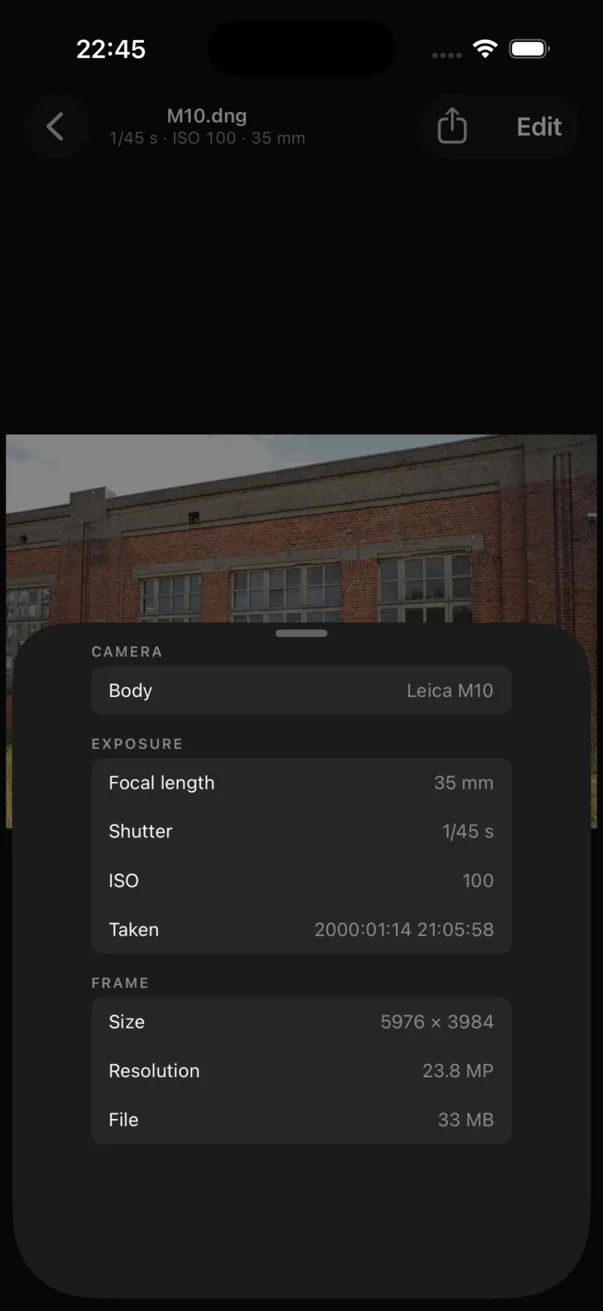
- Info shows a small map under Place for a photograph that has a GPS position.
Mac
The Mac app is the iPad's classic editor in a window, with a menu bar that lists every command with its key. It needs a Mac with Apple silicon and macOS 26.
The grid chooses photographs as at Numa Home: drag across them to choose what the drag covers (with ⌘ or ⇧ held, it adds to what is chosen); ⌘-click chooses one, ⇧-click a run; and the ring at the top left of a photograph under the pointer chooses it. Select All in the Edit menu chooses everything shown.
Right-click a photograph for Open, Add to Album, Export… and Send Home…, Rating, Pick, Reject and Clear Flag, Open in Loupe, Copy Settings, Share Original and Move to Trash…. Right-click one of several chosen and the menu acts on all of them.
On Linux only, for now
A few features are in Numa for Linux only: recognising people (People), importing from a card or camera with its shoots, Find dust and Remove people, Merge HDR, JPEG XL export, and Numa Home: Send Home and Open in Numa are coming to iPhone, iPad and Mac.
Numa for iPhone and iPad needs iOS or iPadOS 26.