Looks
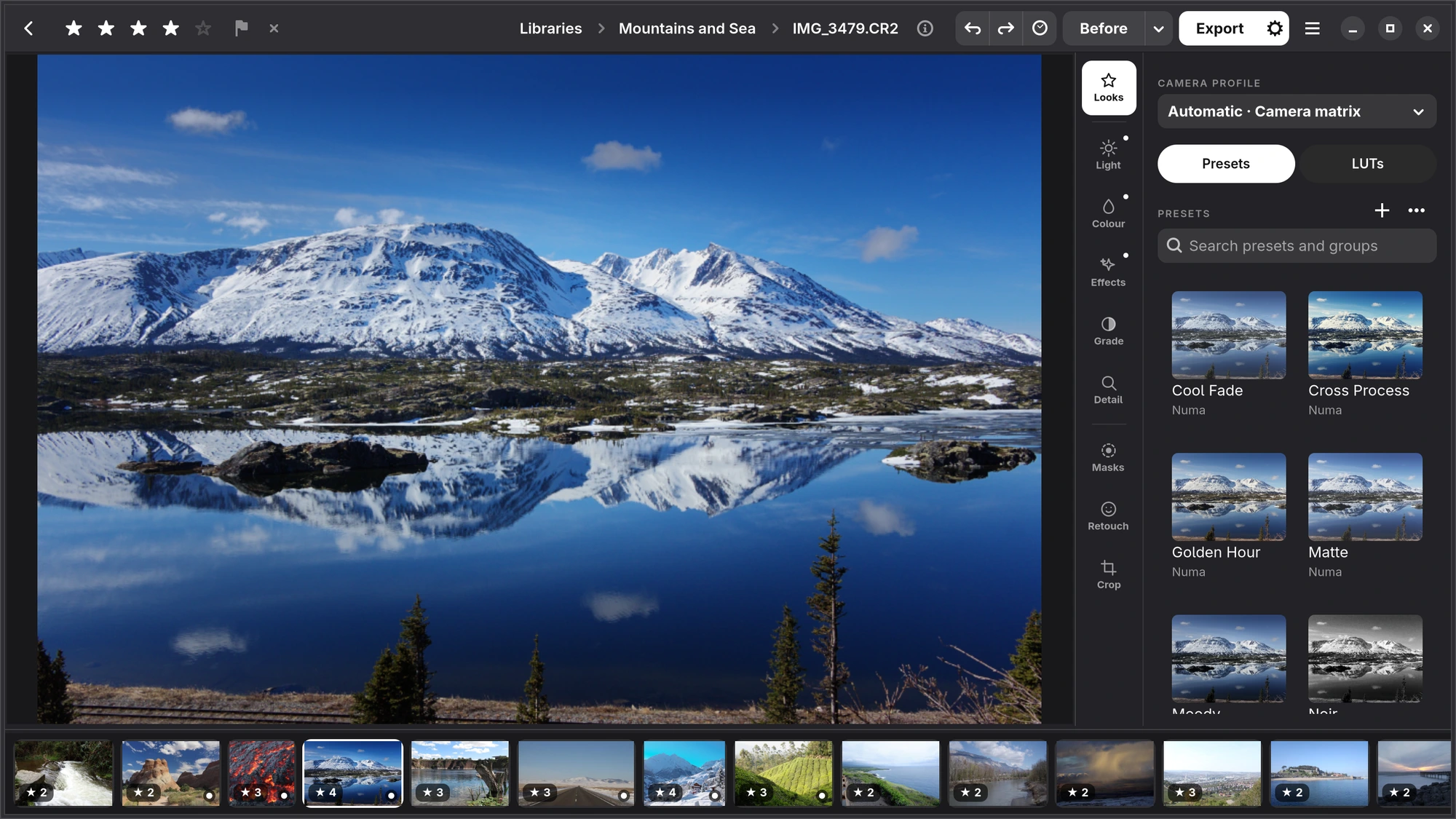
The first tab: the camera profile and tone mapping a raw file is rendered with, presets, and LUTs.
Camera profile
At the top of Looks, and always in view, is the Camera profile: how the colours your camera recorded become the colours you see. Automatic chooses the best profile Numa has for your camera and says which (“Automatic · Numa X-T5”); hover it to see where the profile comes from. You can also choose Camera matrix only, the camera's own conversion without a look, or any other profile for this camera: Numa's own, the ones from Add-ons, and profiles you imported yourself.
Profiles are DNG camera profiles (.dcp). To add your own, put the files in the Your profiles folder under Camera profiles in Preferences, Add-ons; Numa matches a profile on the camera model written inside it, so the file name does not matter. Which kind Automatic prefers is set under Camera profile in Preferences, General. See Preferences.
No profile for your camera, or not the colours your camera gives? Numa can make one from your own photographs: see Profile for Your Camera in Preferences.
Tone mapping
Under the profile, Tone mapping chooses how the light in a raw file becomes the tones you see. Camera, the default, is the curve cameras draw themselves, read off their own JPEGs. AgX is the tone mapping known from Blender: very bright colours run to white as they do on film, so a lamp, a neon sign or a sunset keeps its colour where it is brightest instead of turning yellow or cyan. AgX is flatter than Camera, with lighter shadows and softer highlights; add Contrast in Light if you want more. The choice travels with the colour when you copy settings or save a preset. A JPEG or HEIF keeps its own tones, so the choice is for raw files only.
Presets
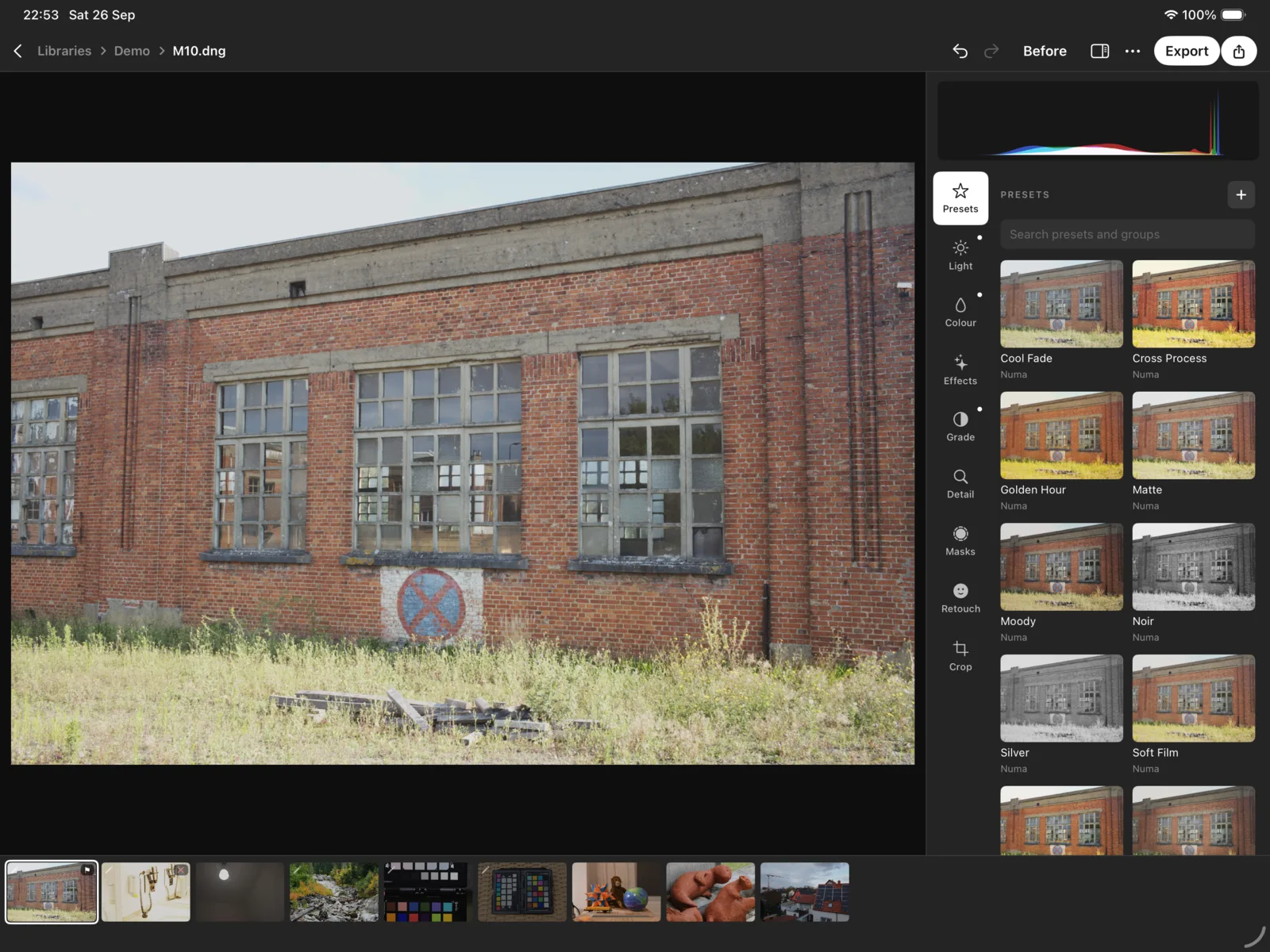
Under the profile, Presets shows every preset as a small version of the photograph you are editing, so you see what it does before you choose. Rest the pointer on one to see it on the photograph; click to apply it. Choosing another preset replaces the first rather than adding to it, and Ctrl Z takes it back.
- Numa's looks: twelve looks come with Numa, in the group Numa: Soft Film, Vivid, Warm, Cool Fade, Moody, Golden Hour, Matte, Teal & Orange, Cross Process, Vintage, Silver and Noir. Each has a Strength slider.
- Search: the search field finds presets by name and by group.
- +, at the end of the Presets label (Save Settings as Preset…), saves your edit as a preset, with a list of what goes in it (white balance, tone, colour, the tone curve, detail, crop and rotation). Masks, retouching and face edits never go in a preset: they belong to one photograph.
- ⋯, beside it: Import Presets… and Import a Folder of Presets… bring in presets from other raw developers (
.xmp,.lrtemplate,.costyle,.costylepack). Numa translates tone, presence, dehaze, vignette, grain, the colour mixer, calibration, grading and split toning, white balance, detail and curves, and tells you what had no counterpart. A folder of presets becomes a group. - Open Presets Folder, in the same ⋯, opens the folder the presets are kept in,
~/.local/share/numa/presets.
To apply a preset to many photographs at once, select them in the grid, right-click and choose Presets.
LUTs
LUTs, beside Presets, applies a 3D or 1D lookup table (.cube or .3dl), as film emulations and colour grades are often sold. The one you choose is shown at the top with an Amount slider. A LUT goes over the finished photograph, as the last step. The ⋯ at the end of the LUTs label has Import LUTs… and Open LUTs Folder.
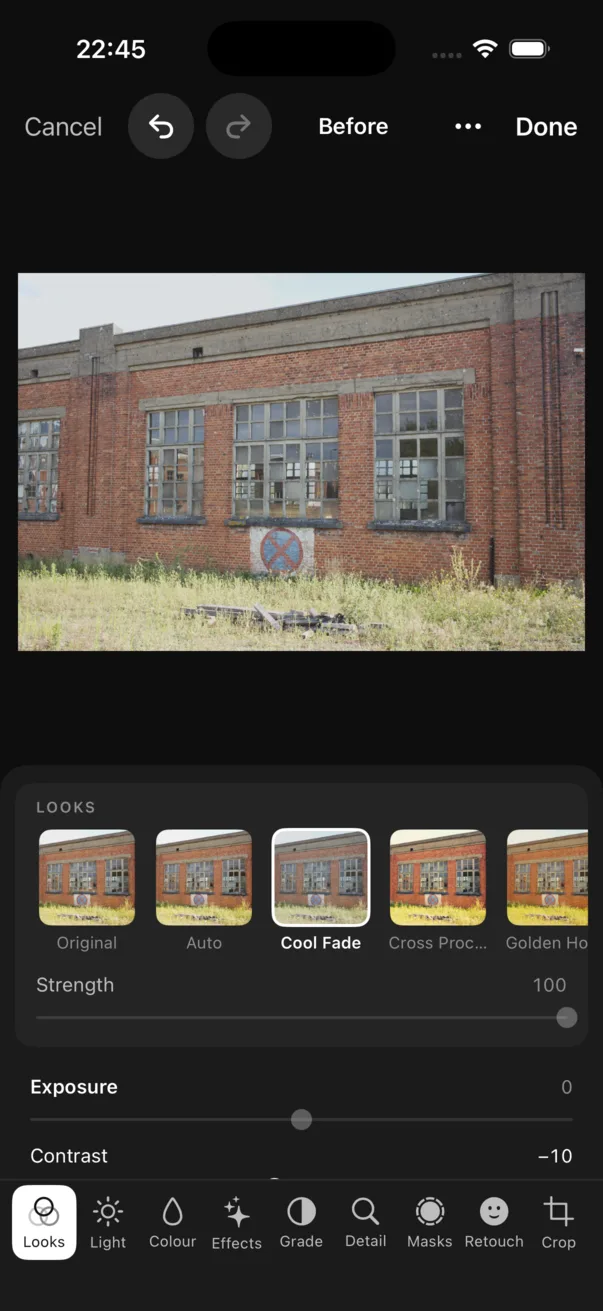
iPhone The editor opens on Looks: a row of looks with Original and Auto first, and Strength under it.