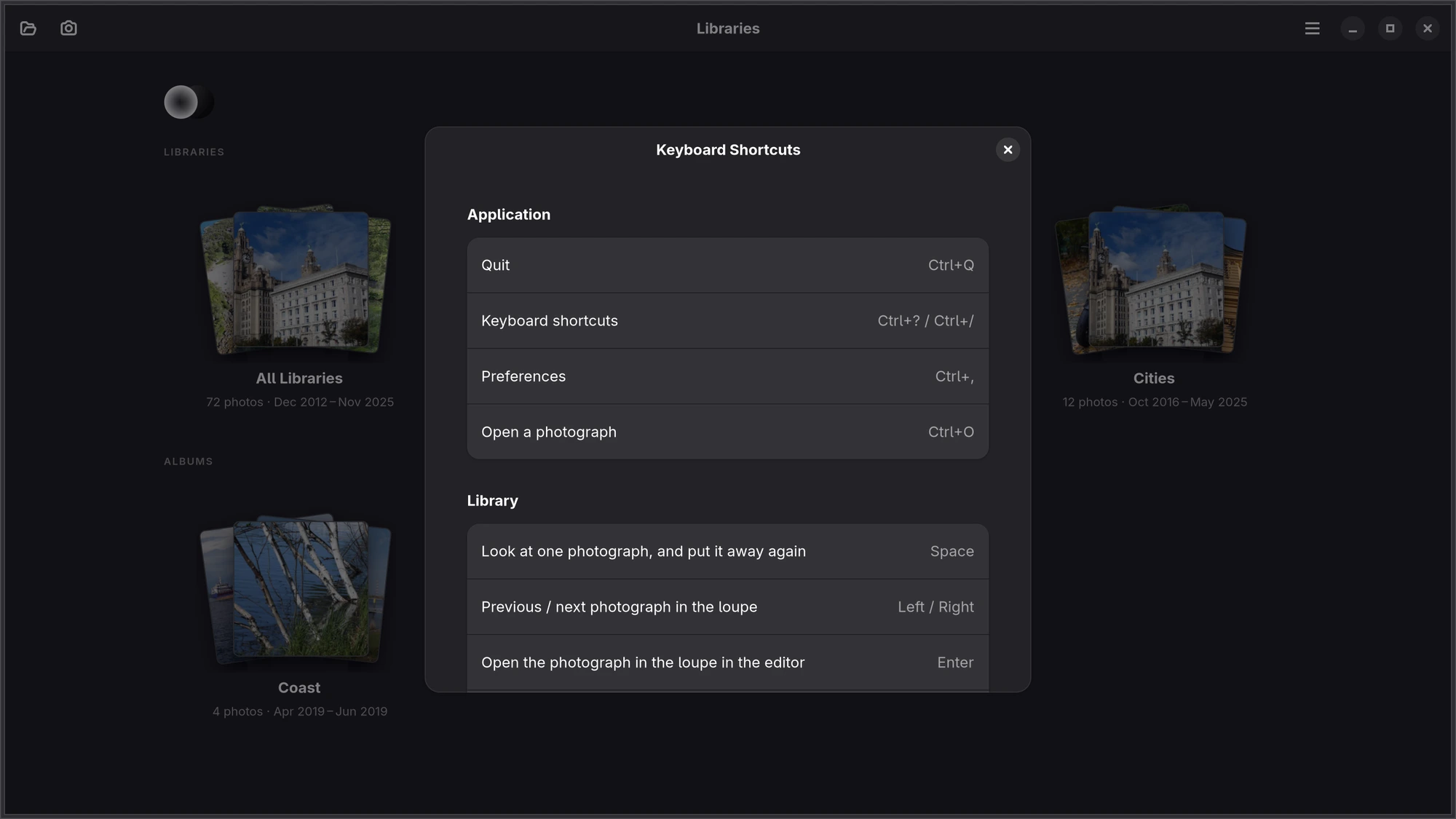
Every key in Numa for Linux. In the app, Ctrl+? or Ctrl+/ shows this list.
Keyboard shortcuts, Ctrl?.
Application
Ctrl,
Preferences
Ctrl? or Ctrl/
Keyboard shortcuts
CtrlO
Open a photograph
CtrlQ
Quit
Library and loupe
Space
Look at one photograph in the loupe, and put it away again
←→
Previous and next photograph in the loupe
Enter
Open the photograph in the loupe in the editor
↑
Pick in the loupe and go on to the next
↓
Reject in the loupe and go on to the next
Backspace
Take back the last mark given in the loupe
Ctrl←Ctrl→
Previous and next burst in the loupe, on its best frame
Shift↓
Reject the rest of the burst and go on to the next
PX
Pick or reject in the loupe and go on to the next
Z
One frame of a burst alone in the loupe, and back
ShiftSpace
Review: run through the shoot at full size in the loupe
F
The neighbours beside the photograph in the loupe, on or off
CtrlF
Search by names or words
0–5
Rate the selection 0 to 5 stars
P
Flag the selection picked; again to clear
X
Flag the selection rejected; again to clear
U
Clear the selection's flag
C
Compare the two to four selected photographs
CtrlA
Select everything shown
Esc or CtrlShiftA
Clear the selection and leave Select
F5
Rescan the library
CtrlV
Paste copied edits onto the selection
Delete
Move the selection to the trash, after asking
Editor
←Page Up
Previous photograph in the filmstrip
→Page Down
Next photograph in the filmstrip
0–5, P, X, U
Rate and flag the open photograph
Space (hold)
Before: the photograph as shot
A
Auto: level the photograph and set its light
ShiftSpace (hold)
The photograph before Auto, while Auto's card is up
I
What the camera recorded
G
Guides: none, thirds, grid
Alt1–9
The panel's tabs, in order
CtrlC
Copy this photograph's edits
CtrlShiftC
Copy the edited picture
CtrlV
Paste edits onto this photograph
CtrlZ
Undo
CtrlShiftZ
Redo
Esc
Leave the mask you are editing
Mouse
Double-click the photograph
1:1 at that point, and back
Double-click or right-click a slider
Back to its starting value
Shift with the arrows on a slider
Ten steps at a time
Shift while drawing a mask
Swap between adding and taking away
iPad and Mac
With a keyboard, the iPad's classic editor and the Mac take the same keys for culling and moving between photographs (←→, ↑↓, 0–5), with ⌘Z to undo and \ for Before. On the Mac, the menu bar lists every command with its key.