Export
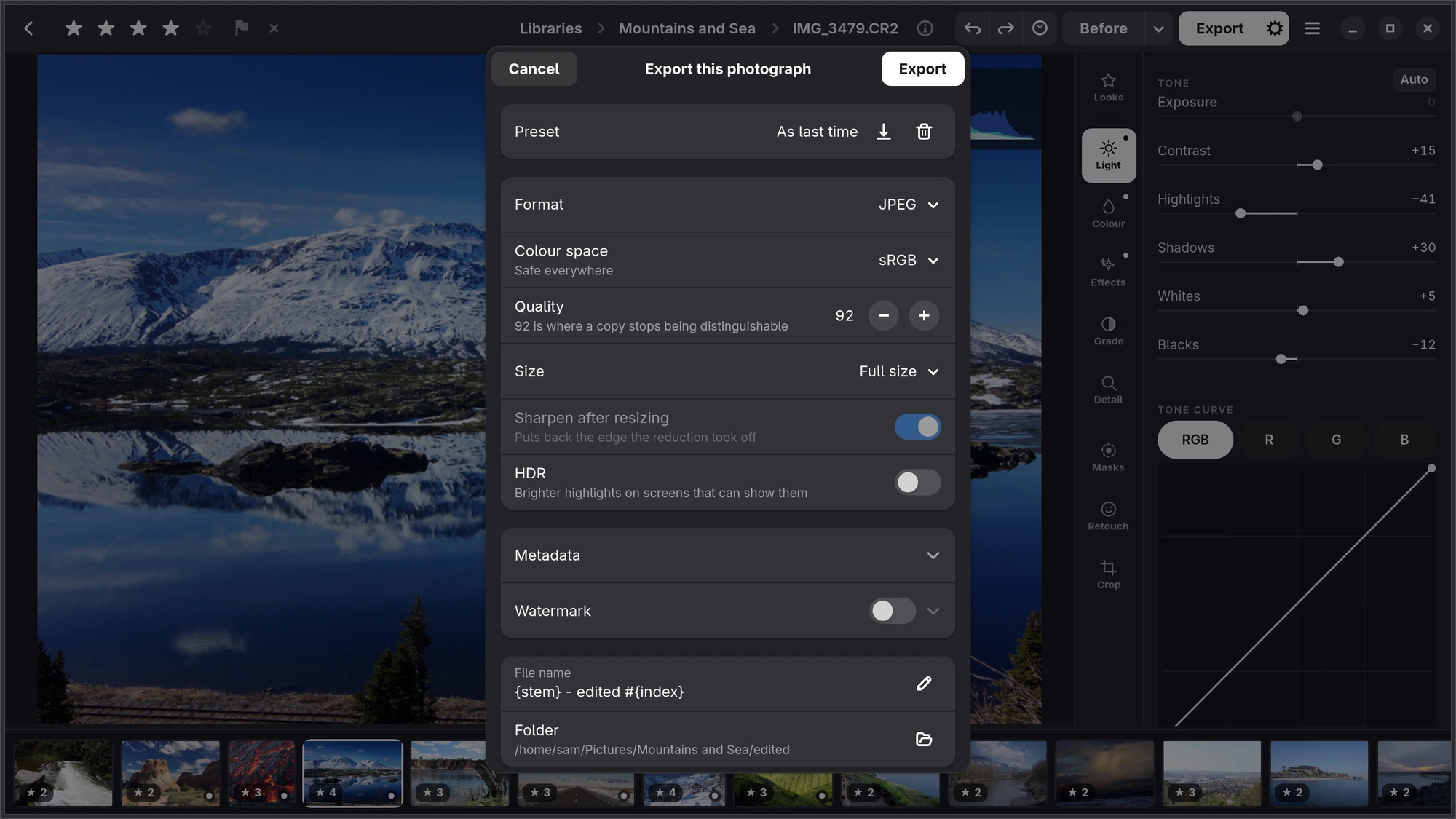
Write your edits into new files, one photograph or a whole selection, in the format, size and colour space you need.
The Export button
Export, in white, is at the top right of the editor and of the grid. It has two halves:
- The button exports straight away, with the settings you used last time; its tooltip says which.
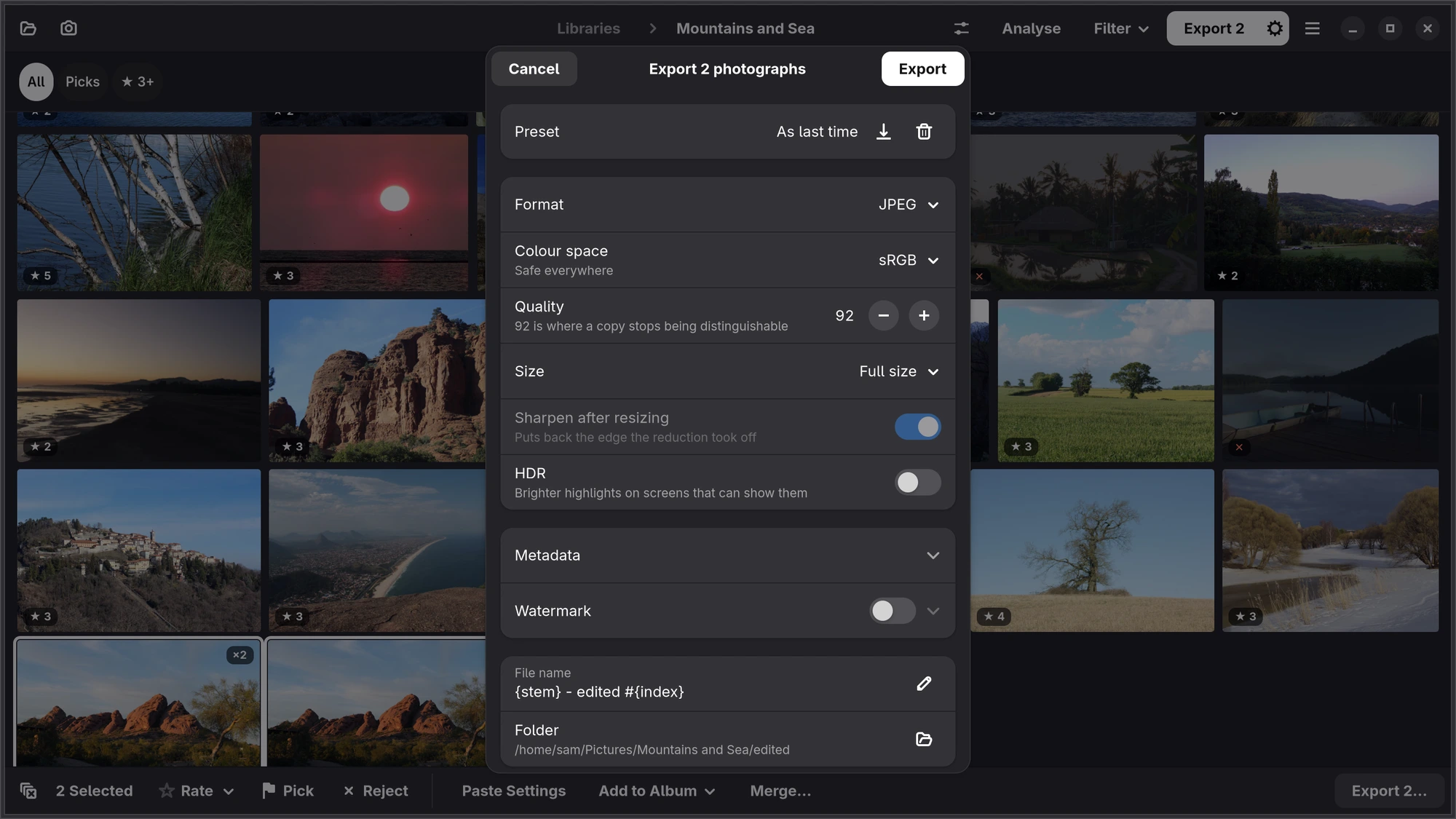
- The gear beside it (Export settings…) opens the export dialog, to choose something else.
In the grid, Export works on the selection and says how many (“Export 32”); Export 32…, at the end of the bar for a selection, opens the dialog. Numa gets the next photograph ready while it writes the last one, and you can keep working meanwhile. Stop keeps the files that were already written.
Exporting never touches your original, and never overwrites a file: by default the photographs go into an edited folder inside the library.
Format
| Format | When to use it |
|---|---|
| JPEG | Sharing, the web, printing services: everything reads it. |
| PNG | Lossless, for when a file will be edited further. |
| TIFF 16-bit | Lossless with 16 bits per colour, for printing or other editors. |
| AVIF | Much smaller than JPEG at the same quality; modern browsers and phones read it. |
| JPEG XL | Small and high quality; lossless at Quality 100. |
| DNG | The raw data itself, with your render as its preview and your edits written into it, for another raw editor. |
Colour space, quality and size
- Colour space: sRGB for the web and most screens; Display P3 for Apple devices and wide-gamut screens; Adobe RGB and ProPhoto RGB for print workflows. Each file carries its colour profile, and colours outside sRGB really are in the file.
- Quality: from 1 to 100; 92 is where a second copy stops being distinguishable.
- Size: Full size, or a long edge of 4096, 2560, 2048, 1600 or 1080 pixels. Numa never makes a photograph larger, except with Twice the size (Super Resolution), which uses the Super Resolution add-on to make detail rather than blur.
- Sharpen after resizing puts back the edge that making a photograph smaller takes off.
- HDR: brighter highlights on screens that can show them (see HDR).
Metadata and watermark
Under Metadata: Camera, lens, exposure, date keeps what the camera recorded; Remove location leaves out where the photograph was taken; Stars and keywords writes the rating, and the people and albums it is in, as keywords; Creator and Copyright put your name in the file.
Watermark adds a line of text in a corner of your choice, sized to the photograph.
File names and folders
File name is a pattern: {stem} is the original's name and {index} a number that keeps each name new, so “DSCF1227 - edited #001.jpg”. Folder is the library's edited folder unless you choose another; Numa remembers your choice.
Export presets
Settings you use often (web, print, Instagram) can be kept as a preset: set them up, press the save button beside Preset at the top of the dialog and give it a name. Preset chooses one, As last time or one of your own; the bin beside it (Forget this preset) deletes it.
Proof for print
To see how a printer or lab will print the photograph, choose Proof for Print… in the editor's menu and pick the printer's or lab's ICC profile. Add a Profile… takes one from a file, and Numa keeps it; sRGB is always there. Choose how the colours it cannot print are brought in, Perceptual or Relative Colorimetric; the paper's white is shown too. Out of Range hatches what the printer cannot reach. A pill at the top of the photograph says which profile you are proofing with (“Proof · …”). Only the view changes, never your edit.
In the export dialog, Proof With converts a JPEG, PNG or TIFF to one of the RGB profiles you added, and tags the file with it.
Send Home
The export dialog has a Destination: Folder or Numa Home. Until Numa is signed in to Numa Home it stays on Folder and says “Sign in to Numa Home in Preferences”. To Numa Home, Send is As JPEG (the export as set up, as a JPEG) or Original and Edits (the file as the camera wrote it and your edit, which Numa Home develops and you can change later), and Export becomes Send Home. With Original and Edits the settings under it, which are for JPEGs, turn grey and wait. See Send Home.
Tonight
For sending the day's best the same evening. Tonight…, in the library's main menu or the selection bar's ⋯, opens a dialog with the day's picks, or the selection (“24 picks from today, with their look”). Size is a long edge of 2048 pixels unless you choose another. Into is a folder for the evening in Pictures/Tonight, named after the library and the day; Change… picks another. Make 24 writes them as sRGB JPEGs without a watermark, through the ordinary export, and a toast says “24 in Tonight” with Open Folder.
Every Day of the Trip makes the folder by itself: when an import brings in a day with picks, that day's folder is made, once a day, and its toast stays until you have seen it.
For a book
For a Book…, in the library's main menu or the selection bar's ⋯, gets the picks, or the selection, ready for a photo book: in the order they were taken, a numbered folder per chapter with numbered files, to open in the book maker. Chapters By is Day or Album; photographs in no album go into Other. Under Printer, Photo Book chooses the page: 21 × 28, 30 × 30, 21 × 21 or 33 × 28 cm, or a Custom Size by its long edge in centimetres, and the photographs are sized for it at 300 ppi. They are sRGB, as most book printers take, or converted to a lab's profile you added under Proof for Print. It goes through the export, and never moves or changes your originals. Numa Home does the same from the browser, for a trip's picks.
Copying a photograph to paste somewhere else
In the editor, Ctrl Shift C copies the edited photograph (2 400 pixels on the long edge) to the clipboard, to paste into a message or a document.
iPhone For a photograph from your Photos library, Done asks how to keep your edit: as an edit of the original in Photos (Photos can revert it, and Numa reopens it with your sliders), or as a new copy beside it. The share button sends the edited photograph anywhere else.
iPad, Mac Export offers JPEG, PNG, TIFF (16-bit), AVIF and DNG, and hands the files to the share sheet (Files, Photos, AirDrop) or, on the Mac, saves them into a folder. JPEG XL is on Linux only.