Numa Home
Your household's photographs on a server of your own: every library in a browser, raws as Numa develops them, and Numa on your computer sending to it and bringing from it.
Numa Home runs in one Docker container, on a NAS or any computer with Docker, and keeps everything in it: no database server, no machine-learning container beside it, no cloud. Everyone in the house signs in with their own account, on a computer, a phone or a tablet. Its page, with the image and the compose file, is github.com/simmmmm/numa-home.
Installing
Numa Home is the image ghcr.io/simmmmm/numa-home, for 64-bit Intel and AMD machines. Put the compose.yaml from its page in a folder and change the left side of each volume to where things live on your machine:
/photos: the folder that holds your photographs. Each folder in it is a library; one with a.numafolder inside (a library made by Numa) brings its stars, edits and names along, and a<year>/<name>folder, as Numa's import lays them out, is one library per trip. Numa Home writes a small catalog into each library, so it must be writable./sent: what each person sends home, in a folder per account./data: accounts, thumbnails and the models, and each night's copy of the database./copy, if you like: a USB drive or a second volume for the second copy.
Set TZ to your time zone (Europe/Berlin, for instance): the night runs in it. Then docker compose up -d. On a NAS with a Docker app (UGREEN's, Synology's Container Manager, QNAP, Unraid or Portainer), make a project or stack and paste the same file there.
Open http://<host>:8283 and go through the first start. The face and search models are downloaded into /data (about 520 MB), and once you have chosen the photographs they are read in the background on at most half the processor, so the NAS still serves files first. To update, pull the image again and restart; everything already read stays in /data.
Numa Home writes the catalogs in your libraries itself. Do not open those same folders over the network in Numa on your computer at the same time: two programs writing one catalog over the network can damage it. Use Send Home and Numa Home libraries instead.
The first start
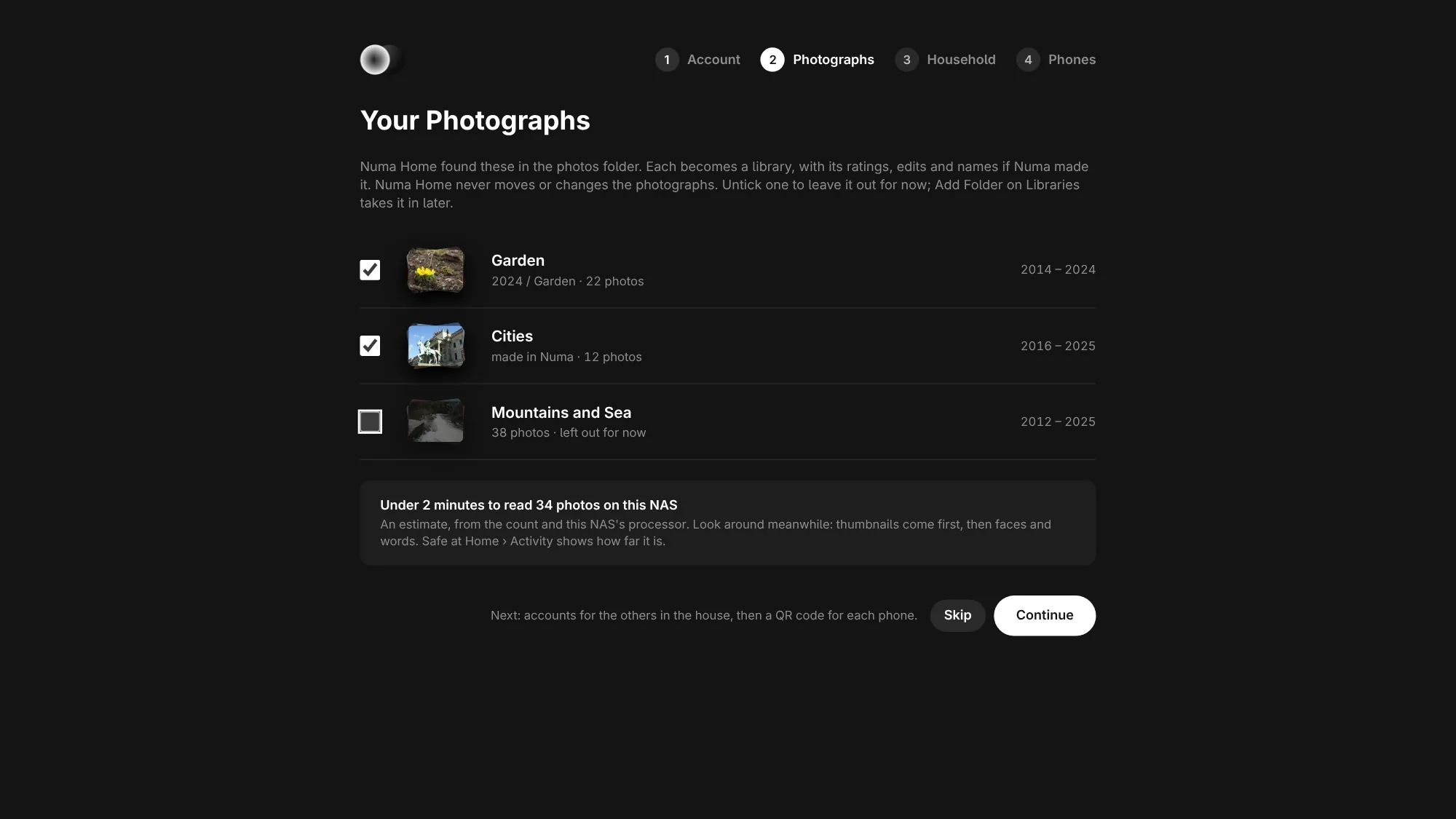
The first visit sets Numa Home up in four steps; the row at the top shows which one you are on. Back goes to the step before. Skip leaves the rest for later and opens Today.
- Account: a name and a password for the first account. It is an admin, so it can make the others.
- Photographs: every library Numa Home found in
/photos, with how many photographs it holds, when they were taken, and whether Numa made it (then its stars, edits and names come along). Untick one to leave it out for now; Add Folder on Libraries takes it in later. Under the list is how long reading them will take on this NAS: an estimate from the count, which grows as each library is counted. Numa Home reads nothing in/photosuntil you choose Continue here, and never a library you left out. Look around while it reads: thumbnails come first, then faces and words. The Activity tab of Safe at Home shows how far it is. - Household: an account for each other person in the house, with a password to tell them, and whether they can make accounts too. You can also make them later on the Accounts tab of Safe at Home.
- Phones: the address the phones use, as text and as a QR code. In Numa on a phone, type it in Settings › Numa Home; the phone's camera opens Numa Home in its browser from the code. Done opens Today.
The first start is shown once, to the first account. A Numa Home that had accounts before never shows it. Each person signs in on each device of their own. Everyone sees every library in /photos; what an account sends home is its own library, Sent Home.
Passwords and devices
To change your password, choose Change Password… in the menu under your name at the top right, and type your current password and the new one twice; a password is at least 8 characters. Your other devices are then signed out: sign in on them again with the new password.
When someone has forgotten theirs, an admin chooses New Password… beside their name on the Accounts tab, types a password and tells it to them. They are signed out everywhere at once, and the next time they sign in Numa Home asks them to choose a password of their own before anything else.
After five wrong passwords for one name, or from one address, Numa Home makes the next try wait: 30 seconds, then a minute, and longer each time up to 15 minutes. The sign-in page says how long. The right password clears it. Devices already signed in are not affected.
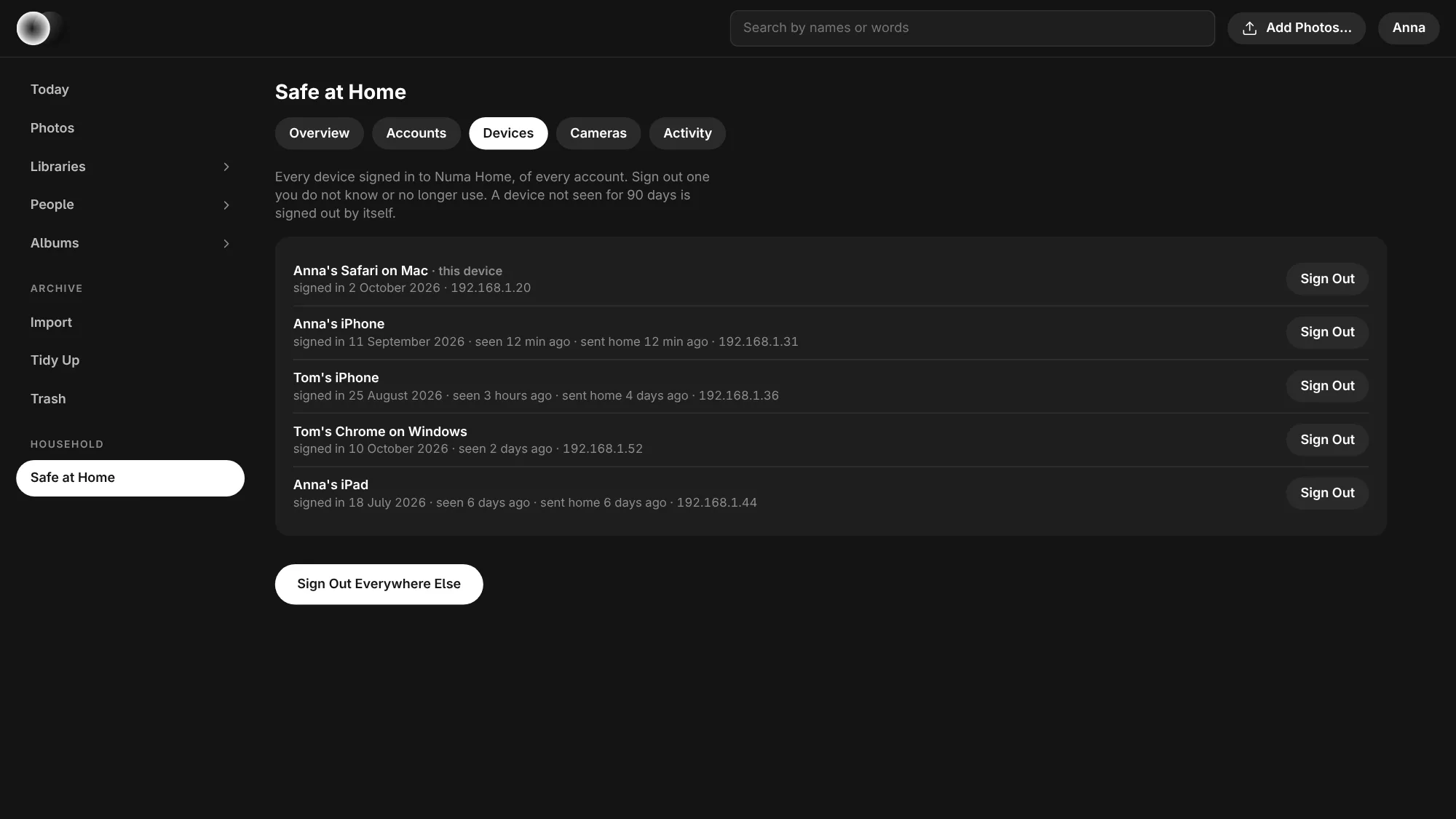
The Devices tab of Safe at Home lists every phone, tablet, computer and browser signed in as you, with when it signed in, when it was last seen, when it last sent something home and from which address. Sign Out signs one out; Sign Out Everywhere Else signs out all but the one you are using. Sign out a device you do not know, then change your password. An admin sees every account's devices and can sign out any of them. A device that has not been seen for 90 days is signed out by itself.
Adding photographs
Photographs come into Numa Home in five ways:
- From the browser: Add Photos… in the bar at the top (on a phone, the arrow alone) opens the browser's file chooser. Or drag photographs or a whole folder from your computer anywhere onto the page, and let go when it says Send Home. They go into your own Sent Home, in a folder for each day they were taken. A bar under the header counts them; keep the page open until it is gone. The toast then says how many came, how many were there already, and which were not sent and why (a video, for instance), with Open for Sent Home. The same file sent twice is kept once.
- Into the photos folder on the NAS: copy a folder into
/photos, and it is a library at the next look round, or at once with Add Folder…. - From Numa on your computer: Send Home in Export, or Keep This Library at Numa Home when you import.
- From the iPhone, iPad and Mac: Send Home and Keep at Numa Home (On the iPhone, iPad and Mac).
- From a card: a card in the NAS.
The pages
Every place is in one list: down the left on a computer or a wide tablet, along the foot on a phone, where Today, Photos, Libraries and People are tabs and More holds Albums, Places, Tidy Up, Trash and Safe at Home. On a computer the arrow beside Libraries, People and Albums folds each one open to every library (in its tint, as on the scrubber), person (with their face) and album in it, with how many photographs, and New Album… under the albums; a click opens it, and the lists you leave open stay open. Hold the pointer on one a moment to see its stack of prints with when it was taken, so two libraries with one name are easy to tell apart. The menu under your name at the top right says where Numa Home opens (Start on Photos or Start on Today), changes your password and signs out.
Today
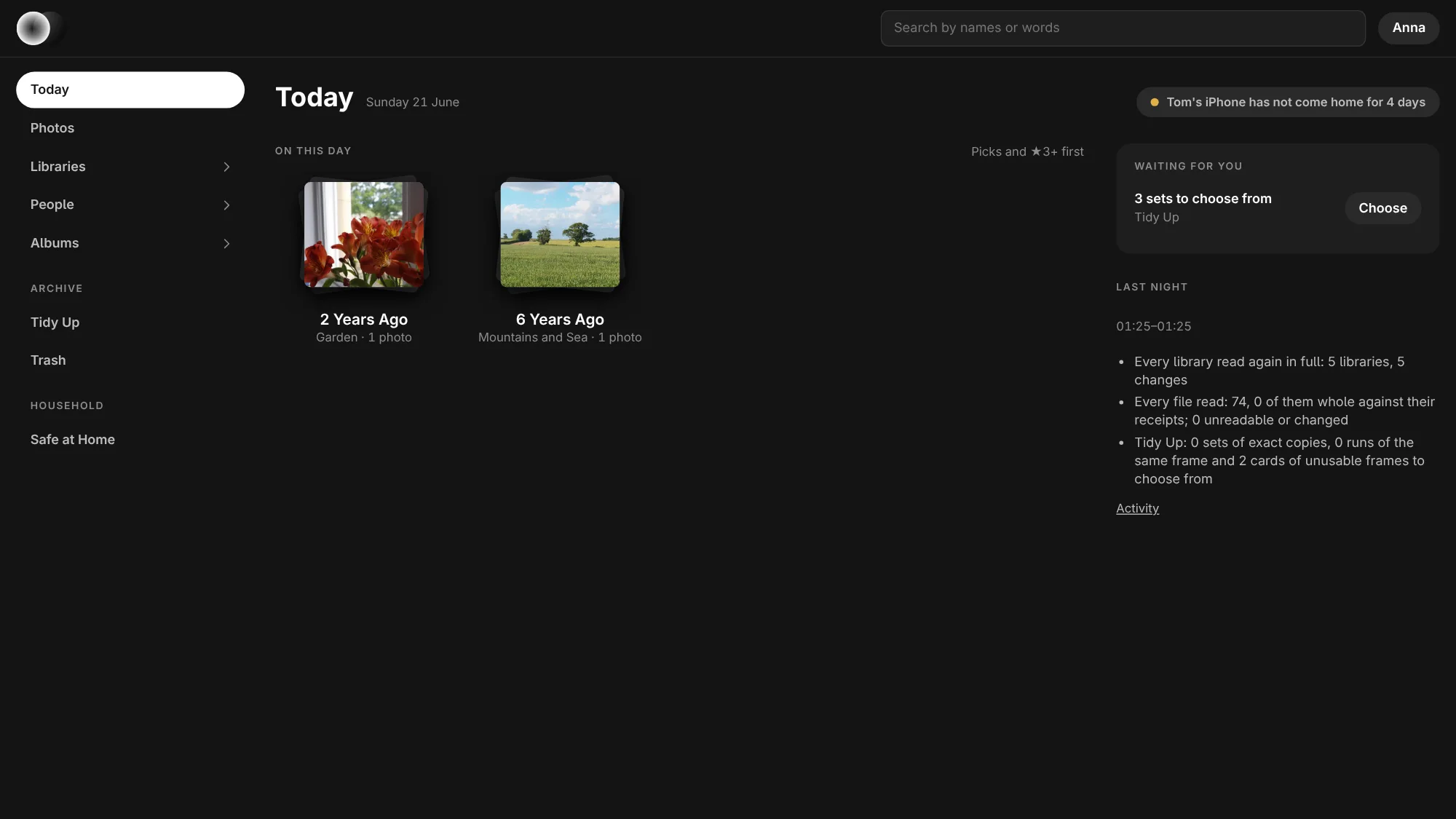
Today, first in the list, is where Numa Home opens. On This Day shows what was taken on this day in earlier years, a stack of prints per year with picks and photographs with three stars or more in front; a click shows them. Just Arrived shows what came home in the last two weeks, a row per library, with Open. Waiting for You counts what needs a person (sets in Tidy Up, faces to name, new folders to take in), each with its button, and Last Night the night's first lines. At the top right, Safe at Home's one line: what needs a person, or that everything is home. A part with nothing in it is left out.
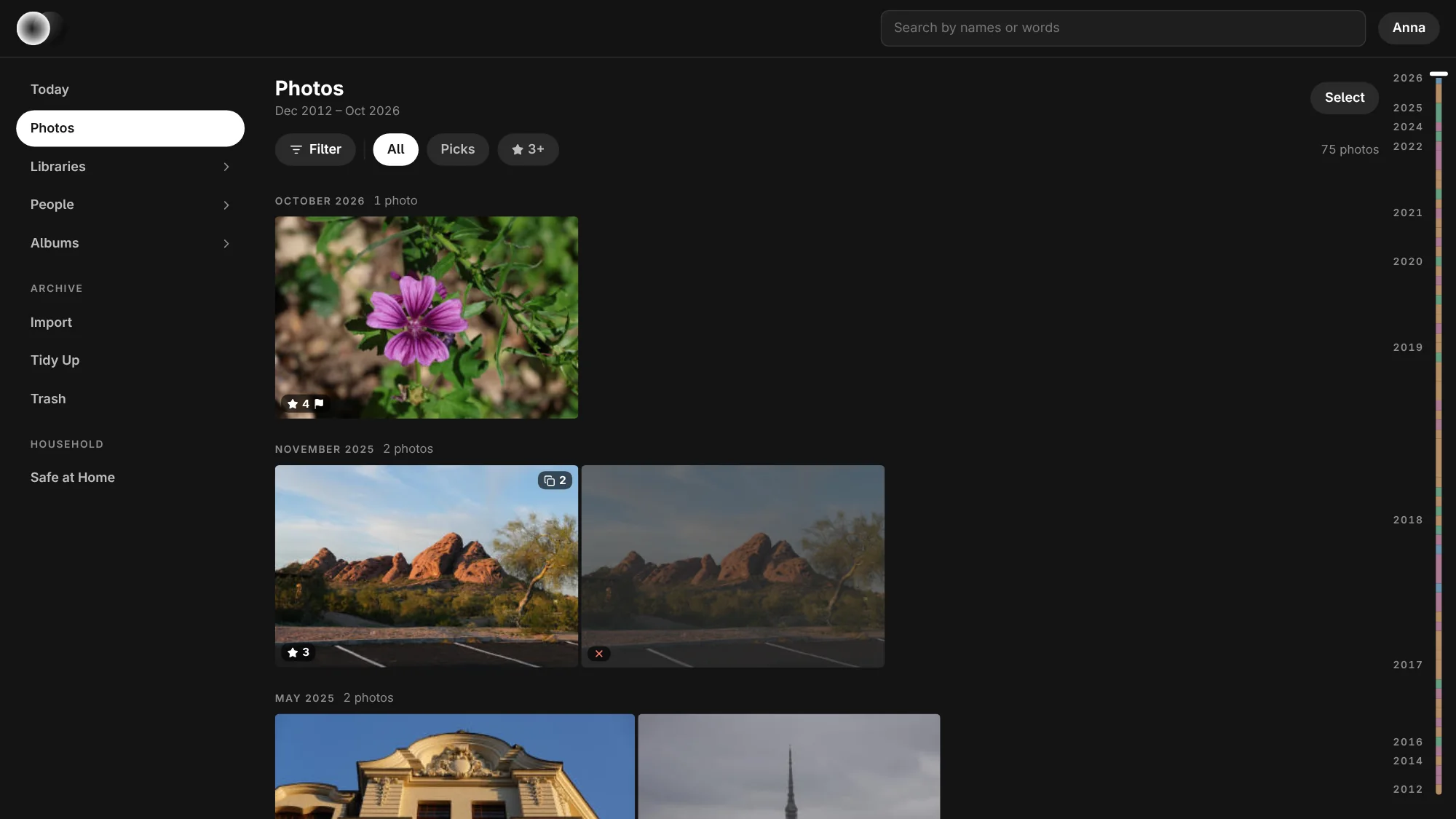
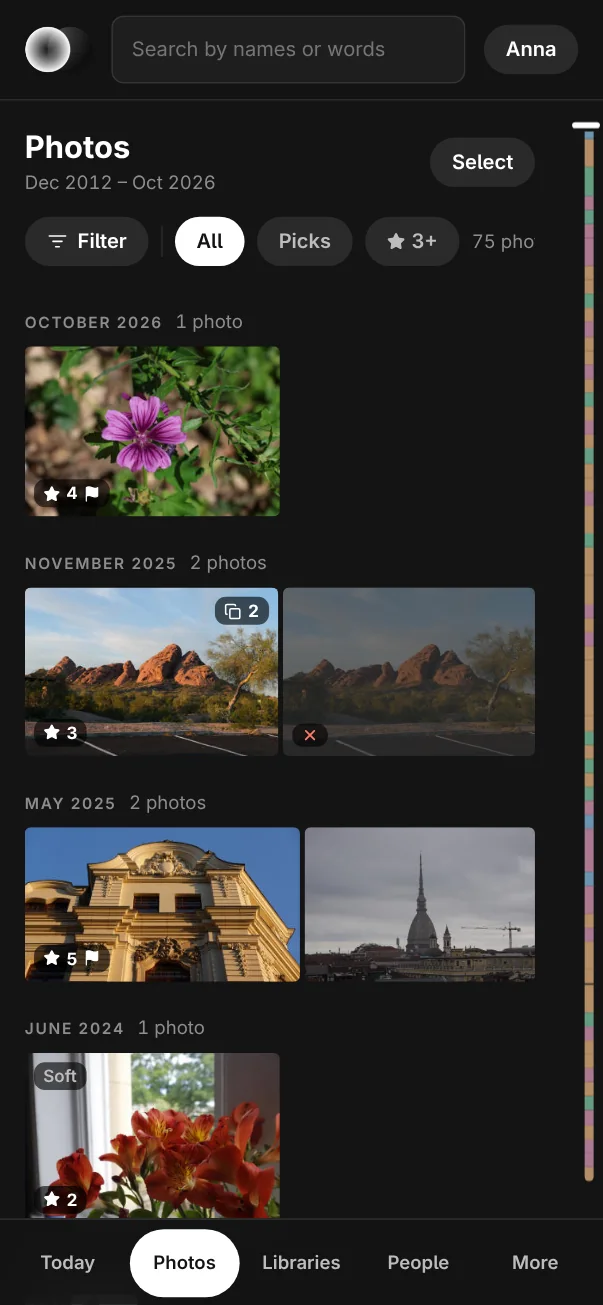
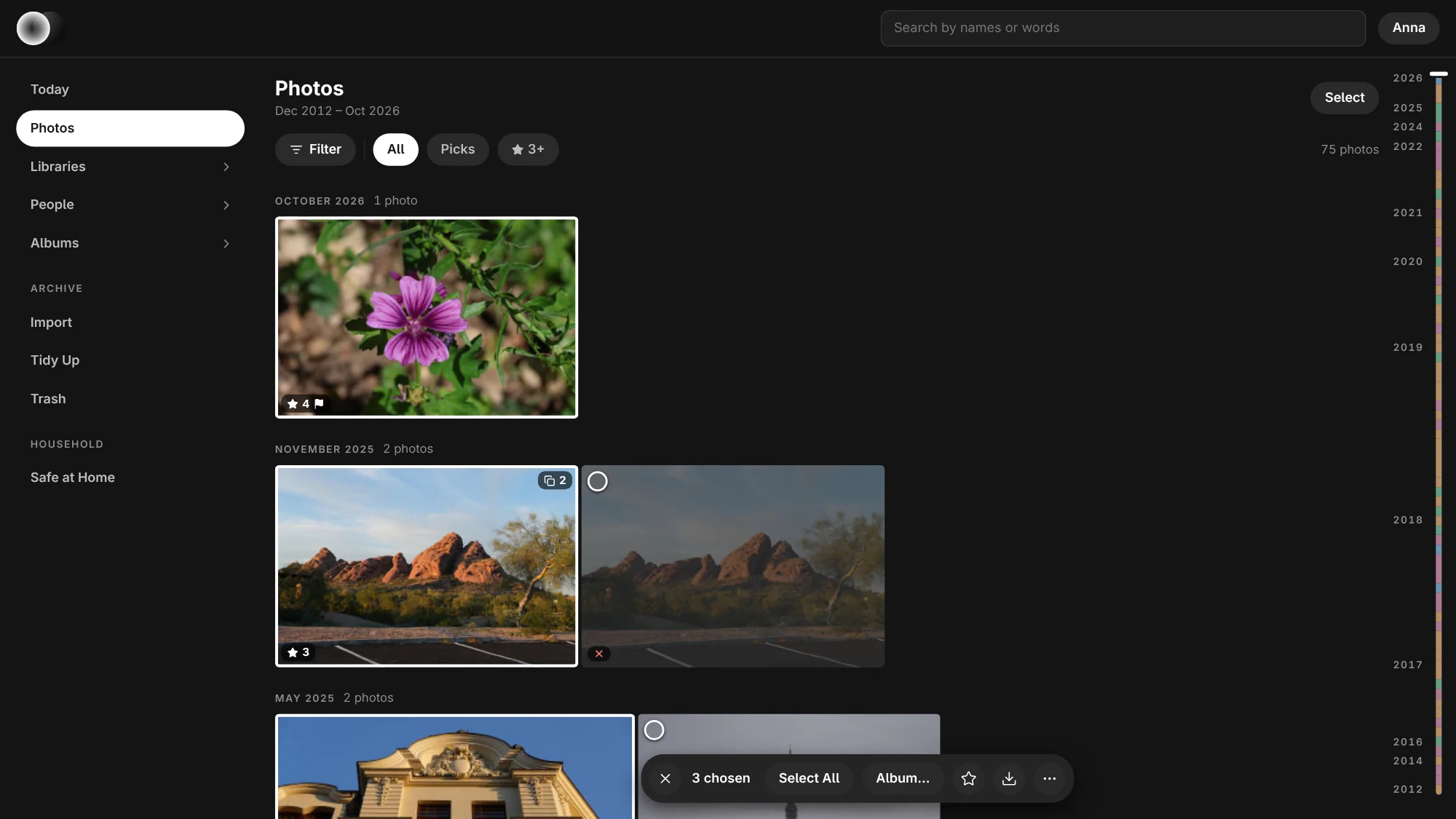
- Photos: every photograph by month, the newest day on top, and within a day from the first frame to the last, so a shoot reads forward. Under the title one row filters: All, Picks and ★ 3+ always, then what else you chose, each with its ×, and how many photographs are left. At its end on a wider screen, Photo Size makes the photographs smaller or larger, as in Numa; the browser remembers it, and a double-click puts it back. Before it, Sort By orders the photographs as in Numa: Date, Name, Rating, Sharpness or Suggestion, and which way (Oldest First, A to Z, Highest First …); the browser remembers that too. Any order but the date shows the photographs in one run, not by month. Filter holds the rest: library, people, places, cameras, dates, who took it (Taken By), the flag, the stars and Things Numa Saw, each choice with how many it keeps. Each photograph wears its marks as in Numa: its stars and the flag when picked at the bottom left, a cross and dimmed when rejected, a dot when edited, and a burst's count at the top right. With a mouse over a photograph, five stars show at its foot: click one to give that many, the same again takes them off. What Numa noticed, such as a soft frame, is said only on the photograph itself. The bar on the right is the scrubber: the years down it, every month as long as it has photographs, each library in its own quiet tint, so a trip is found at a glance. Hover or drag over it for the month and its count; let go and you are there. On a phone it is a thin bar at the edge that shows the years while you hold it.
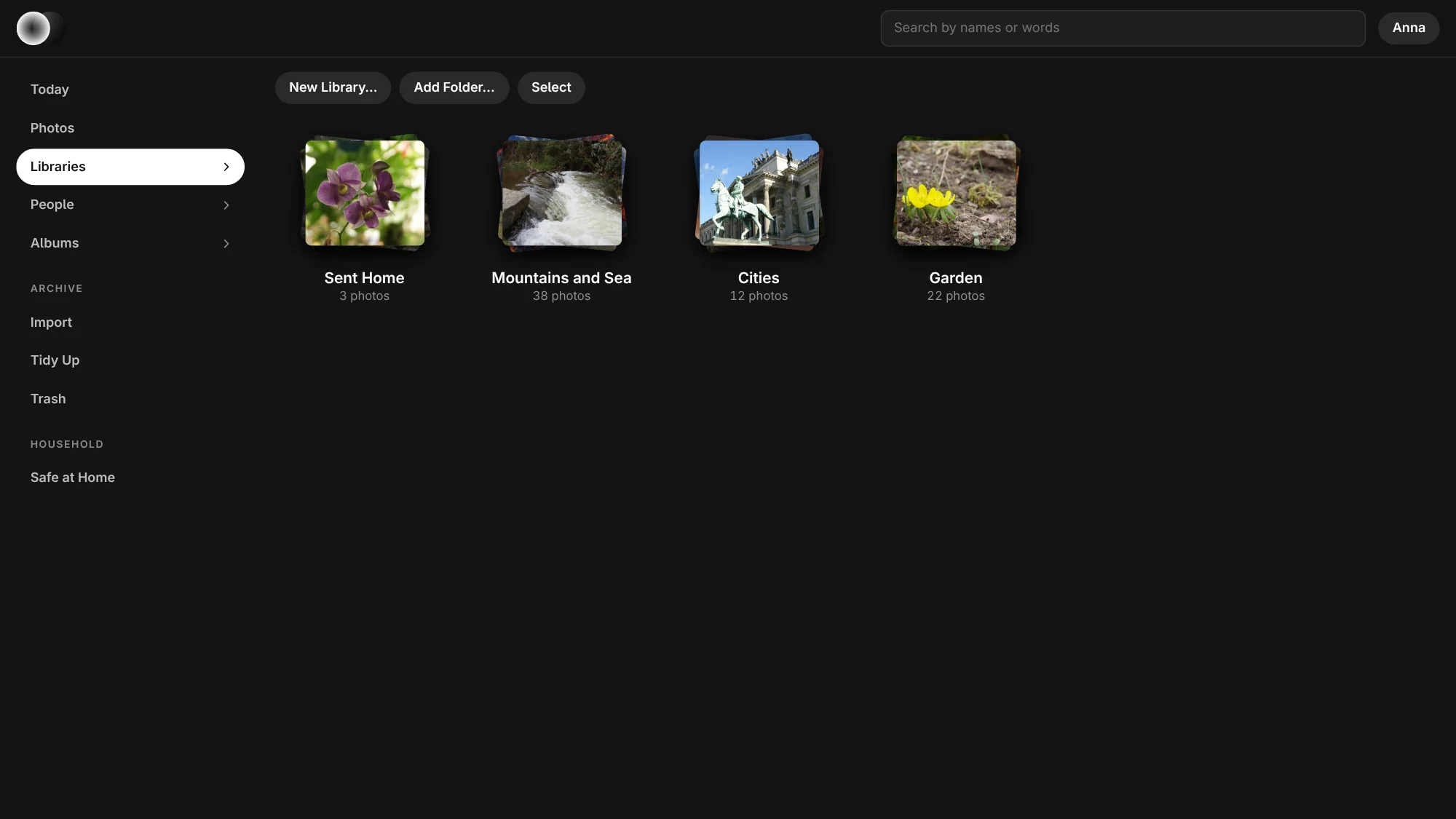
- Libraries: each library as a stack, with how many photographs it holds. A library opens as a page of its own, oldest photograph first, as a shoot was taken: its name and when they were taken, For a Book…, Tidy Up, Rename… for an admin, Select, and the way back. An album and a person open the same way; an album's ⋯ holds Rename… and Delete Album…, also under a right-click on it in the side list. Deleting takes the album only, never its photographs.
- People: the people named in Numa or here. Faces nobody has named yet are grouped, to name them as in People.
- Albums, and the search field at the top.
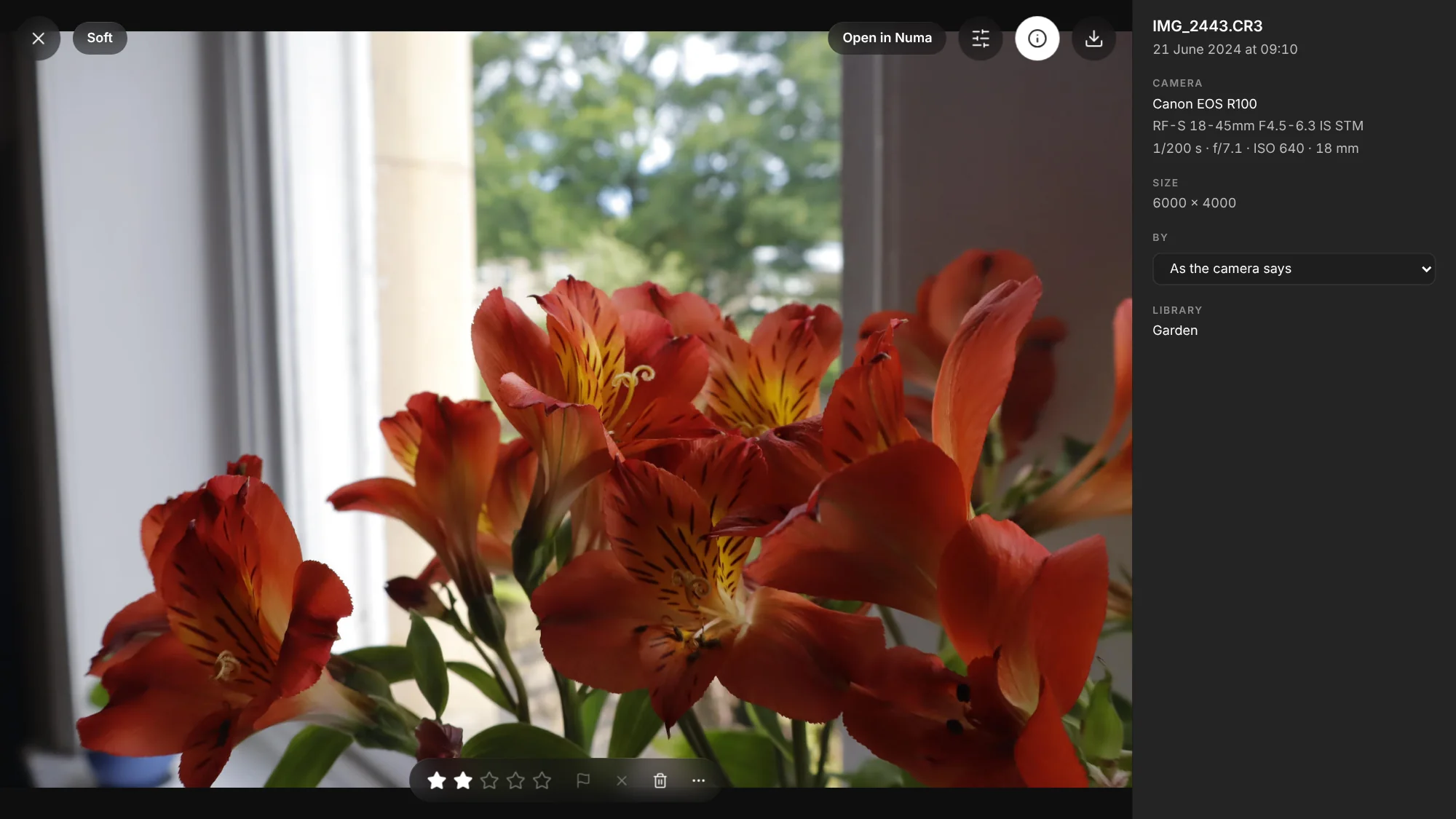
A photograph opens large, with your edits on it. Double-click or double-tap for 1:1 where you clicked; the wheel or a pinch zooms, dragging pans. ← → or a swipe moves, 0–5 give stars, P picks and X rejects and both go on to the next photograph — on one that already has that mark they take it off and stay — U clears, Delete (⌫ on a Mac) moves it to the Trash, I opens the info, and Esc or ✕ closes it, back where you were on the page. The same are in the bar at the photograph's foot: the stars, the flag and the cross (white when set; again for none), the bin, and ⋯ with Album… and the rest of what the bar for chosen photographs has. A photograph moved to the Trash goes to its library's Trash and the next one takes its place, with the bar and the keys. What happened shows at the foot for a moment (“Rated 4 stars”, “Turned”), with Undo. When Numa finds the photograph soft, a pill at the top left says so — Soft, Soft face, or Soft · slow shutter — as in Numa; a sharp one shows nothing, and the grid never does. For a raw, ⋯ also has Delete Raw, Keep JPEG…, for old photographs worth keeping but not as raws, here and for chosen photographs: the raw goes to the trash and a JPEG takes its place with its stars, flag and albums — the camera's own where it wrote one and nothing was edited, otherwise one Numa Home develops at full size with the edits. A whole library of them is done in the background; the page shows the JPEGs when the last is done. The download button asks what you need, as Export in the apps does: the Original as the camera wrote it, a JPEG with your edits at full size (JPEG, Full Size), or a smaller one to send on (JPEG, 2048 px on the long edge).
The sliders button (E) opens Edit beside the photograph, for a quick fix without Numa. Auto (A) does what Auto does in Numa: it lights the photograph by its subject and levels it where the horizon or the verticals are clear, and then offers up to three crops, numbered, with why under them. Straighten only levels it, with one tap, and leaves the light alone (“Straightened 1.3°”, with Undo; “Already level” or “No horizon found” when there is nothing to do). It finds a horizon over water too, with the scene model Numa Home fetches once after the update (61 MB); As Shot goes back to the frame from before. Crop (C) shows the whole frame with the crop over it: drag a corner, an edge or the middle, choose Original, Free, 1:1, 5:4, 3:2 or 16:9 (again for portrait or landscape), and Straighten up to 15° either way; the crop stays on the photograph. Done (Enter) keeps it, Cancel (Esc) leaves it as it was. The turn button turns it a quarter, the crop with it, and says so (“Turned”, with Undo). Exposure, Contrast, Highlights, Shadows, Whites, Blacks and Vibrance show their change at once and Numa Home's render of it a moment later; a double-click puts one back to nought. Revert puts back how the photograph was when you opened Edit. The edits are kept with the photograph, so Numa opens it with them.
Searching
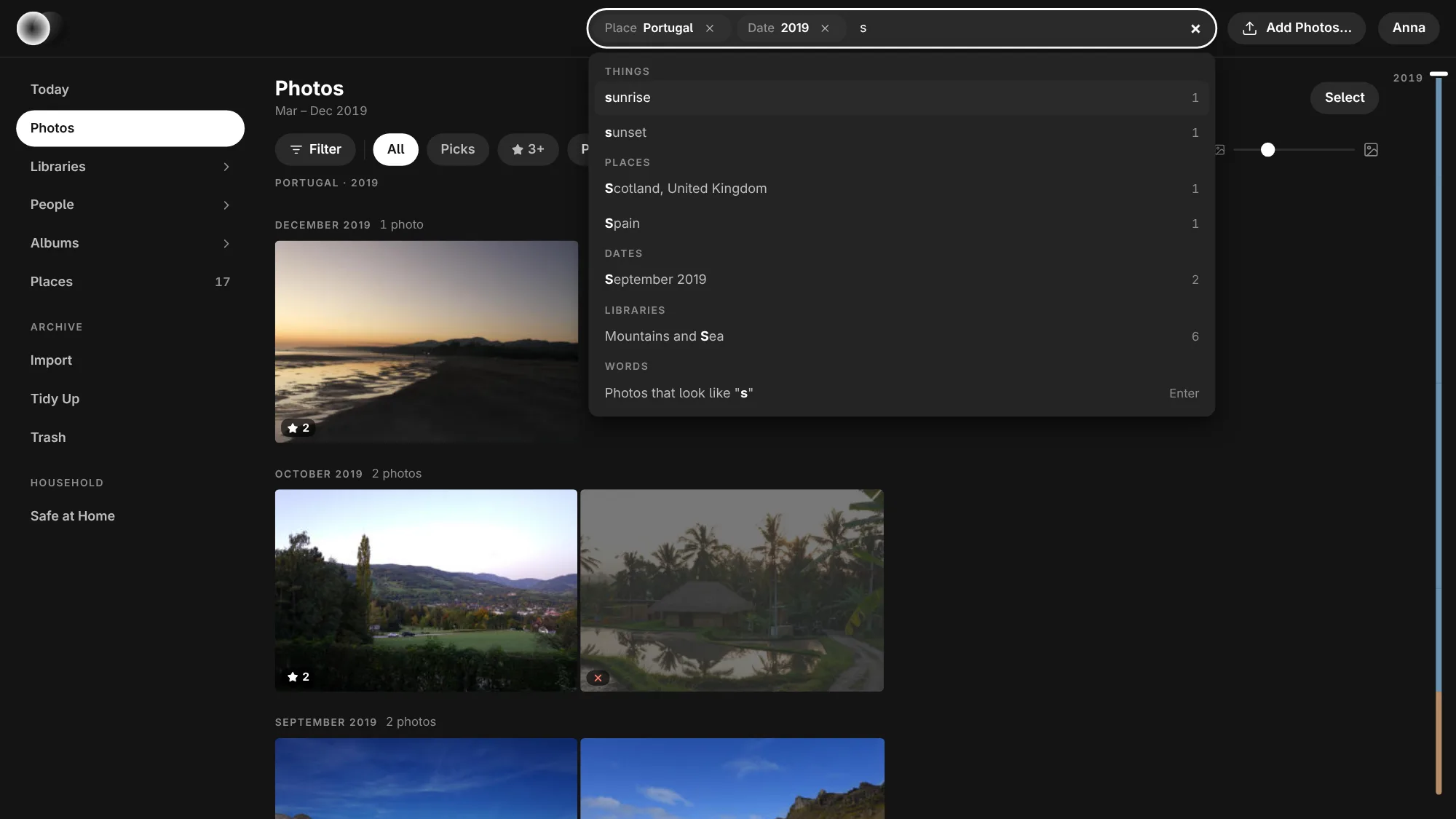
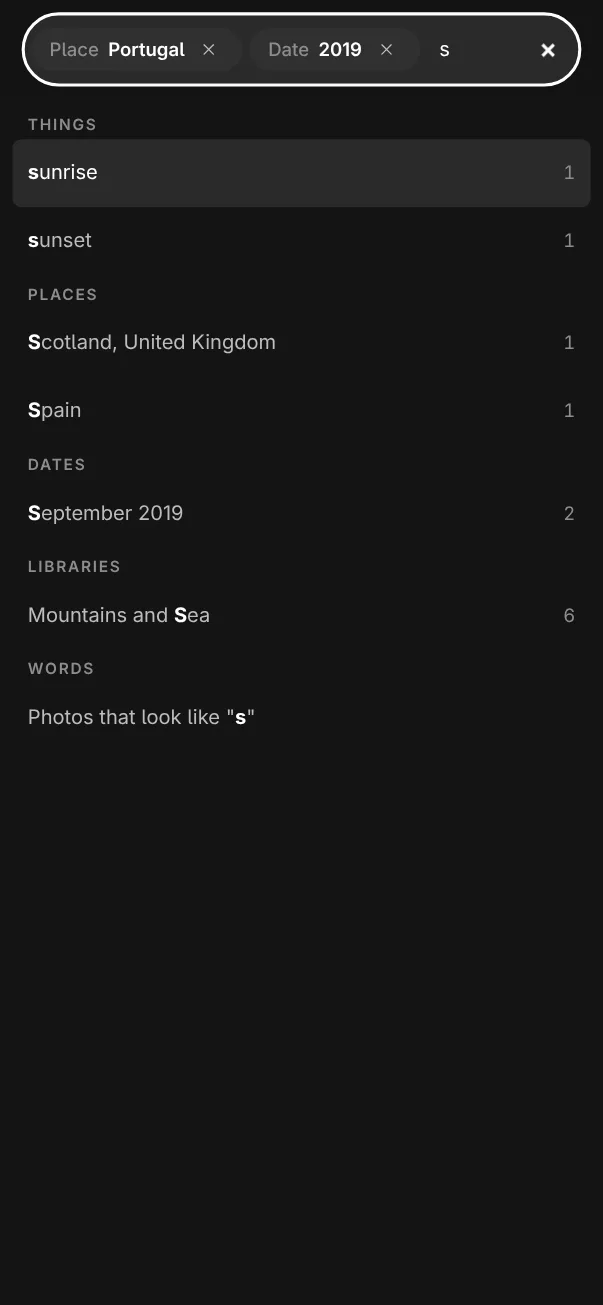
The field at the top holds what you search for. Type a letter or two and a list opens under it with what they start: Things, Places (countries, regions and towns), People, Cameras, Dates and Libraries, three of each at most, the letters you typed in bold and how many photographs each one keeps, the most first. Capitals and accents do not matter: “sao” finds São Paulo. A date is a year (2025), a month (2025-03, March 2025 or mar 2025) or a day (2025-03-14), offered only when photographs were taken then.
Choose one and it goes into the field as a token, its kind in grey before it (Person, Place, Thing, Camera, Date, Library) and a ✕ to take it off; what you typed is cleared for the next. Tokens search together: Portugal and 2019 are the photographs taken in Portugal in 2019. One of each kind: a second place takes the first one's place. A token is the same as its chip under Filter: choose a person, place, thing, camera, date or library in either and it shows in both, and its ✕ in either takes it off. The last row, Photos that look like "…", searches the words themselves within the tokens: names narrow, the rest is search in words.
↑ ↓ move through the list, Enter chooses the one marked or, with none marked, searches the words, Esc closes the list, and Backspace in an empty field takes the last token off. Under how many photographs there are stands what you searched for, “Portugal · 2019”, with the words in quotes. On a phone the field takes the whole bar while you type, and the list the screen under it.
Places
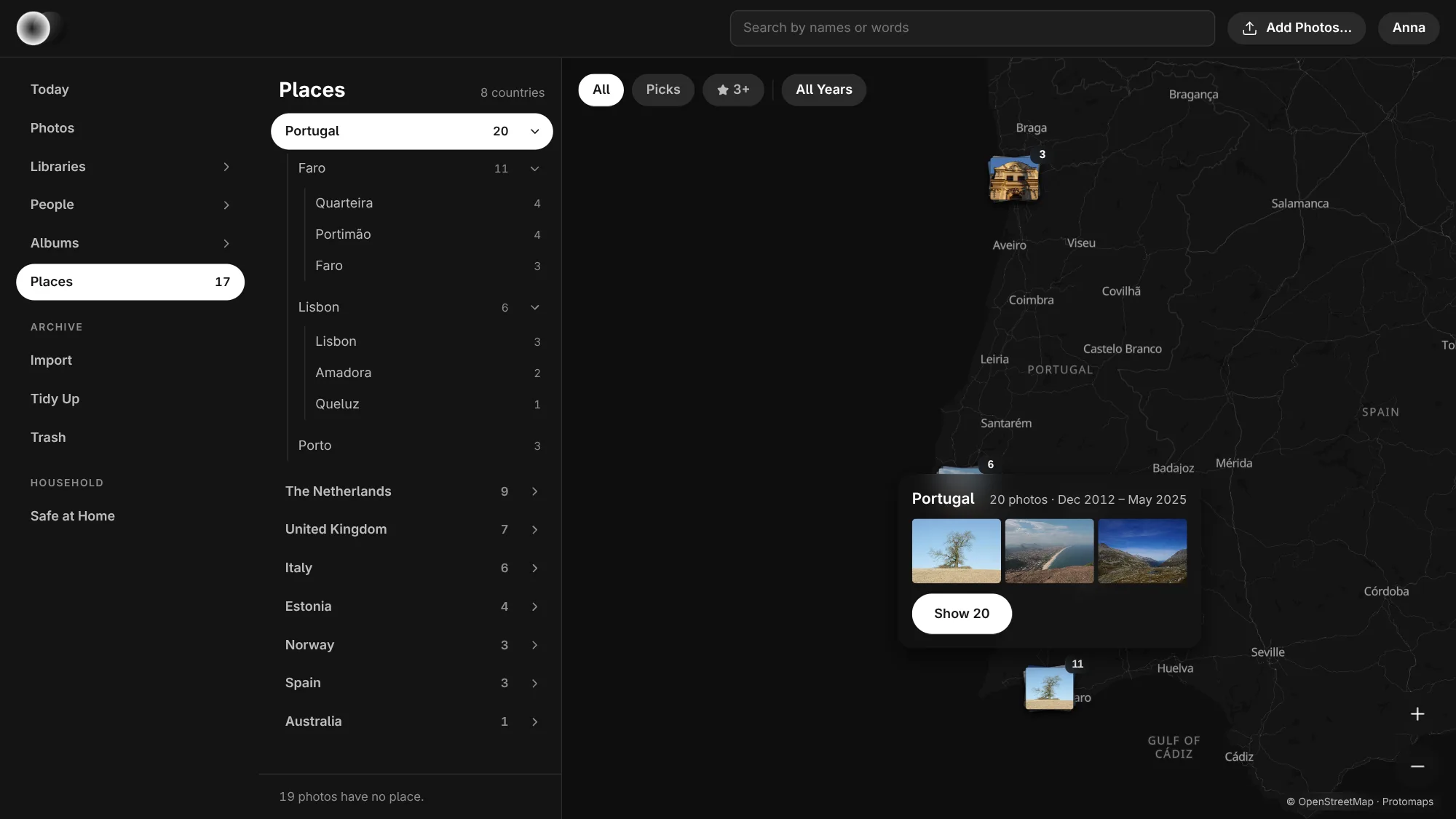
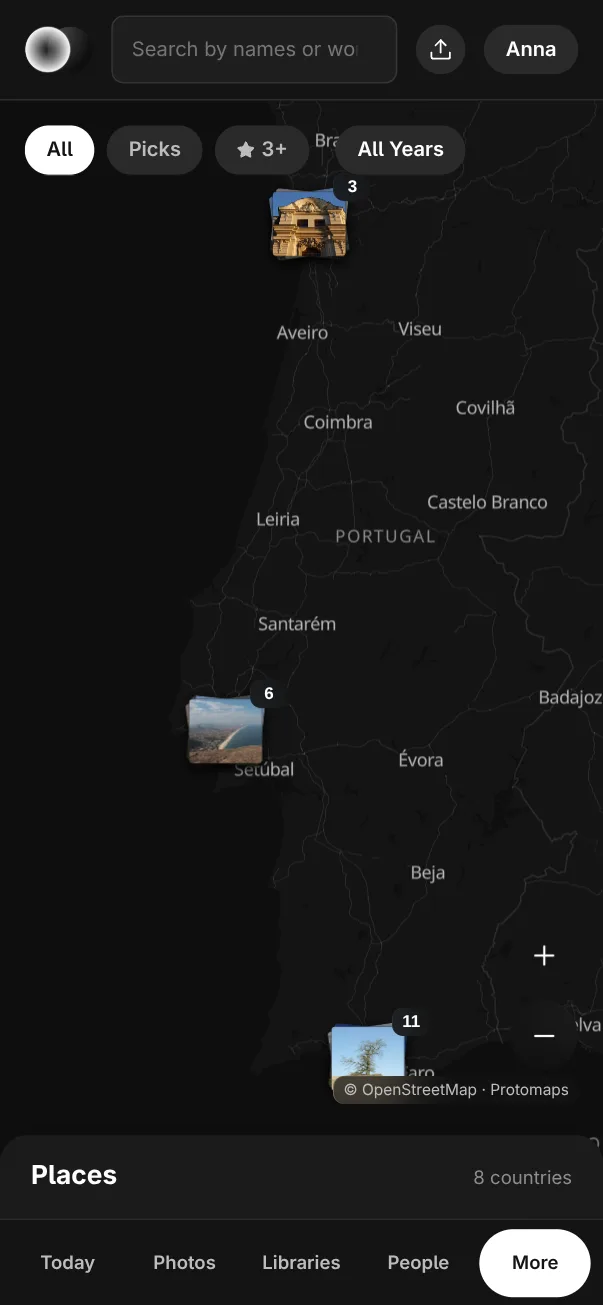
Places, in the list with how many towns your photographs were taken in, shows where they were taken. On the left are the countries, each with how many photographs; the arrow folds one open to its regions and towns. Under them, how many photographs have no place: a camera without GPS, or no phone beside it. On the right is the map, each place a small stack of its photographs with its count: the countries when you see the world, their regions and towns as you zoom in (scroll, pinch, or + and −), and places that would cover each other as one stack, which zooms in when you click it. Click a place on the map or in the list for its name, how many photographs and when they were taken, three of them, and Show with their number, which opens them as a page of photographs. All, Picks, ★ 3+ and the year above the map narrow it as they narrow Photos. On a phone, Places is under More; the map fills the screen and the list is a sheet at its foot, opened with a tap on Places.
The map is kept on your NAS. Numa Home fetches it once: the whole world in outline (45 MB) on the first start, then the detail around where your photographs were taken, about 4 MB a town, and later for new places at night or after you open Places. Places shows how far it is while it comes, and Try Again if it stopped; Safe at Home › Activity shows it too. After that, looking at it asks nothing of any server outside your house. The map's data is © OpenStreetMap's contributors, as Protomaps makes it.
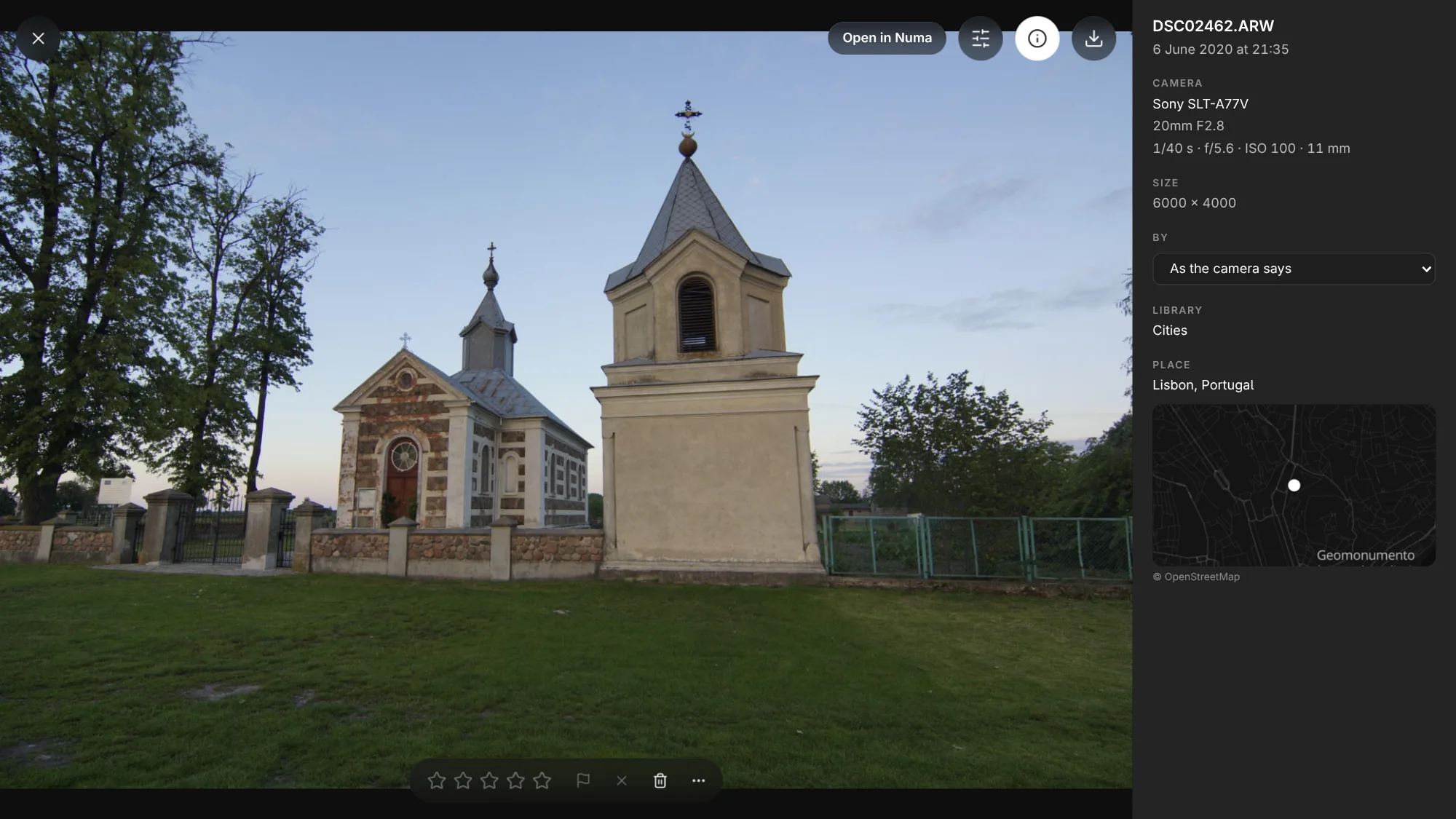
A photograph's info (I) says where it was taken, with a small map of it; click the map to see the place in Places.
Choosing photographs
Choose photographs as in Numa: Ctrl-click (⌘ on a Mac) to start, then a click adds one and Shift a run; Ctrl A, or Select All in the bar, chooses all and Esc lets go. With photographs chosen, 0–5 give them stars, P picks, X rejects and U clears the flag, as in the loupe. Drag with the mouse across the photographs to choose what the box covers (with Ctrl or Shift it adds to what was chosen); the page scrolls along at the top and the foot of the window. On a phone, hold a finger on a photograph, or tap Select first. A bar for them gives Album…, the star for stars and the flag, and the download button, with the same three choices, as one zip. To start an album from nothing, use New Album… on the Albums page or under the albums in the side list: give it a name, choose its photographs, and Add to puts them in and opens it. Its ⋯ holds Taken By…, For a Book…, Move… (to another library or folder, with their stars, flags, edits and albums), Remove from Library… and Delete from Disk… (Delete too). A right-click on a photograph opens the same choices in one menu, with Open for a single one; a photograph that was not chosen yet is chosen alone. After a change the page stays where it was.
- Remove from Library leaves the file where it is and leaves it out from then on.
- Move to Trash moves the file into the library's Trash. Trash shows what is there and how many days each has left; Put Back returns it where it was, with what it carried. After 30 days it is gone.
Stars, flags, albums, By and downloads are anyone's. Moving, removing and deleting are for an admin, for an account in its own Sent Home, and for an account an admin has ticked Can delete and move photographs for on the Accounts tab; without it the bin and those choices are not shown.
For a photo book
Pick the photographs of a trip (P, or Flag › Pick in the bar), then open its library or album and tap For a Book… beside its name. It takes the trip's picks; For a Book… in the bar for chosen photographs takes those instead. The dialog shows the chapters — by album where you made albums, by day otherwise — to leave any out, and the page size of the photo book, remembered for next time. Make the Book downloads <library> Book.zip straight away and fills it as Numa Home develops each photograph with your edits, sized for the page at 300 ppi. Unzip it and drop the folders into the book maker: numbered chapters with numbered photographs, in the order they happened, so the book is half laid out. It is the same as For a Book in Numa, and your originals are never changed.
Managing libraries
The library with the newest photograph comes first, on the Libraries page and in the side list: put a photograph from yesterday into an old trip and that trip goes to the top. Empty libraries come last.
On the Libraries page an admin has New Library…, a new folder in /photos with a name, in a year folder or not; and Add Folder…, which takes in a folder put into /photos since Numa Home last looked, or one removed from Numa Home.
Choose libraries as you choose photographs: Ctrl-click (⌘ on a Mac) to start, then a click adds one and Shift a run; on a phone, tap Select first. The bar for them gives Open and Rename… for one library, and under its ⋯:
- Combine…: the photographs move into the library you choose, each in the folder it had, with their stars, flags, edits and albums, and the other files in the folders come along. The emptied folders go to the trash.
- Remove from Numa Home…: Numa Home leaves the library out; its folder stays in
/photos, untouched. Add Folder… takes it in again, with all that was done in it. - Move to Trash…: the folder goes into the Trash, photographs, edits and all. Trash lists it under Libraries in the Trash; Put Back returns it where it was. After 30 days it is gone.
Renaming renames the library's folder where it is. Where its photographs carry GPS (a camera paired with your phone, or the phone itself), Rename… offers names from where they were taken: the town or towns, the region and the country, such as Tokyo & Kyoto or Japan. Where the library has none, the household's photographs of the same hours stand in, and the dialog says so. The place names are GeoNames' (CC BY 4.0), inside Numa Home: nothing is looked up online. A Sent Home library belongs to its account and is not chosen; it shows once something has been sent home.
A card in the NAS
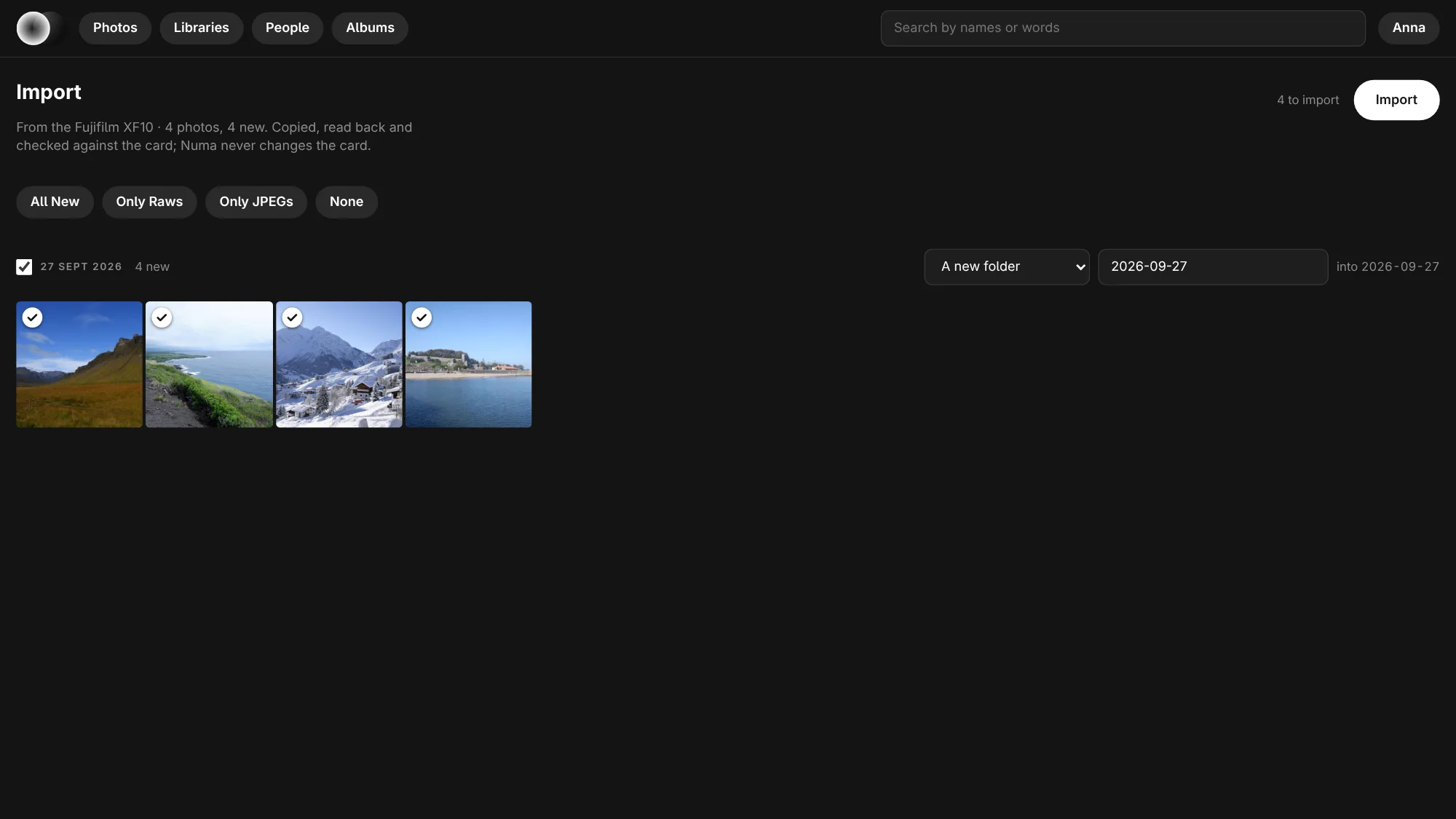
Add the folder where the host mounts SD cards and USB drives as /cards, read only and with rslave propagation, as the compose file on Numa Home's page shows. Put a card with a DCIM folder in, and every page has a bar with the camera, how many new photographs and over how many days, and Import….
Import is Numa's own import. The card's previews are shown by shoot, the new ones ticked; ones already in a library are dimmed and stay on the card. Tick photographs one by one (Shift for a run) or by shoot, or use All New, Only Raws or Only JPEGs. Each shoot goes into the library its dates fall in, or into a new folder you name; where the photographs on the card carry GPS, that folder is named after where they were taken instead of their dates, with the other names beside it to choose from. Without GPS of their own, the household's photographs taken within an hour of them lend theirs: a phone in your pocket names the camera's trip. Without any GPS the dates stay: Numa Home does not guess a place from the pictures. Every file is copied, read back and checked against the card, the camera's stars come along and a receipt is written; then the bar says the card can be ejected. Numa Home never changes the card.
Safe at Home
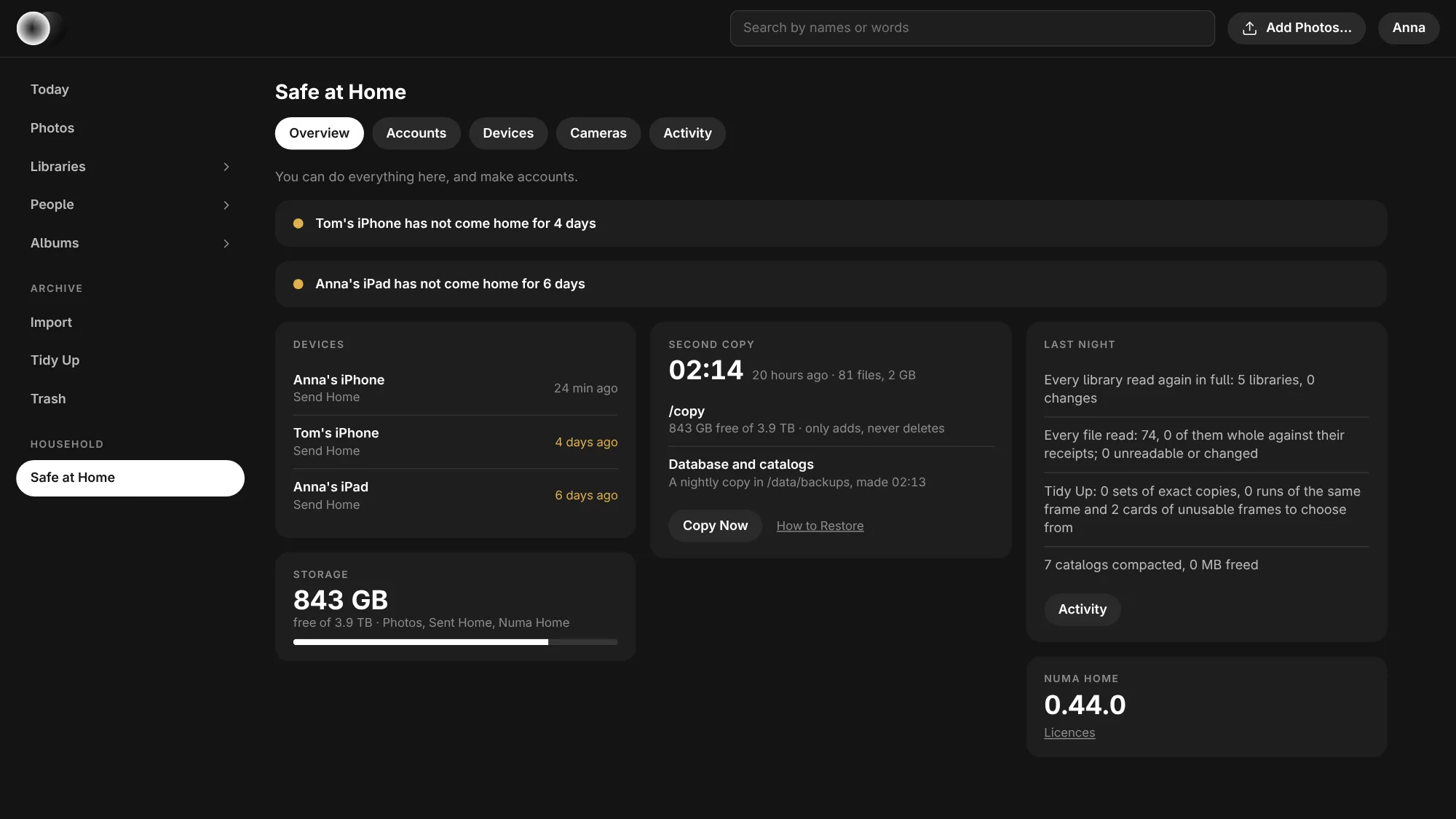
Safe at Home, under Household in the list of places, says whether everything that should come home did, and whether there is room for it. Devices lists each phone, tablet or computer that sends home, with when it last did, and each camera whose card was imported in the NAS, with how many photographs. A device that sent in the last month but not for three days is marked in amber, and a line at the top says so; so does a disk with less than a tenth free. Storage shows each disk once, with how much is free and which folders are on it. Second Copy says when the second copy was last made whole, how many files it holds and how big they are, where it is and how much room is left there, and how many nightly copies of the database there are; an admin has Copy Now, and How to Restore opens Restoring. Then last night's report and the version of Numa Home. Everyone sees their own devices; an admin sees everyone's. One line at the top says what you may do and who does the rest, as "You can add, rate and edit photographs. Moving and deleting: Anna."
Its tabs, under the title: Overview, Accounts (for an admin), Devices, Cameras (for an admin) and Activity.
Activity and Pause
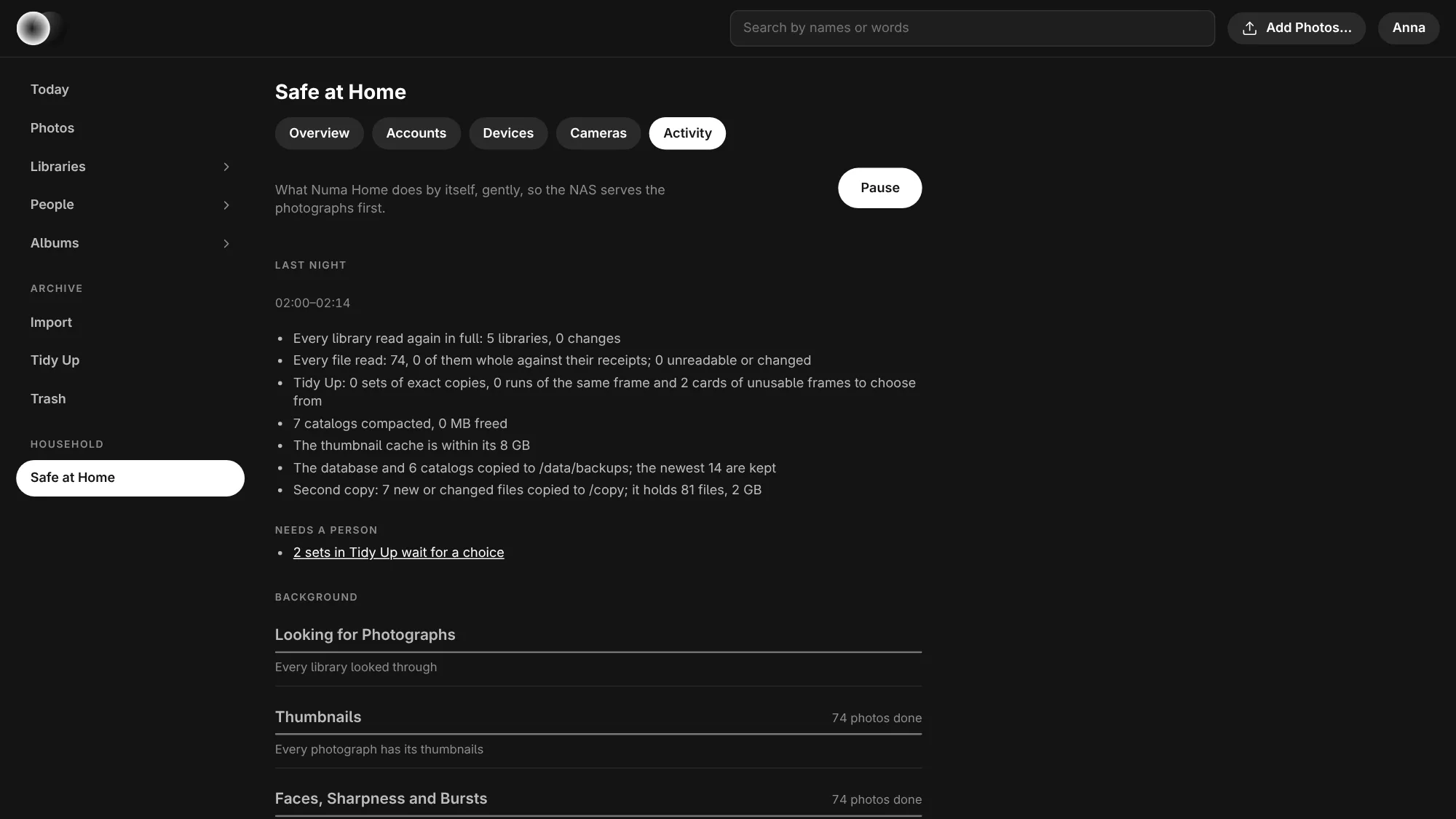
While Numa Home works in the background, a ring and a word (Scanning, Thumbnails, Faces, Words, Importing…) sit in the bar at the top; they open Activity, a tab of Safe at Home. It lists each job in plain words: for thumbnails, faces, search in words and things, how many photographs are done and how many are still to do across the whole archive; in which library it works now and about how long is left, and the models still coming. An admin has Pause and Resume: paused, nothing new is started, what is in hand finishes, and it stays paused after a restart.
The night
Once a night, between 01:00 and 06:00 in the server's time zone, Numa Home tidies up: it tries again what failed by day, reads every library again in full, checks that every file still reads (against its import receipt where there is one), empties what has been in the trash for 30 days, gets Tidy Up ready, compacts the catalogs, keeps the thumbnail cache within its size and last makes the second copy. By day it does only what is needed. Last Night, first on the Activity page, says what was done and what needs a person, each with a link. Pause holds the night too.
The second copy
Every night Numa Home copies its database and every library's catalog (the stars, flags, edits, albums, names and accounts) into backups in your /data folder, a folder for each night, and keeps the last 14. Each copy is checked once it is made; a copy that failed is not kept, the line at the top of Safe at Home says so, and the last good one stays the newest.
The photographs themselves need a second disk: a USB drive in the NAS, or a second volume. Give it to Numa Home as /copy: in the compose file, add a line under volumes with the folder where your NAS shows that drive on the left, for instance - /mnt/usb-backup:/copy, and start the project again. Then every night Numa Home copies into it whatever is new or changed in your photos folder (photos), in Sent Home (sent) and the newest copies of the database (databases). It never deletes anything there: a photograph you delete at home stays in the copy. A first copy of a large archive takes more than one night; it goes on by day once the other work is done, and picks up where it stopped. If the drive has not enough room, Numa Home copies nothing and says so.
Second Copy on Safe at Home says when it was last made whole. When that has not happened for two nights while /copy is there, a line at the top says so, and why. An admin can start a copy at once with Copy Now; Activity shows how far it is.
Restoring
There is no button for this yet: you put the files back yourself, with the NAS's file manager or in an SSH session. Stop Numa Home first (stop its project in the NAS's Docker app, or docker compose stop), and start it again afterwards. The .numa folders are hidden: let the file manager show hidden files.
A damaged catalog, or a change to undo. In your /data folder, open backups and the night to go back to (the folders are named by date). Copy back the one you need:
server.db(accounts, devices, what was sent home, Tidy Up's choices) into the/datafolder itself;numa/catalog.dbintonumain the/datafolder;photos/<library>/catalog.dbinto the.numafolder of that library in your photos folder, andsent/<name>/catalog.dbinto the.numafolder of that person's folder in Sent Home.
Delete the files ending in -wal and -shm beside the one you replace (catalog.db-wal, catalog.db-shm): they belong to the damaged one. What was changed after that night is lost; the photographs are not in these copies and are not touched.
A photograph deleted by mistake, and gone from the Trash: copy it from the second disk's photos (or sent) folder back to the same place in your photos folder. Numa Home finds it at its next look round, as a new photograph; its stars and edits are in the catalog copies above.
After a disk died. With the new disk in place and Numa Home stopped:
- Copy the second disk's
photosfolder into your photos folder and itssentfolder into Sent Home. In an SSH session,rsync -a /mnt/usb-backup/photos/ /path/to/photos/does it and can be run again if it stops. - From the second disk's
databasesfolder, put the catalogs back as above:server.dbandnuma/catalog.dbinto/data, eachphotos/<library>/catalog.dbinto that library's.numafolder, eachsent/<name>/catalog.dblikewise. - Start Numa Home. It reads every library again and makes the thumbnails, faces and words anew in the background; the models download again.
Tidy Up
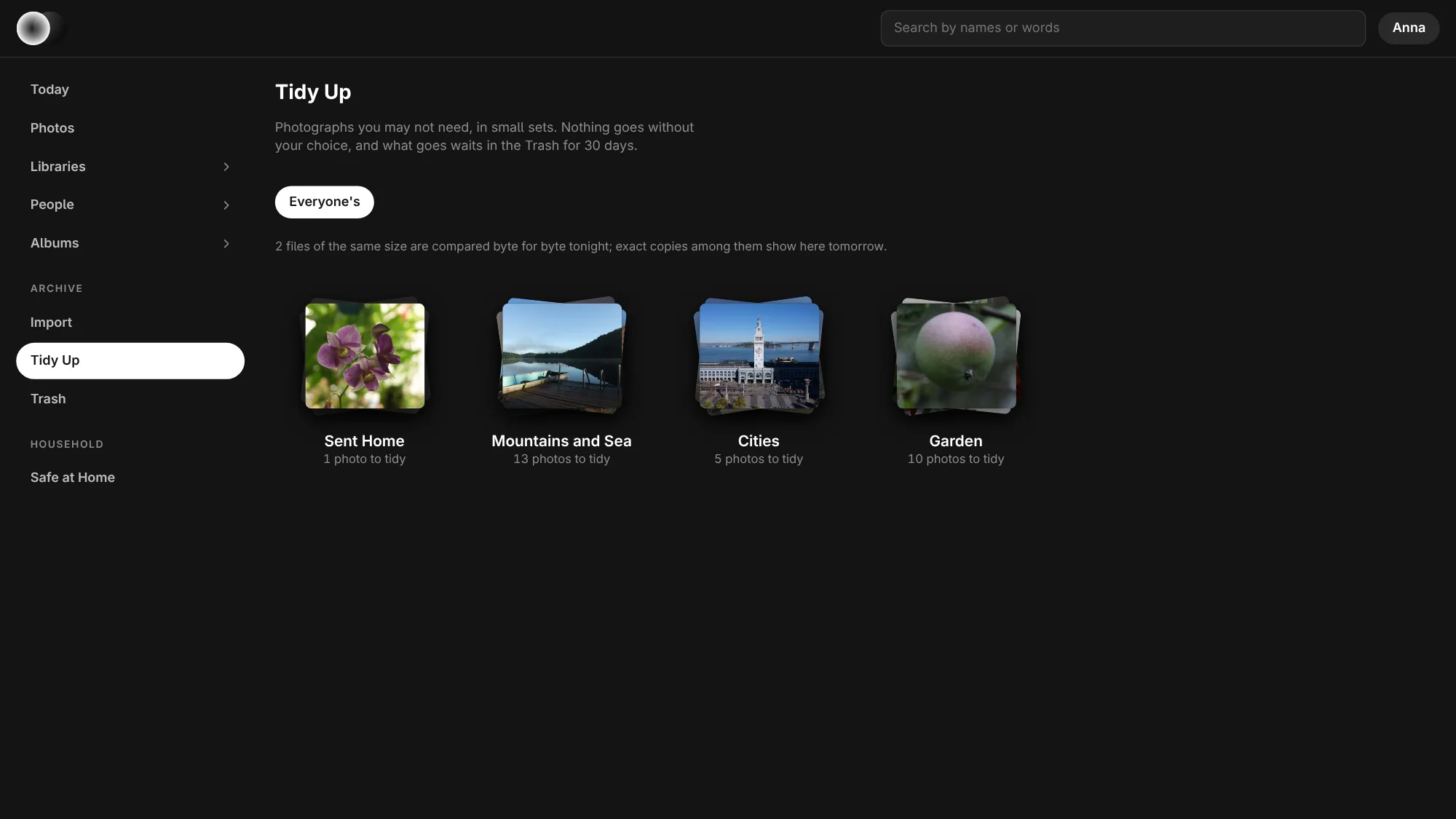
Tidy Up, in the list of places, first shows each library with photographs you may not need, and how many; choose one, or Tidy Up beside For a Book… on a library's page, to see them in small sets, with Numa's pick marked. It starts with your own photographs, the ones you took; Everyone's shows the household's too:
- Exact copies: the same file twice, in one library or across them. A raw and its JPEG are never copies.
- The same frame: runs of three or more, Numa's pick the one with eyes open and the best of the run, as in culling.
- Unusable: blank frames, ones mostly blown out, or softer than nearly every other in their library. Never one with stars, a pick or an edit.
- Who took these?, under Everyone's: photographs nobody is known to have taken, a set per camera, to say whose they are.
Keep Best keeps Numa's pick, Keep All keeps them all and is never asked again, or tap the frames to keep by hand. What goes waits in the Trash for 30 days. On a phone the sets scroll sideways.
By and Cameras
By says who took a photograph: the account that sent it home; otherwise the account its camera is linked to; otherwise the person its camera's Artist field names. An admin links cameras on the Cameras tab of Safe at Home: every camera in the archive with its count, and a one-click link where the Artist names an account. By in a photograph's info, or Taken By… for a selection, says it by hand, and that wins.
Send Home
First sign in: in Numa's Preferences, under Numa Home, fill in the Address (<host> is enough for http://<host>:8283), your Name and Password, and Sign In. Numa keeps a token, never the password.
Then the export dialog has a Destination: Folder or Numa Home, and Send:
- As JPEG: the export as you set it up, as a finished JPEG.
- Original and Edits: the file as the camera wrote it (of a RAW+JPEG, the raw) and your edit. Numa Home develops it, and the edit can be changed later.
Export becomes Send Home. The same photograph sent twice is kept once, and the toast says so (“3 photographs sent home, one was there already”). What you send goes into your own library on Numa Home.
Numa Home libraries
A library on Numa Home can be brought into Numa: the originals on your computer, edited like any other library, and kept in step with Home both ways. In the import dialog, choose Numa Home under From, pick the Library, tick the months to bring and import them. They come into Pictures/Numa Home/<library>, with their edits, stars and flags. From then on new photographs and changed edits and marks travel both ways; the later change wins. Deleting never travels: what you delete on one side stays on the other.
Keeping an import at Home
When you are signed in, the import dialog's Copies group has Keep at Numa Home. The library the import goes into is sent home, original and edits, into a new library of the same name there, and is a Numa Home library from then on.
When it is kept in step is in Preferences, under Numa Home: Update Kept Libraries At Night (01:00 to 06:00 by your computer's clock, the default) or While Open, every few minutes; and Also on Metered Connections, off by default, so never over a phone's hotspot unless you say so. Numa has to be open for it, and a round cut short by the morning, the network or quitting goes on next time. Update Now, in a Numa Home library's menu, goes at once.
On Linux, Numa Home libraries have a shelf of their own on the Libraries page and come after this computer's in the side list, with a house beside each. Photos is one grid of this computer's libraries, without Numa Home's. Right-click a Numa Home library for Keep on This Computer: every original comes down, new ones too, and a computer shows before its count. Off, an original comes when it is opened. The same item is in the library's menu while it is open.
When you sign in, every library at Numa Home comes onto the shelf with its count and its stack first; the rest of the thumbnails follow, library by library. They come from Numa Home, which already has them, so nothing is decoded on your computer.
Open in Numa
A photograph in Numa Home has Open in Numa at the top. On a computer where Numa is signed in to that Numa Home, it opens the photograph in Numa's editor: from the Numa Home library it is already in, or brought into that library first, the one photograph, and kept in step from then on. A link from any other server is refused.
On the iPhone, iPad and Mac
Sign in under Settings…, in the ⋯ menu on the Libraries page: Address, Name, Password and Sign In. When it worked, Settings says Signed in as you at your server, and under it this device as Safe at Home lists it, with when it last sent something home; when it did not, a line says why.
Signed in, the Libraries page has a Numa Home part under Photos. Its first row is Today: a stack for each year of On This Day and for each library with photographs Just Arrived; a tap shows them. Then All Photos and every library you can see there, as stacks, with Albums at Numa Home after it. A library or an album shows its photographs by month, as small thumbnails, so a large archive scrolls quickly. Tap one to see it large and swipe to the next (← → on a Mac). Edit brings the original into Numa and opens it in the editor, as Open in Numa does, and your edit goes back to Numa Home. Share gives the full-size JPEG with its edits; Save Image in the share sheet puts it in Photos. Select chooses many at once: Pick, Reject, the stars and Share in the bar, and under ⋯ Clear Flag, Add to Album, Remove from Album and Move to Trash, as on Numa Home's own page. What only an admin may do says so when you try it.
Send Home is in Export, in the share sheet and in the bar of photographs chosen with Select, and on the iPhone, Settings can send its Photos library home by itself, on Wi-Fi.
To keep a library or a Photos album at Numa Home, touch and hold its stack and choose Keep at Numa Home (right-click on a Mac). It gets a library of its own name there, or goes into the one of that name you can already see. Every photograph goes with its edits, in the folder it is in, and from then on so do new photographs and every change to an edit, the stars and the flag. Nothing comes back down, and nothing is deleted at Numa Home; a photograph you delete there stays deleted. A small house under the stack says it is kept, and how many are still to go while any are. It goes on Wi-Fi while Numa is open, when you leave the editor, and at night while the device charges; never in Low Power Mode. Away from home it waits until Numa Home can be reached again, or turn on Also on Mobile Data in the same menu. Stop Keeping at Numa Home leaves what is there where it is.
From outside the house
Numa Home answers on port 8283 on your own network and does not open itself to the internet. To reach it from elsewhere, use a VPN such as Tailscale on the NAS and on your phone and computer, or your NAS's reverse proxy with https. A phone's browser then opens it as at home, and can add it to the home screen.
Behind a reverse proxy, tell Numa Home its address in the compose file, for instance NUMA_HOME_PROXY=172.17.0.1 under environment (a network such as 172.16.0.0/12 works too). Numa Home then believes what that proxy says about who is asking and whether it came over https: the limit on wrong passwords counts each visitor's own address, and the sign-in cookie is only sent over https. What any other machine says about that is ignored.