Masks
Change one part of a photograph: the sky, the person, what you click on, or a shape you draw.
What Numa finds in the photograph
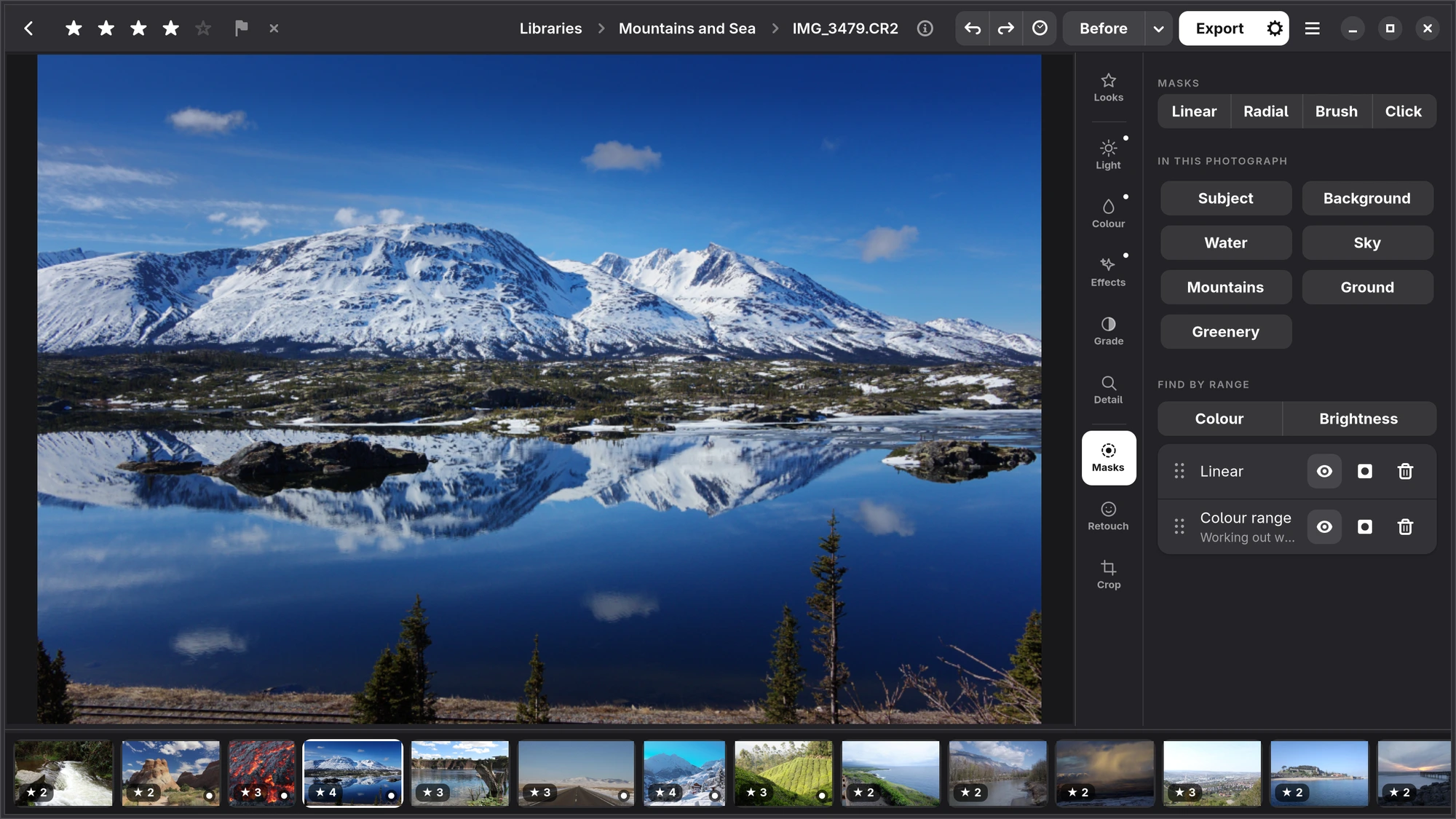
Open Masks. Under In this photograph, Numa offers what it found in this photograph, and only that: Subject (what the photograph is of, whatever it is), Background, Sky, Water, Mountains, Greenery, Buildings, Ground, Person, Animal, and more. An animal gets its name when Numa is sure (“Bird”, “Dog”). Choose one and the mask is made, with a real edge along hair, leaves and railings.
Finding needs the models from Add-ons; without them, the section says so and links to Preferences. Everything runs on your computer.
Editing through a mask
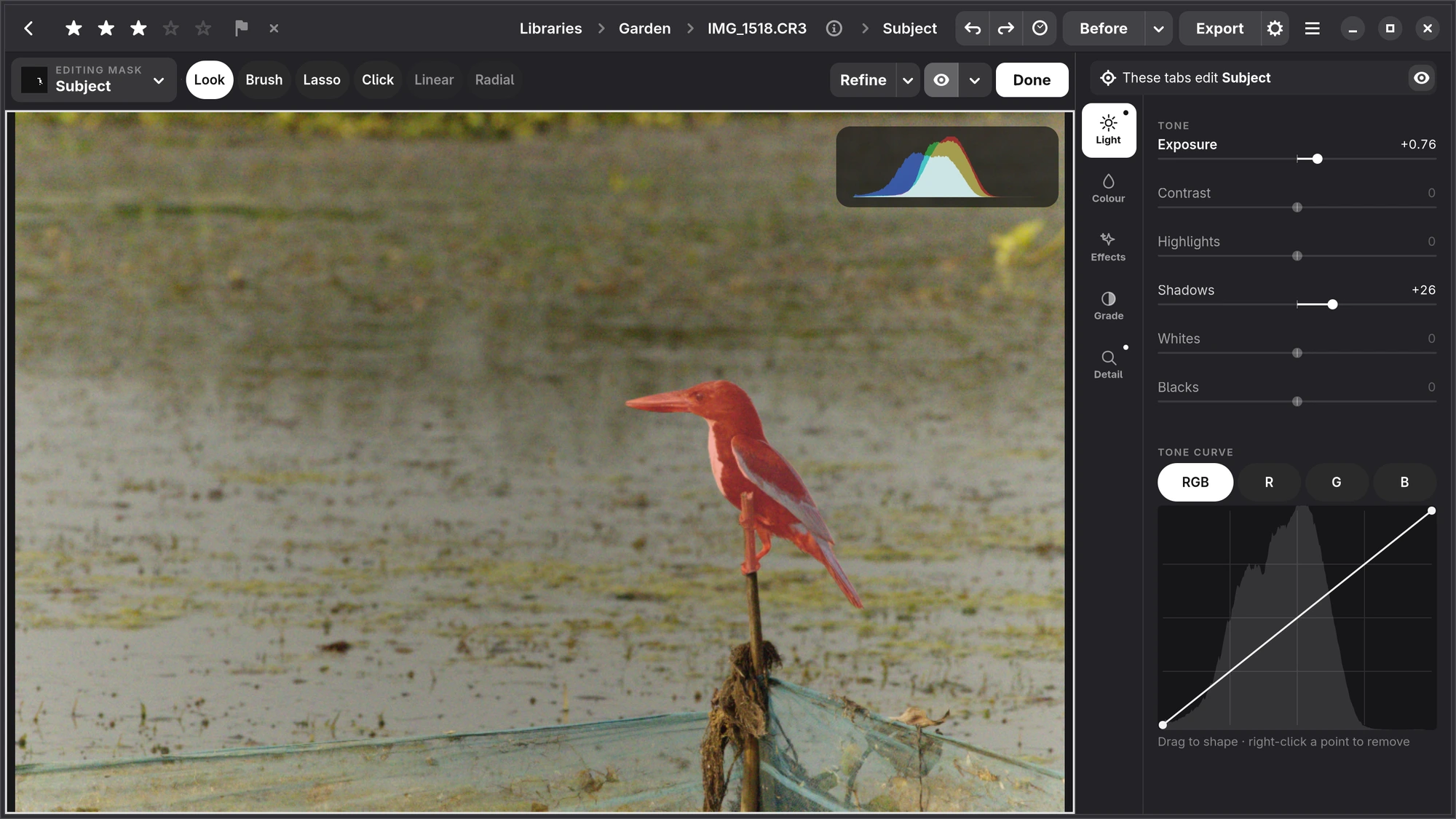
When you choose or make a mask, the mask bar slides in at the top of the photograph and the filmstrip goes. A white edge round the photograph says you are editing a mask, the path at the top ends on the mask's name, the panel's header says These tabs edit Subject (or whichever mask it is), and the tabs on the rail change only what the mask covers. A mask can carry:
- Light: the six tone sliders and a tone curve.
- Colour: Temperature and Tint (as a shift from the photograph's own white balance), Vibrance, Saturation, the mixer and black and white.
- Effects: Clarity, Texture and Dehaze.
- Grade: colour grading.
- Detail: sharpening, noise reduction, colour noise, defringe and moiré.
The eye beside the panel's header switches the mask's edit off and on, to compare. Done, at the top right, or Esc leaves the mask and goes back to the whole photograph. While you edit a mask, Done is the white button, and Export in the header steps back to an ordinary one.
The mask bar
From left to right:
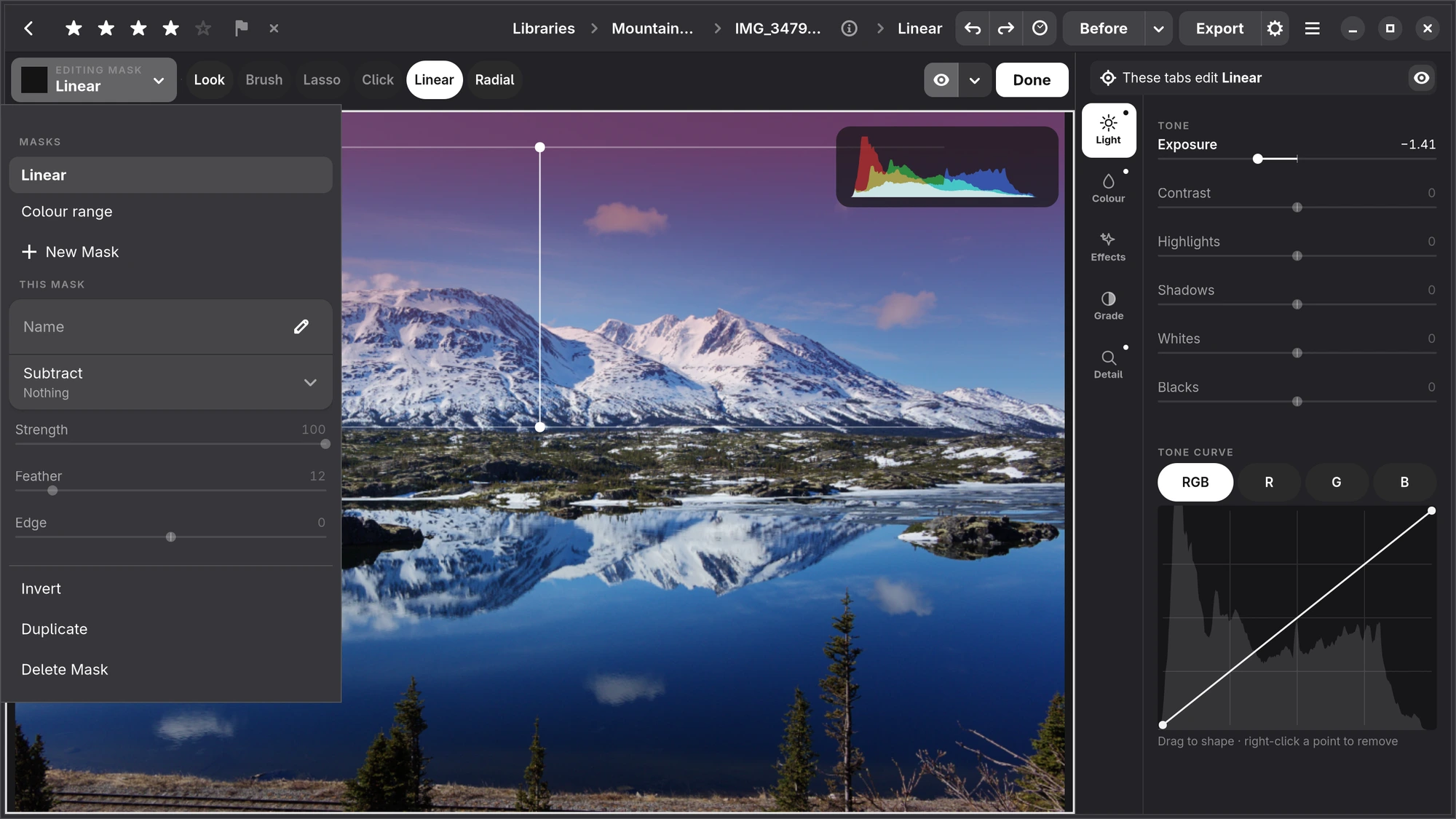
- The mask's chip, with Editing Mask, a small label, over the mask's name. Its popover holds the mask: under Masks, the photograph's masks to switch to and New Mask; under This Mask, its name and what it is made of (each click, stroke and found part, which you can switch off or take out one by one); Strength, how much of the mask's edit applies; Feather, a softer border; Edge, which moves the border in or out; and Invert, Duplicate and Delete Mask.
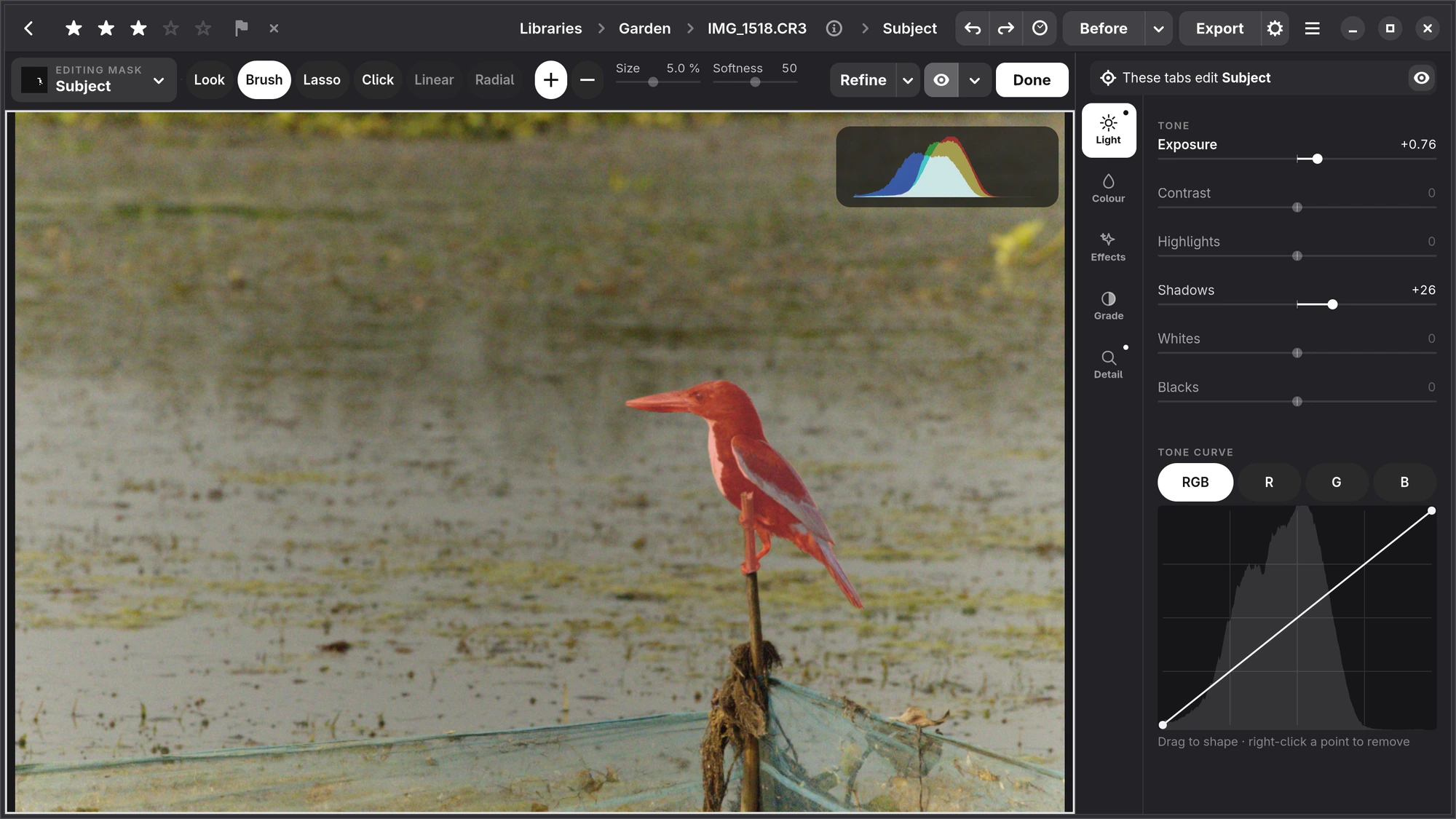
- The tools, a row of chips with the one in hand white, say what a drag on the photograph does: Look (nothing, so you can zoom and move around), Brush, Lasso, Click, Linear or Radial. With the brush or the lasso in hand, its own controls follow: + and − to add or subtract (hold Shift to swap while you draw), and Size and Softness, sliders like the panel's that the mouse wheel also moves and a double-click or right-click puts back; Click has + and − too. In a narrow window the tools become one menu, named after the tool in hand.
- Refine: see Refining the edge.
- The eye: the red wash over what the mask covers, on or off. Its arrow adds Outline, Points (where each click decided something) and Matte (the mask alone, white on black), in any combination.
- Done, in white: while a mask is open it is the screen's main button.
Click to select
Click makes a mask of whatever you click on, even something without a name: a kite, a sculpture, one boat among many. Numa cuts it out along the photograph's own edges. Click again to add to it; with − in the bar (or Shift), a click takes something out.
Brush and lasso
Brush paints a mask; Lasso adds everything inside a shape you draw round it. Both also work on a found mask: brush the lamppost out of the sky, or lasso a boat into the water. Softness sets how hard the stroke's edge is, Size how big the brush is.
Linear and radial
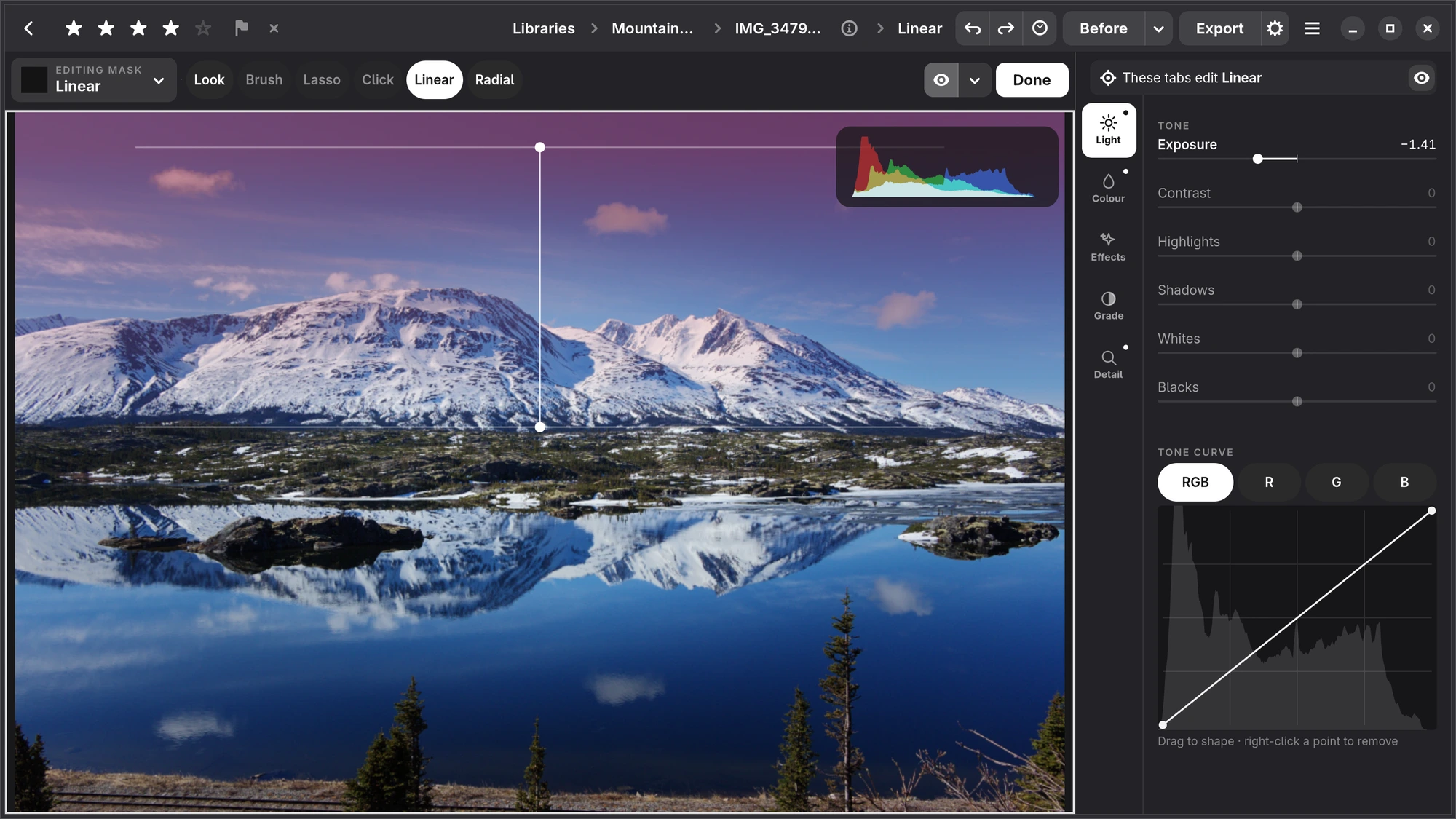
Linear is a gradient you drag across the photograph, for a darker sky or a lighter foreground. Radial is an ellipse, for a spotlight or a vignette of your own. Move them by their handles afterwards. A gradient is a mask of its own: start a new mask to draw one.
Find by range
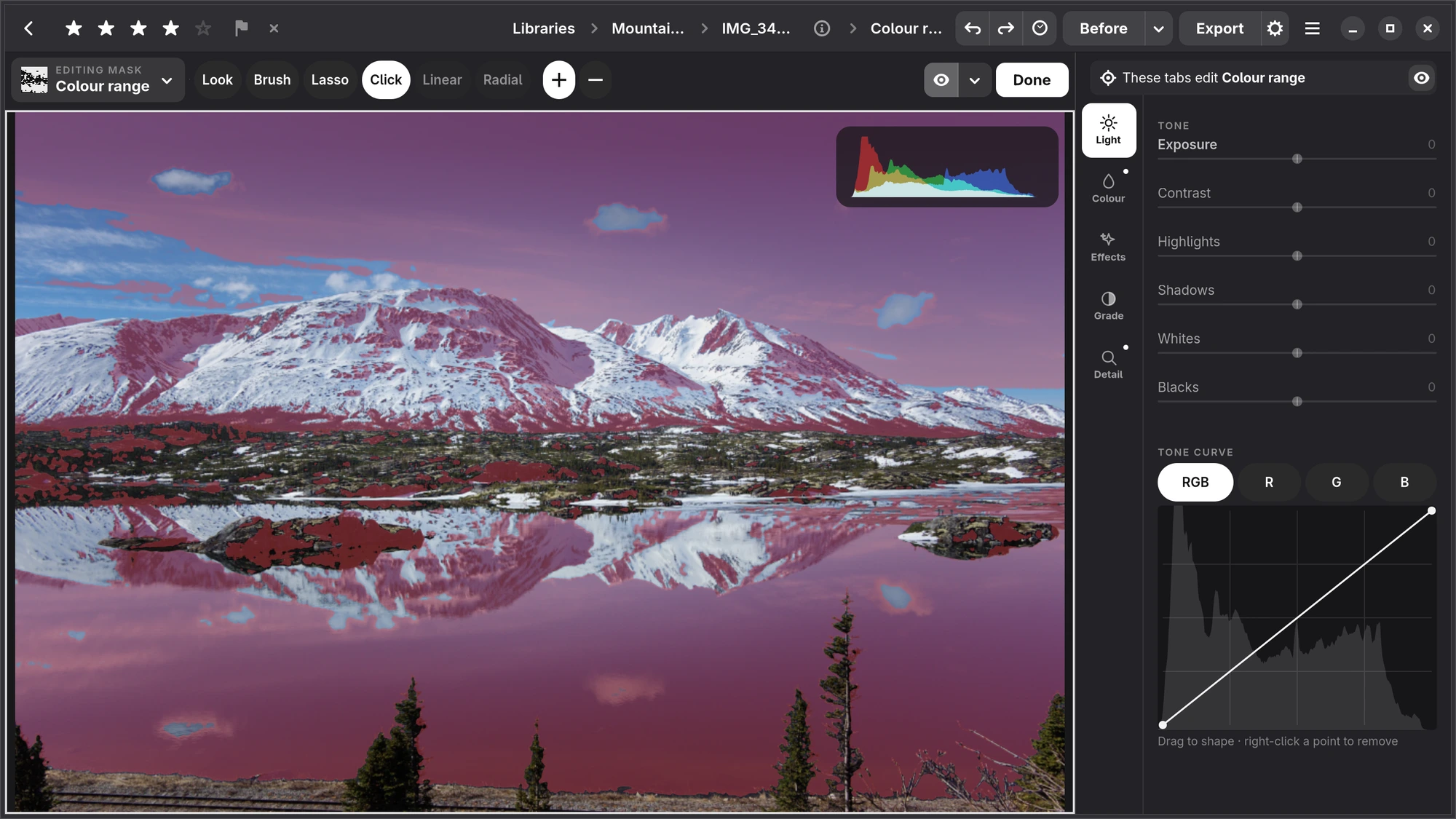
Under Find by range, a mask of every pixel that matches, wherever it is in the photograph:
- Colour: every pixel of one colour. Click the colour in the photograph, then set Hue, Spread (how far either side still counts) and Minimum saturation.
- Brightness: every pixel between two brightnesses, From and To, with Softness at both ends.
Refining the edge
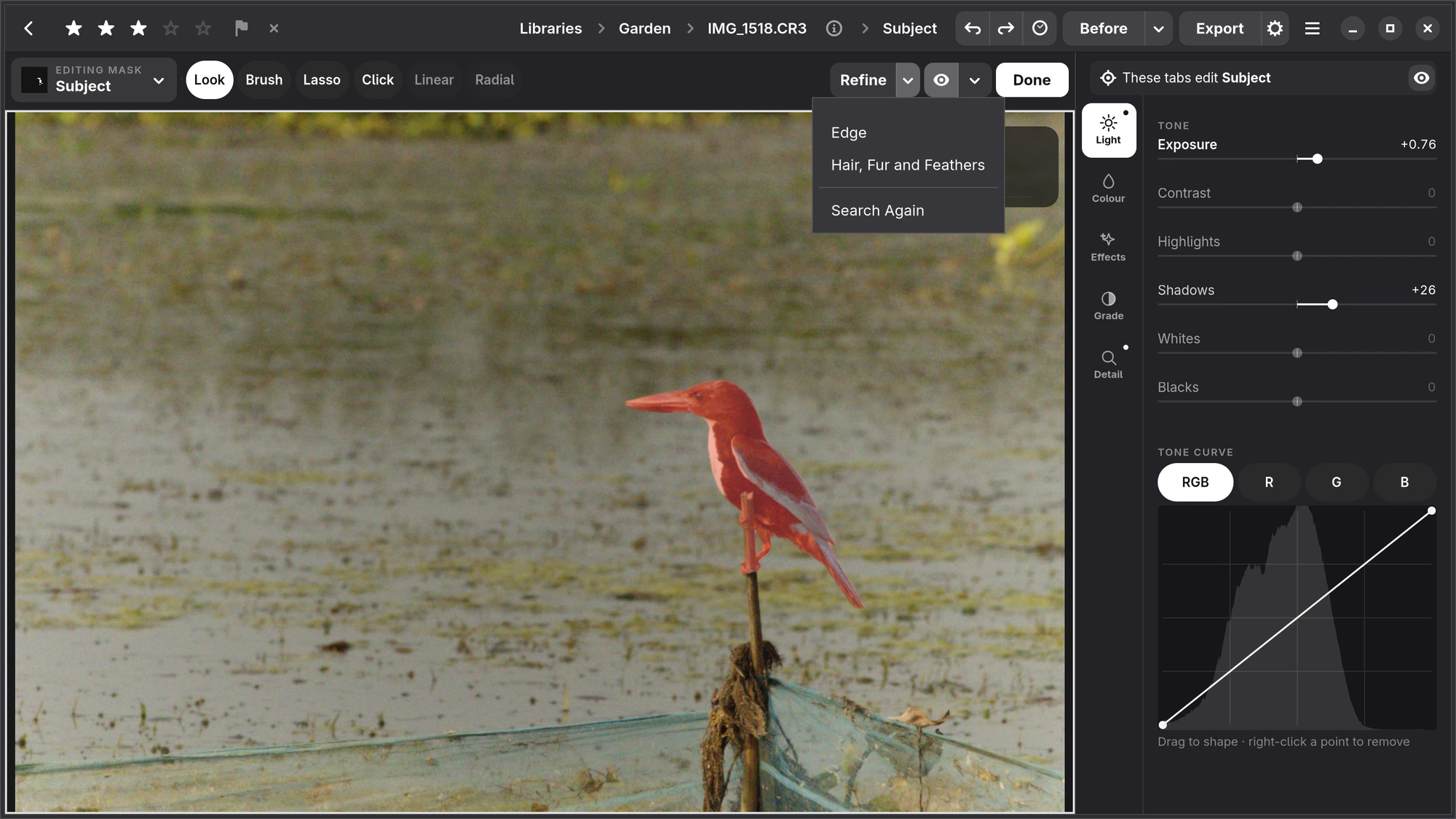
Refine, at the right of the mask bar, looks at the mask's edge again, more closely. It is there for masks with an edge worth refining: Subject, a person or an animal, and a mask you painted. The button searches for the real edge; its arrow has Edge, which traces the border anew, Hair, Fur and Feathers, which follows loose hair, fur and feathers strand by strand and needs the ViTMatte add-on, and Search Again, which searches again from where the edge is now. A stroke or click after refining starts from the refined edge.
The list of masks
With no mask chosen, the Masks tab lists the photograph's masks. Drag one to change the order, use the eye to hide it, and choose it to edit it. Masks stay where they belong when you crop, straighten or turn the photograph, and they are worked out again at full size when you export.
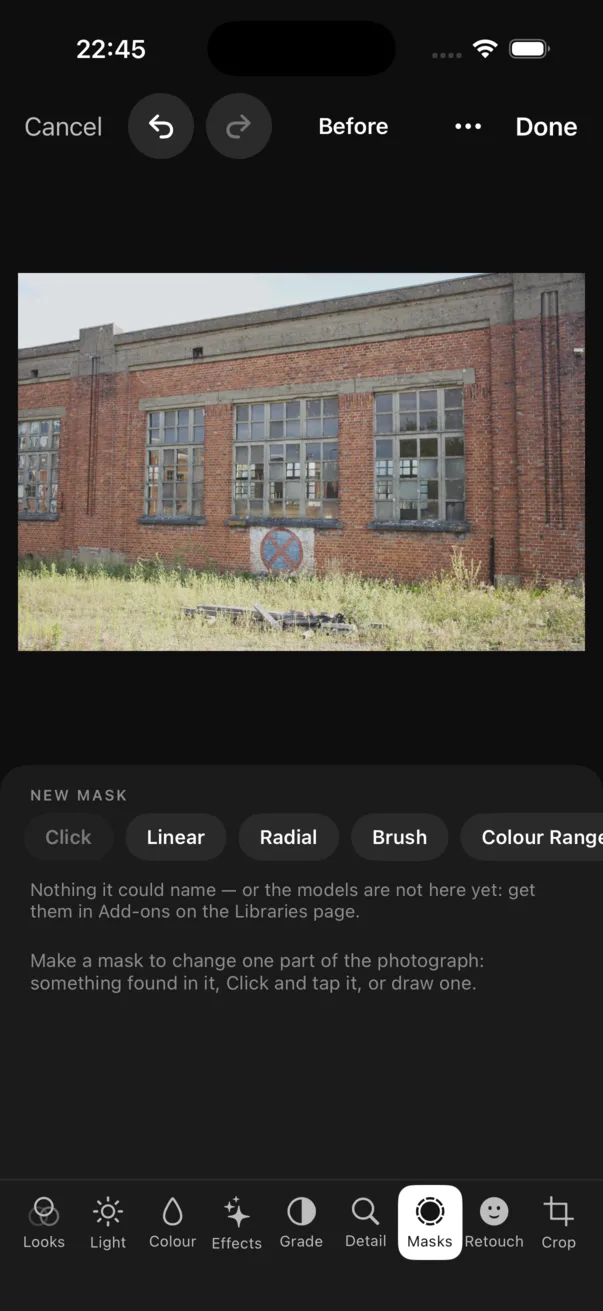
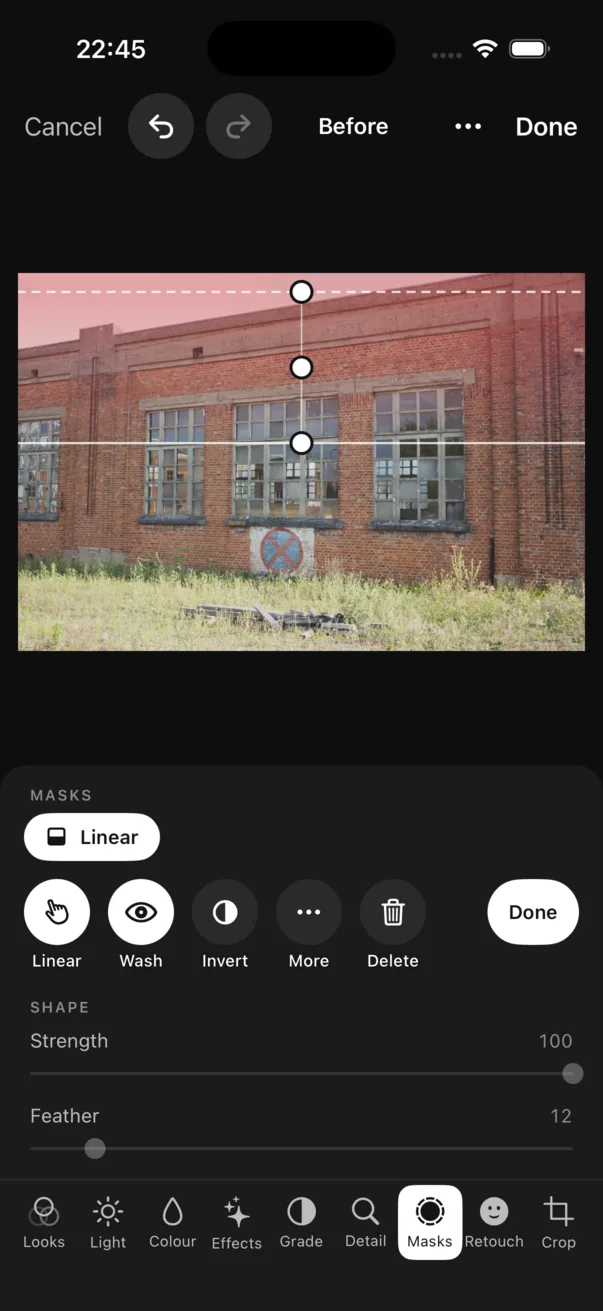
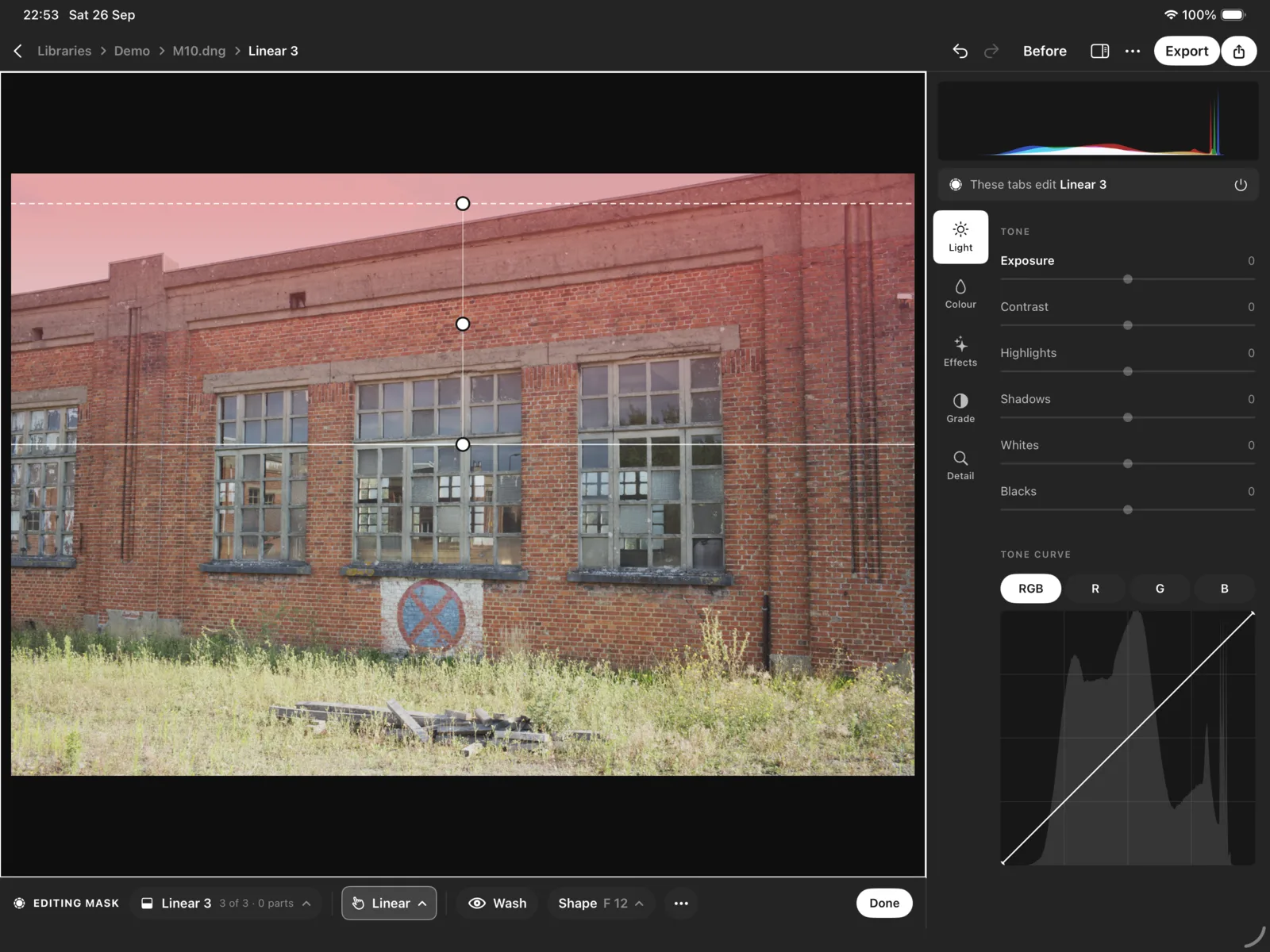
iPhone, iPad New mask offers Click, Linear, Radial, Brush and Colour Range, and the chips of what Numa found.
iPhone A chosen mask gets the mask bar at the top, in two rows: the mask's chip, the eye and Done, and under them the tools, + and −, and Refine. The tabs along the bottom become the mask's own, Light, Colour and Effects, so you can move between them without leaving the mask. Strength, Feather, Edge and the brush's size are in the chip's popover. Done goes back to the Masks tab.
iPad, modern editor A chosen mask has Wash, Invert, More and Delete, with Strength and Feather under Shape; Done goes back to the whole photograph.