
Detail
Sharpening, noise reduction, AI denoise and AI sharpen, and the corrections for your lens.
Judge detail at 1:1: double-click the photograph where you want to look, and again to go back. Numa then renders what is on screen from the full-size original.
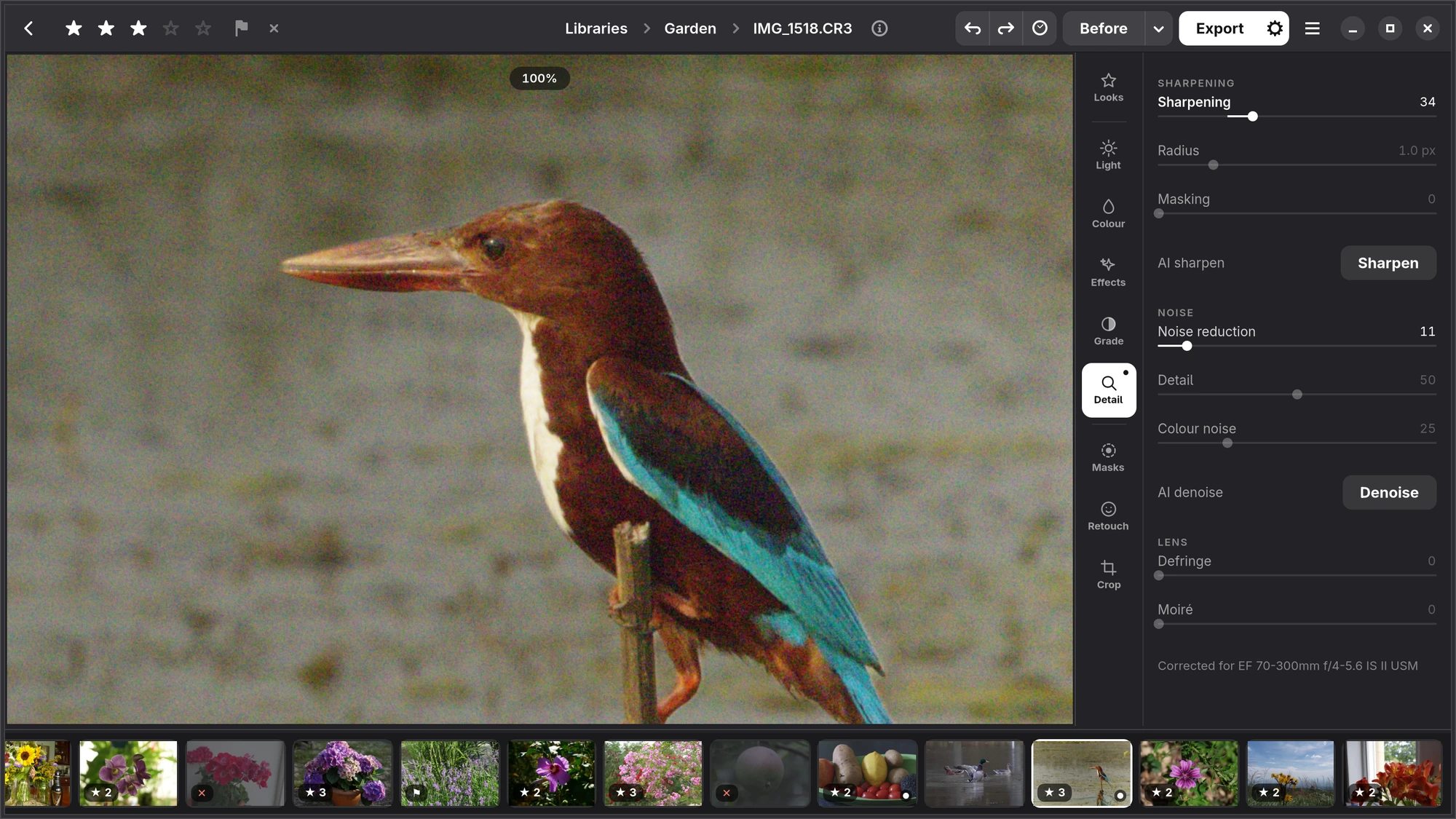
Sharpening
Every raw file is sharpened a little from the start (Sharpening 25), because turning a sensor's pixels into a photograph softens it. Radius sets the size of the edges that are sharpened, from 0.5 to 3 pixels; Masking keeps sharpening to the edges and leaves smooth areas such as skies alone. Numa sharpens the brightness only, so edges never get coloured halos.
AI sharpen undoes the blur of a camera that moved during the exposure. Press Sharpen: it works once, in the background, and then the photograph is ready; an Amount slider sets how much of it you keep. It cannot fix a photograph that was out of focus. It needs the Restormer add-on.
Noise
Noise reduction smooths the grainy noise of high ISO while keeping edges; Detail sets where noise stops and texture starts. Colour noise removes the coloured speckles, and is on from the start at 25.
AI denoise is much stronger, for photographs at very high ISO. Press Denoise: it works once, in the background (a few minutes for a large raw file, less with GPU acceleration), and is kept, so the photograph opens denoised next time. Amount blends it with the original, and Remove takes it off again. AI sharpen works the same way.
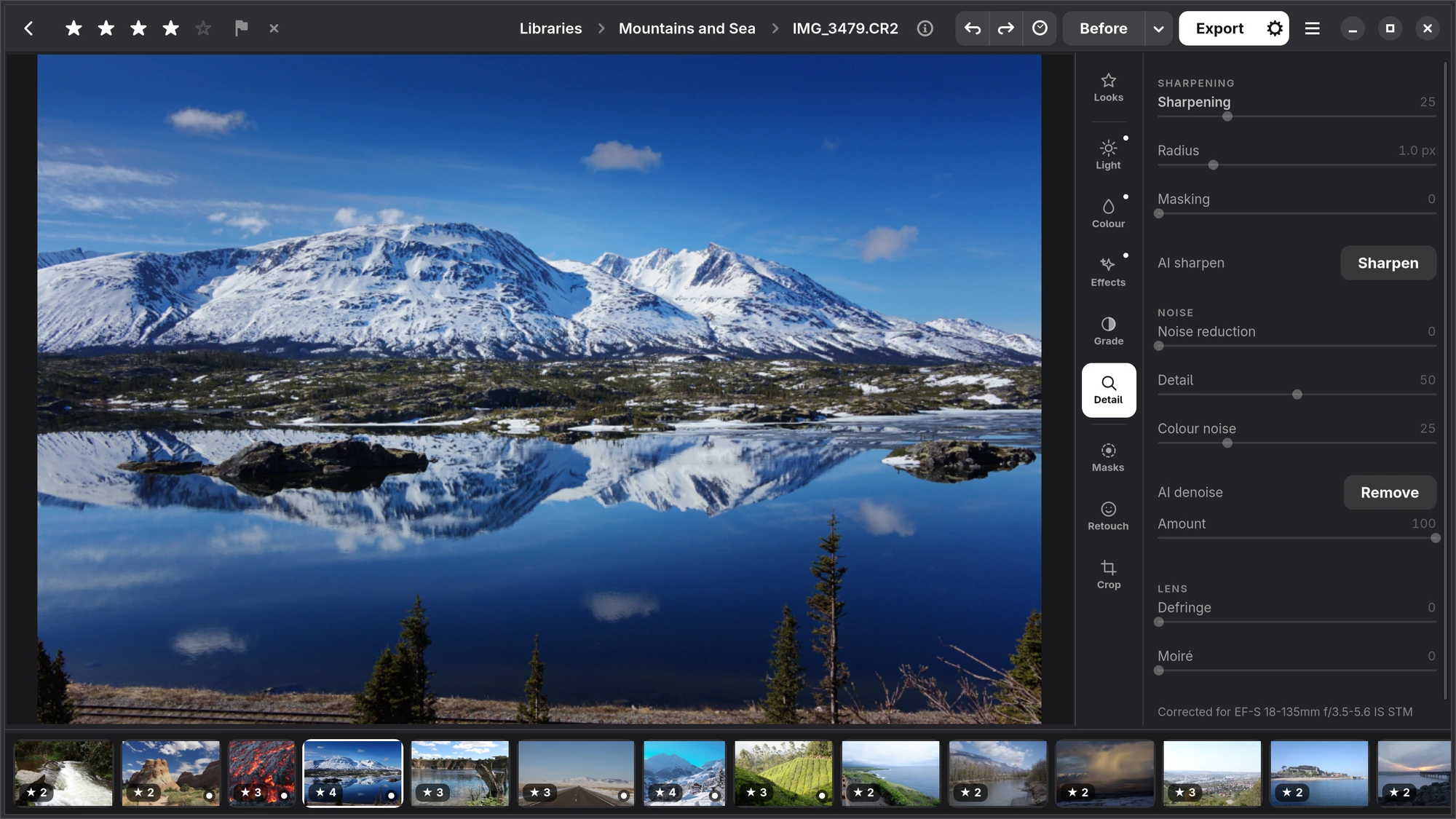
Lens
Numa corrects your lens's distortion, vignetting and colour fringes by itself: from the corrections your camera writes into the raw file where it does (Fujifilm), otherwise from the LensFun database. The Lens section says which lens was corrected; when there is no profile, Distortion and Vignetting sliders appear so you can correct it by hand.
- Defringe removes the purple and green edges along high-contrast lines.
- Moiré removes the false colour in fine repeating patterns, such as fabric.
iPhone, iPad, Mac The same sliders. AI denoise and AI sharpen use the same models, from Add-ons… on the Libraries page.