
Colour
White balance, vibrance and saturation, the colour mixer, one colour picked from the photograph, and black and white.
White balance
Temperature (in kelvin) makes the photograph warmer or cooler, Tint greener or more magenta. They start at what your camera chose, and a slider only turns white once you move it away from that. For a raw file, Numa balances the colour before it converts it from the camera's colours, as the camera does, so highlights that are blown stay neutral rather than turning pink.
Quicker still: the pipette beside White balance. Click something in the photograph that should be grey or white, and Numa sets Temperature and Tint so that it is.
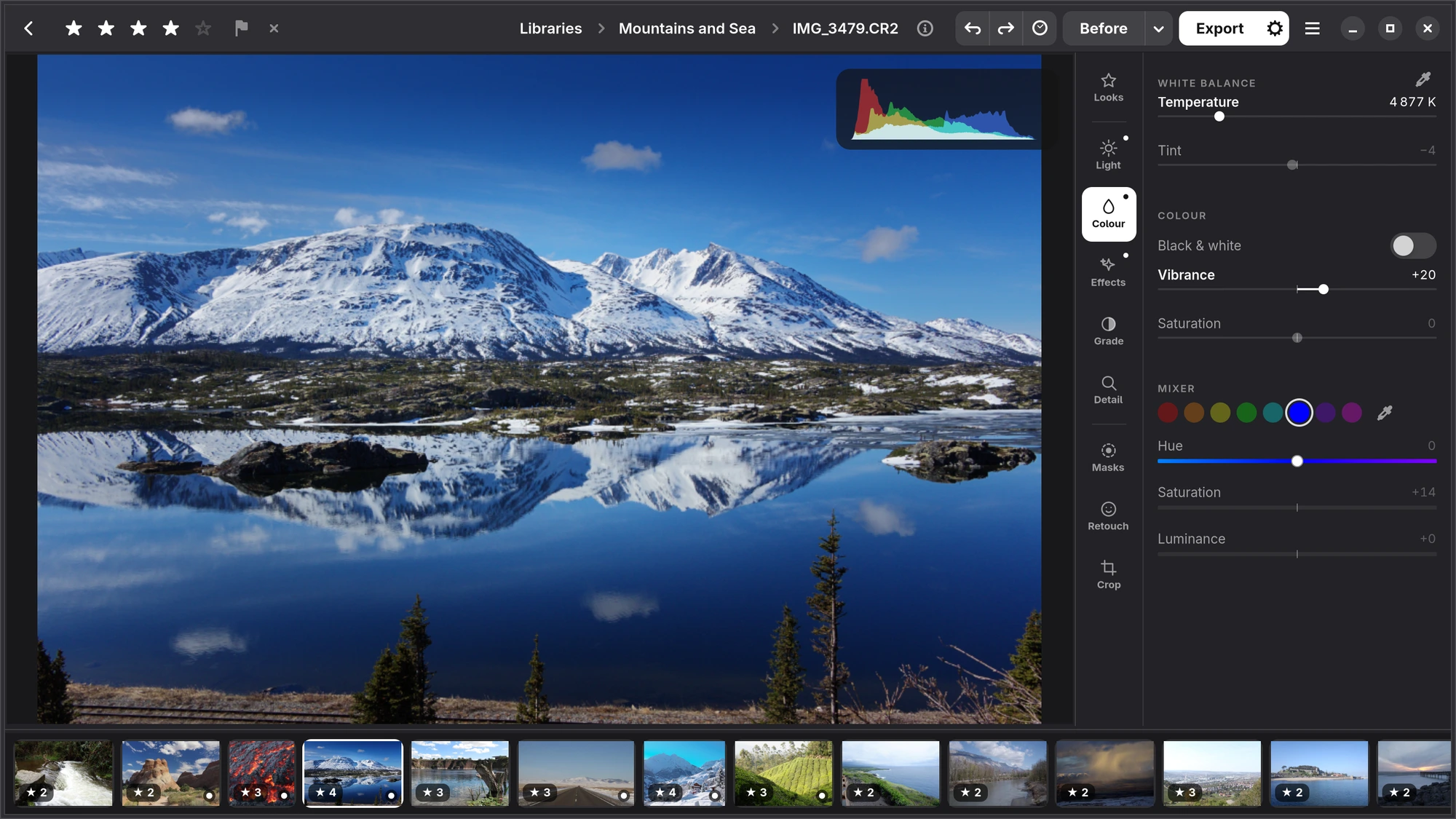
Vibrance and Saturation
Saturation makes every colour stronger or weaker. Vibrance does it mostly to the colours that are still muted, so skin and already strong colours are left alone.
Mixer
The Mixer changes one range of colours: choose one of the eight dots, from red to magenta, and change its Hue, Saturation and Luminance. A bluer sky, a greener lawn, a warmer brick: each is one dot.
One colour from the photograph
When a dot is too broad, or you cannot tell whether the sky in front of you is aqua or blue, point at it instead: choose the pipette at the end of the row of dots and click the colour in the photograph. Numa matches exactly that colour, by its hue, strength and lightness, with a soft edge, and gives it its own Hue, Saturation and Luminance; the panel scrolls down to them, and they light up for a moment so you see where they are. Range widens or narrows what counts as that colour, and Show Affected Area shows only what will change. You can pick several colours; each gets a swatch, and Remove this colour takes one away again.
Black & white
The Black & white switch turns the photograph to black and white. The mixer then becomes the black-and-white mix: each dot says how light that colour's grey becomes, so you can darken a blue sky or lighten skin. Grade still works after it, to tone the black and white.
iPhone The pipette for white balance is the Pick a Neutral button under Tint.