The editor
How the editor is laid out, how the sliders behave, and what is always at hand: Before, zoom, history, info, and copying edits to other photographs.
The layout
Double-click a photograph in the grid, or press Enter in the loupe, to edit it; the grid fades into the editor, and back again when you leave. Nothing you do in Numa changes your original: your edits are kept in the library's catalogue and applied when you look or export. They are saved as you go, two seconds after the last change and whenever you leave the photograph; there is no Save.
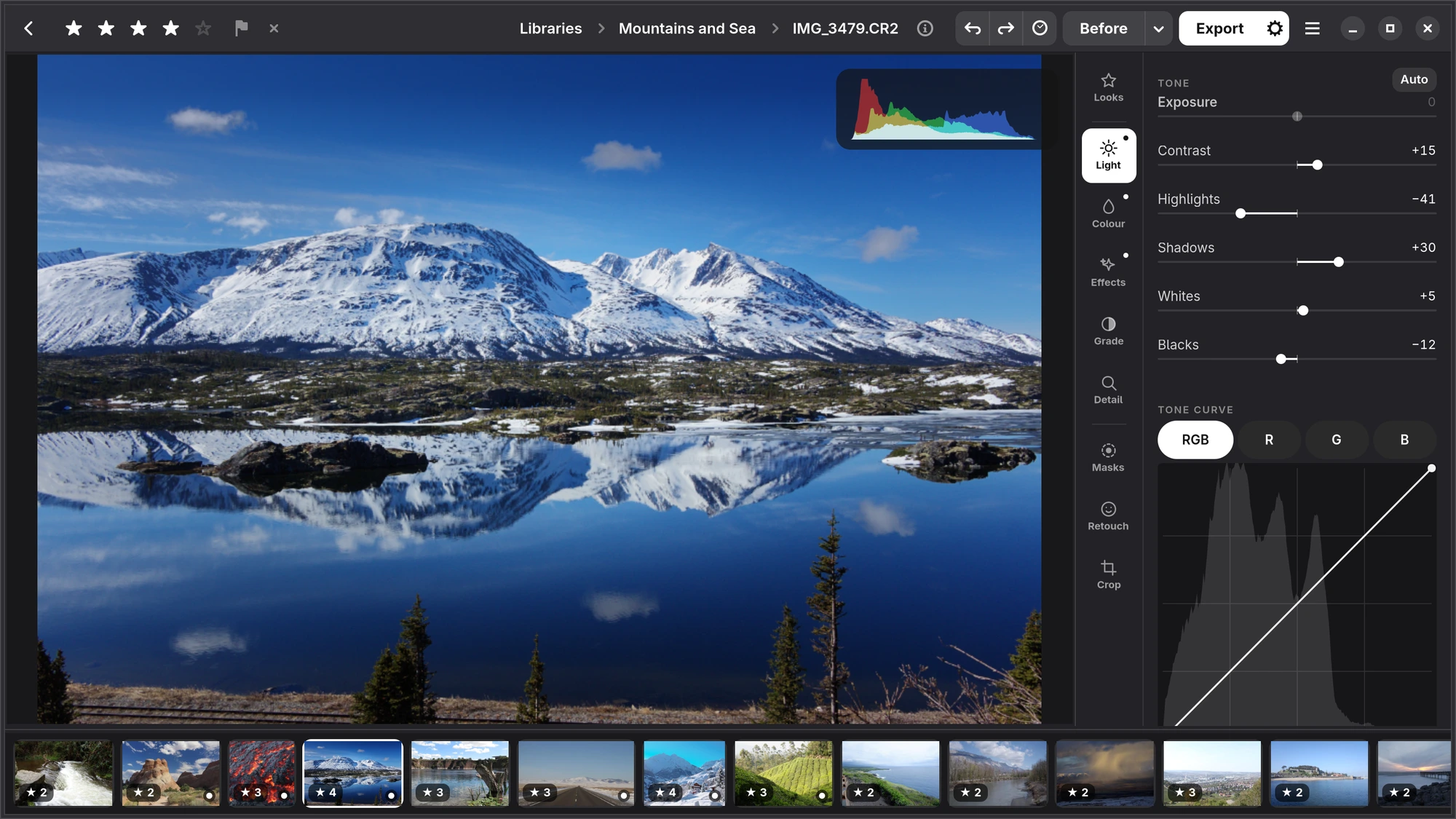
- The bar at the top. On the left, back to the library, then the photograph's five stars, pick and reject. In the middle, the path (Libraries › Garden › IMG_2813.CR3) and the ⓘ for its info; Libraries and the library's name are steps back. On the right, undo, redo and History together, Before with its arrow, Export in white, and the menu.
- The histogram on the photograph, on a small dark card at its top right, while Light or Colour is open; the other tabs keep the photograph clear. Its top corners light up where highlights or shadows clip. Right-click it to switch between a histogram, a waveform and an RGB parade; Histogram in the menu hides it until Numa starts again.
- The rail of tabs: Looks; then Light, Colour, Effects, Grade and Detail, which change the whole photograph; then Masks, Retouch and Crop, the tools. Alt 1 to Alt 9 open them in order. A dot beside a tab means something in it has been changed.
- The filmstrip below the photograph: the other photographs of the library, marked as in the grid: the stars and pick at the foot on the left, a white dot on the right for one you have edited, a rejected one dimmed. Click one, or use ← →, to move on without going back to the grid; the strip glides along to keep the open photograph in sight. Drag the line above it to make it taller or smaller; Numa remembers the height.
Sliders
Every slider has one starting value, and a slider you have moved is drawn in white (white is Numa's accent: the open tab, a chosen chip, a switch that is on and a moved slider are white, and so is the one main button on a screen, such as Export), with its fill running from where it started, so you can see at a glance what you changed. Double-click or right-click a slider to put it back; it glides back rather than jumping. With the keyboard, the arrows move a slider one step and Shift with the arrows ten.
When a key or a sideways swipe on the touchpad moves a slider, its name and value float at the top of the photograph for a moment, so you can watch the photograph and the number together. A drag does not show them there, as the slider's own row already does, and nor do undo, redo or a preset.
Before
Hold Before, or hold Space, to see the photograph as it was shot, and let go to see your edit again.
The arrow beside Before shows another photograph next to yours, to compare with:
- Keep as Reference keeps this photograph beside the next ones you edit, so you can match a series to it.
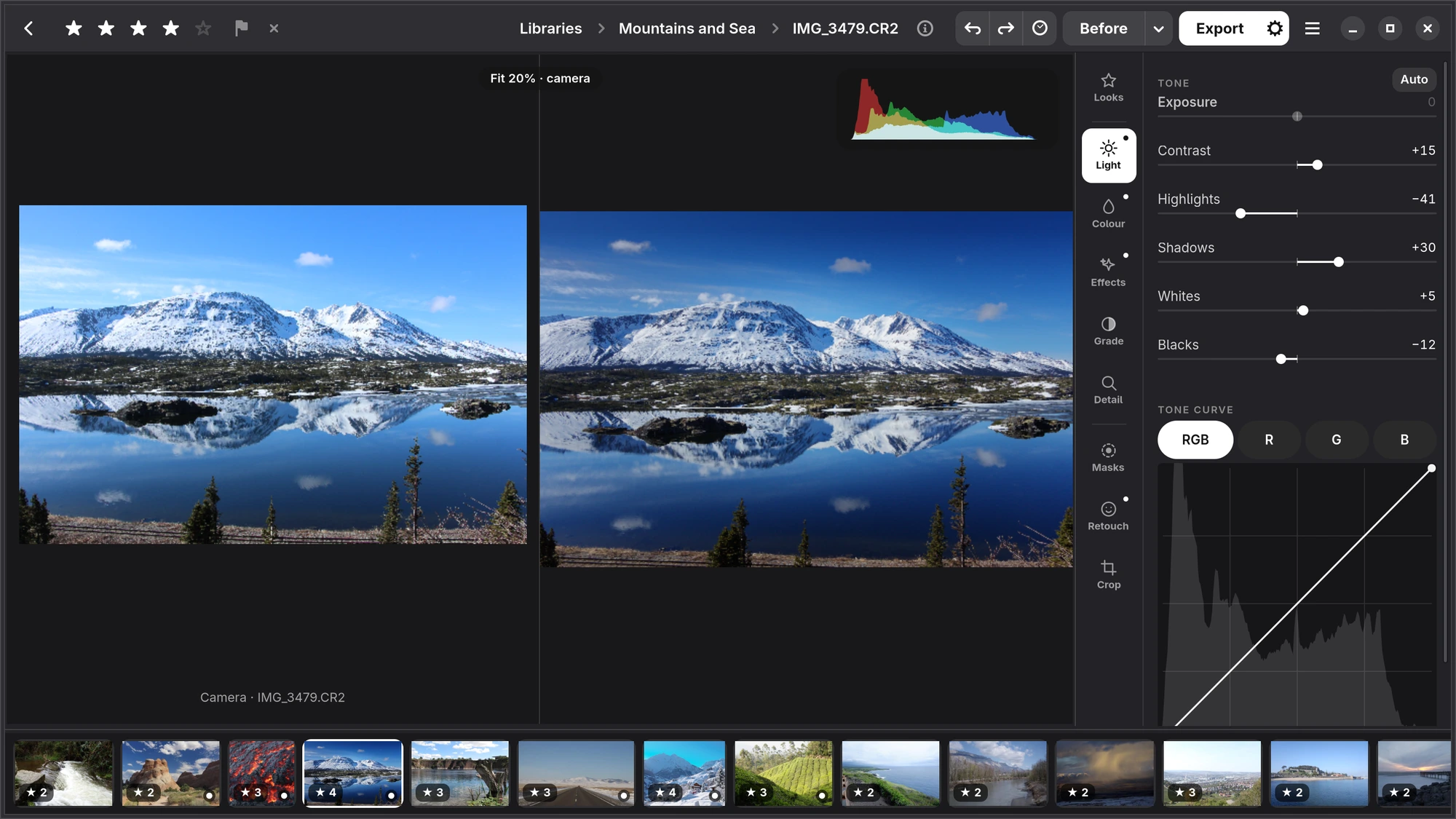
- Compare with Camera shows the camera's own JPEG beside Numa's rendering, at the same zoom.
Zoom and guides
Double-click the photograph to see that spot at 1:1, and double-click again to see all of it. The mouse wheel zooms in and out, and Zoom in the menu has Fit to Window and the steps in between. When you zoom in, Numa renders what you see from the full-size original, so detail is real detail; a small dark pill at the top says the zoom level while you are not at Fit.
G, or Guides in the menu, draws thirds or a grid over the photograph, to check a horizon or a composition.
History and snapshots
Ctrl Z undoes and Ctrl Shift Z redoes, as far back as you like: each step is kept with the photograph, up to a hundred of them, even after you close Numa.
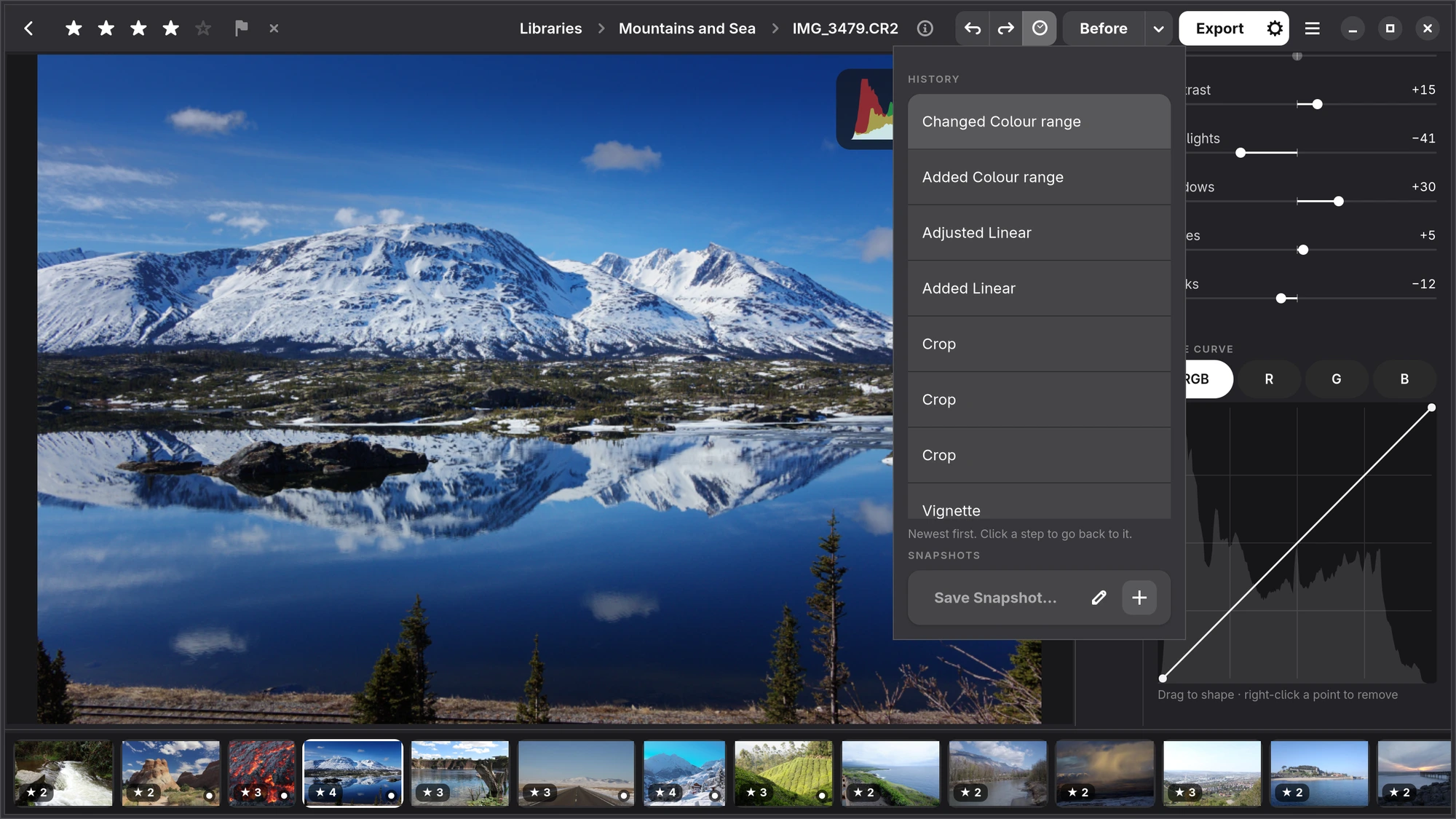
History, the clock beside undo and redo in the bar, lists the steps by what changed (“White balance”, “Colour mixer”, “Crop”), newest first. Click one to go back to it. Under the steps are snapshots: named versions of the photograph you keep with Save Snapshot…, to come back to later or compare.
How It Was Made
How It Was Made, in the editor's menu, plays the photograph's own edit back on the photograph, from the camera's starting point to how it looks now: to learn from an edit, your own or a look's. A card at the top left of the photograph lists the steps, each with what changed, its value and the tab it is on (“Exposure +0.35 · Light”), and under it a line of why when a look wrote one. The steps already in are white, the ones to come dimmed. At the foot are back, Pause or Play, and forward, with the look the step came from (“Look “Golden Hour” · by Numa”) or how far you are (“3 of 8”). It takes about a second a step; with reduced motion, it only steps.
The steps come from History: moving one slider several times in a row is one step, and a look, a paste or a reset is split into its settings. Playing never changes your edit or its history, and the card closes as soon as you change anything or open another photograph. Numa's own looks say why of every setting they change, and a look shared with you keeps the notes it was made with.
Photo info
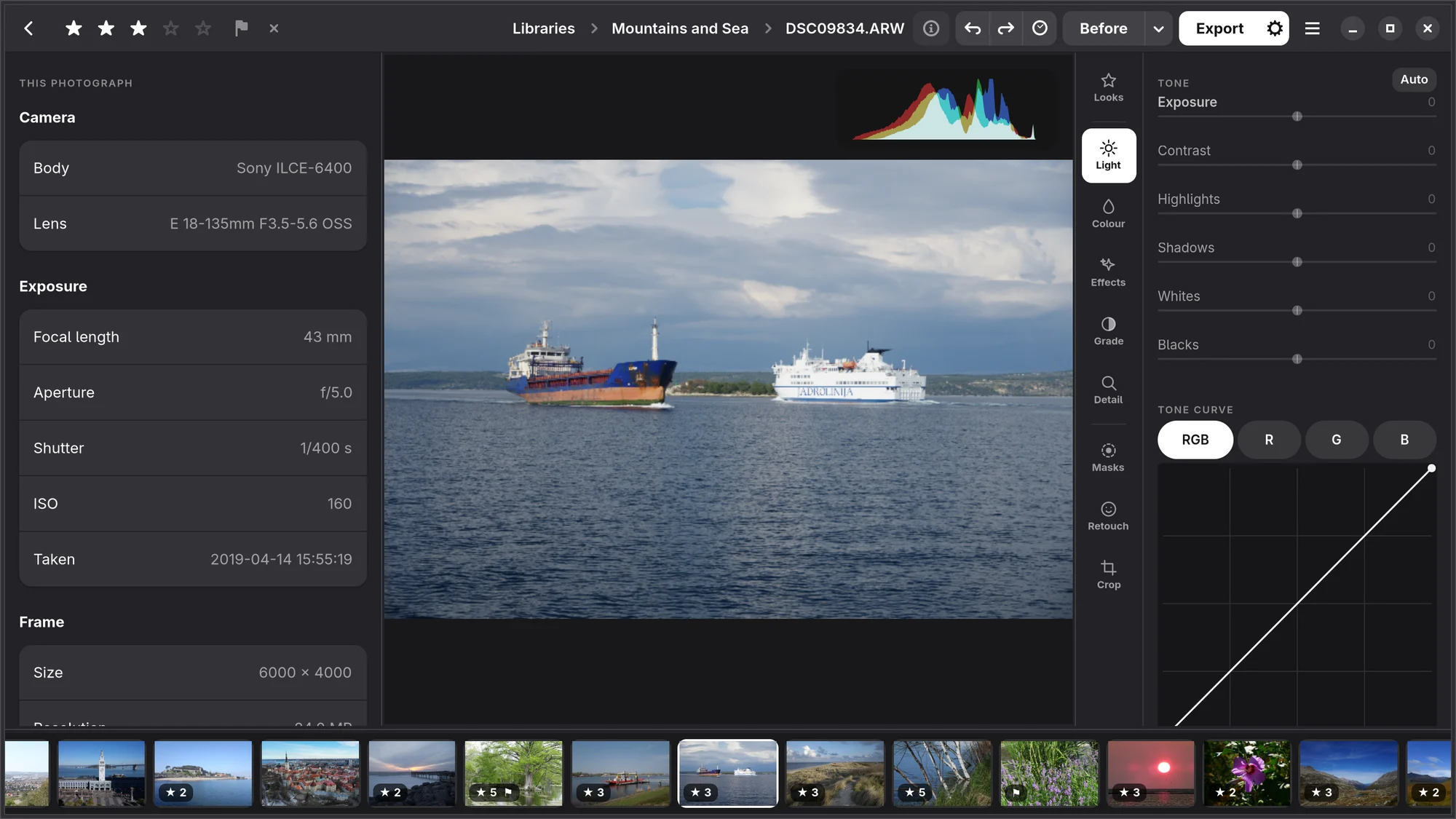
The i behind the photograph's name in the path, or I, folds open a panel at the left with what the camera recorded: the camera, the lens, the exposure, the date and, for Fujifilm, the film simulation, with the size of the file. The people in the photograph are here too, to name them. Once open, it stays open, from photograph to photograph and the next time Numa starts, until I folds it shut again.
A photograph whose file says where it was taken has Place too: the town and country (“Taken in Amadora, Portugal”) and, once the map is on this computer (see Places), a small map with a dot where it was taken. A click on the map opens Places there.
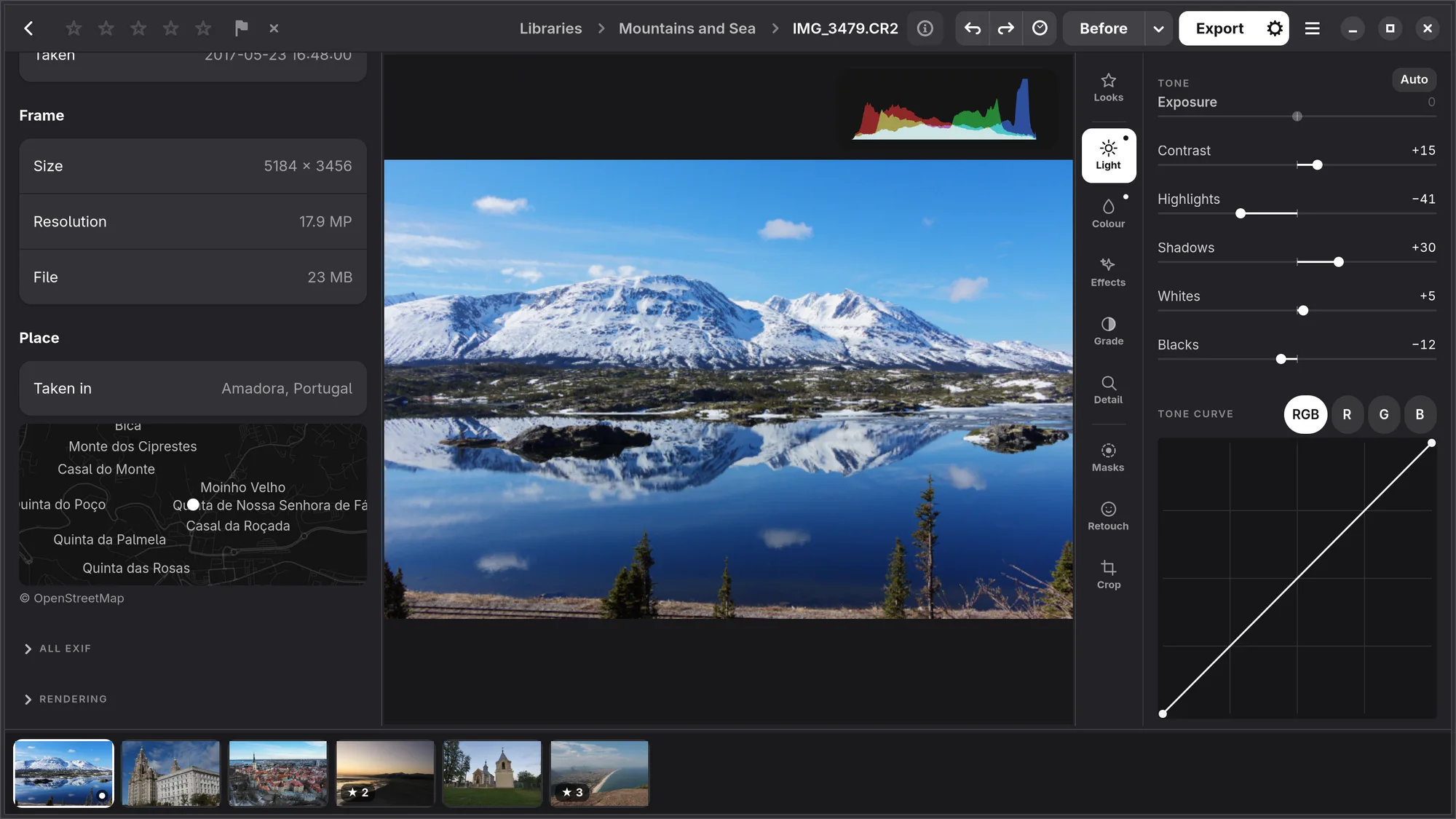
At the panel's foot, All EXIF folds open every tag the file holds, by its EXIF name: the camera's settings, the lens and body serial numbers, the time zone, the GPS position and the rest. It stays open, as the panel does, until you fold it shut.
Copying edits to other photographs
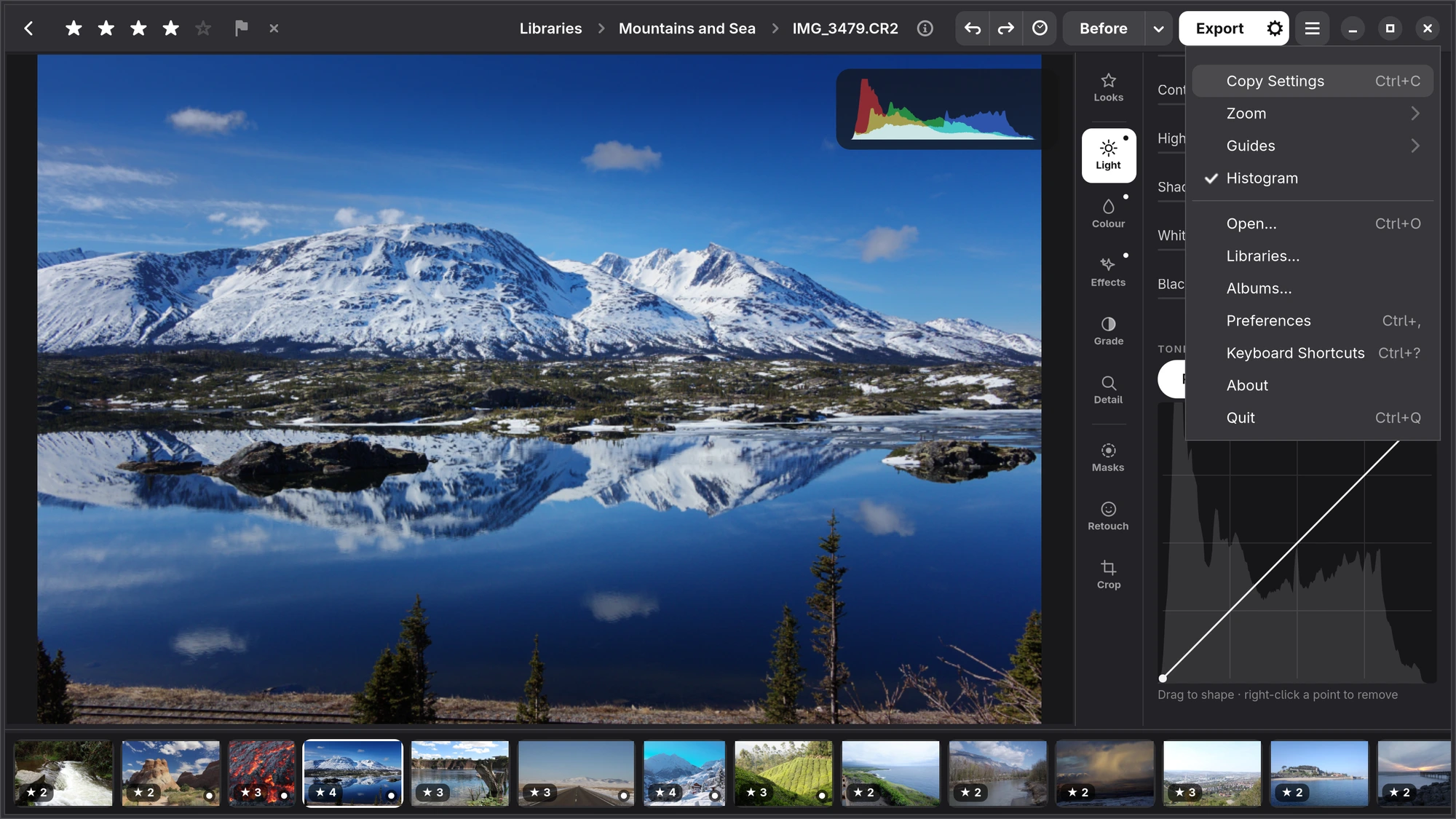
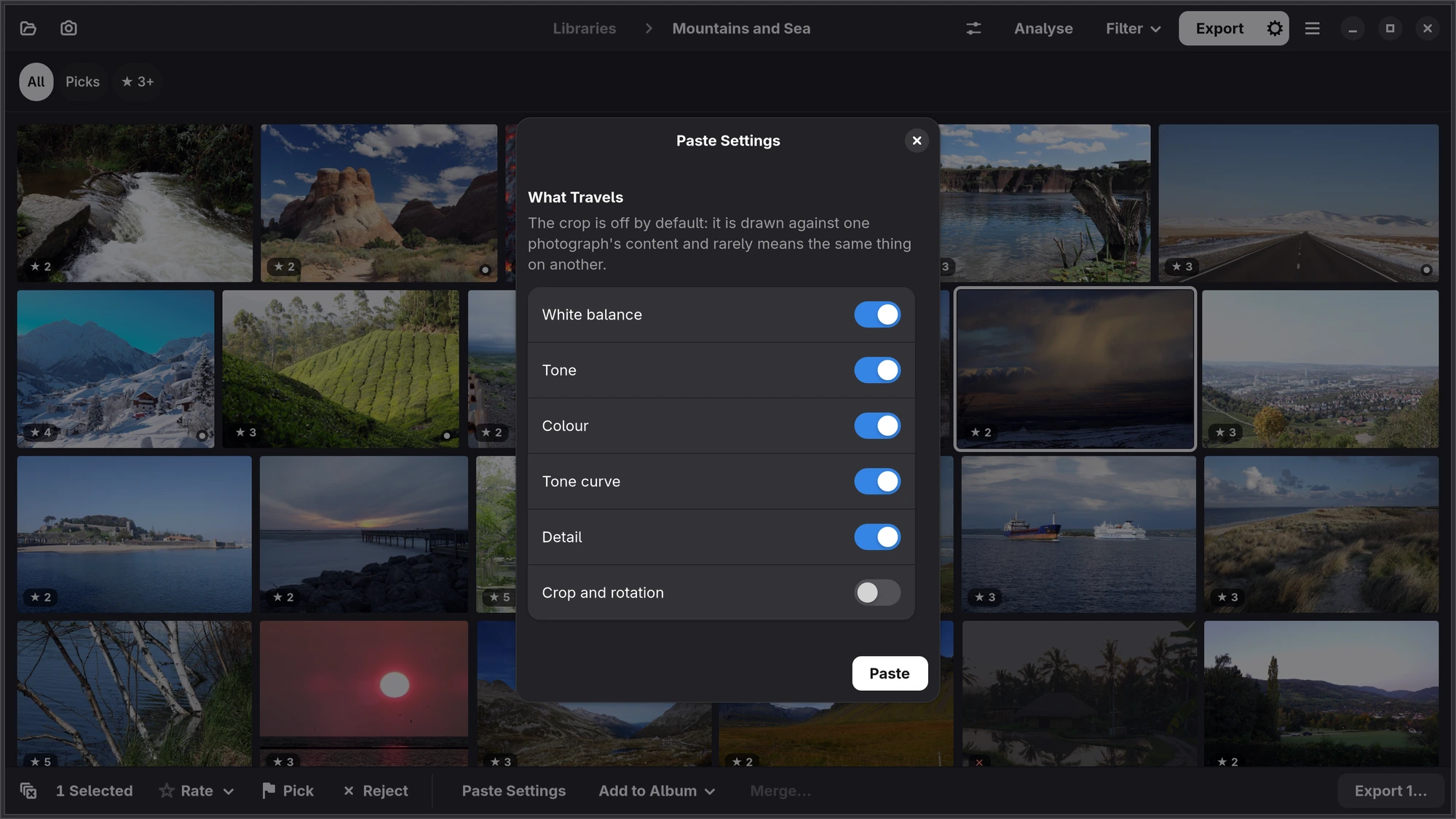
To give a series the same look, edit one and press Ctrl C (Copy Settings in the menu). Then select the others in the grid and press Ctrl V, or open one and press Ctrl V there. Choose What to Paste…, on the right-click menu, lets you tick what goes: white balance, tone, colour, the tone curve, detail, crop and rotation (crop is off unless you tick it). Masks, retouching and face edits belong to one photograph and are never pasted.
On the iPhone, iPad and Mac
iPhone Tap Edit on a photograph. The photograph is at the top and the tabs are in a bar at the bottom, the same nine as on Linux; the open tab's sliders are in the sheet between. Cancel leaves without keeping your changes, Done keeps them; undo, redo and Before are in the bar at the top.
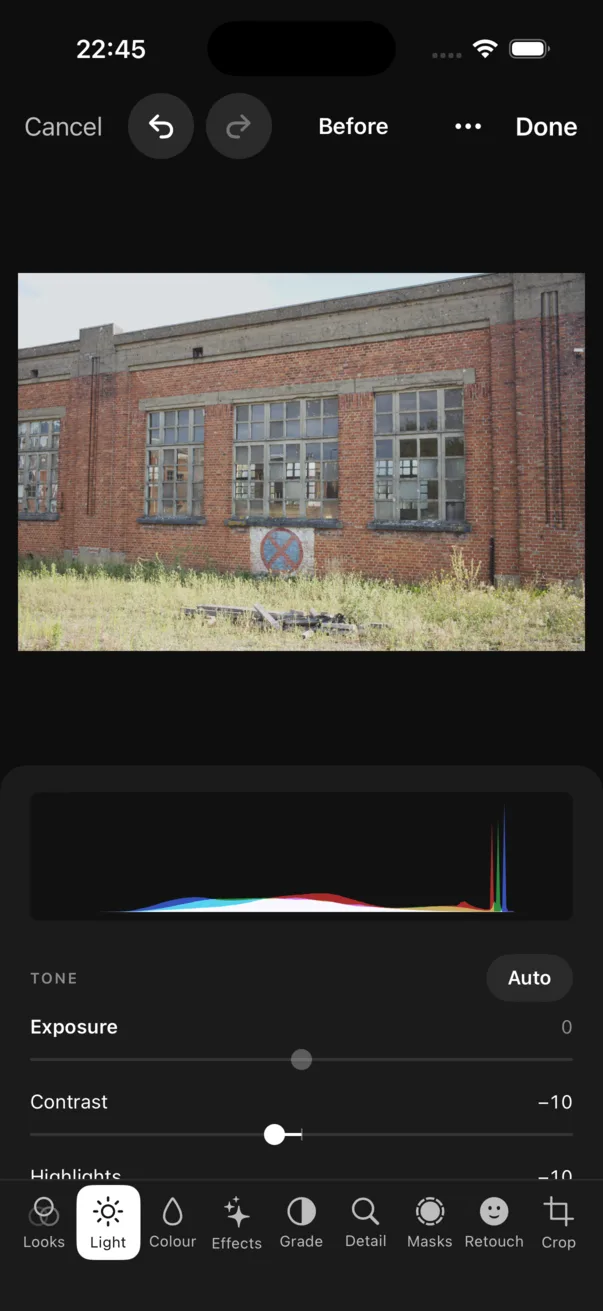
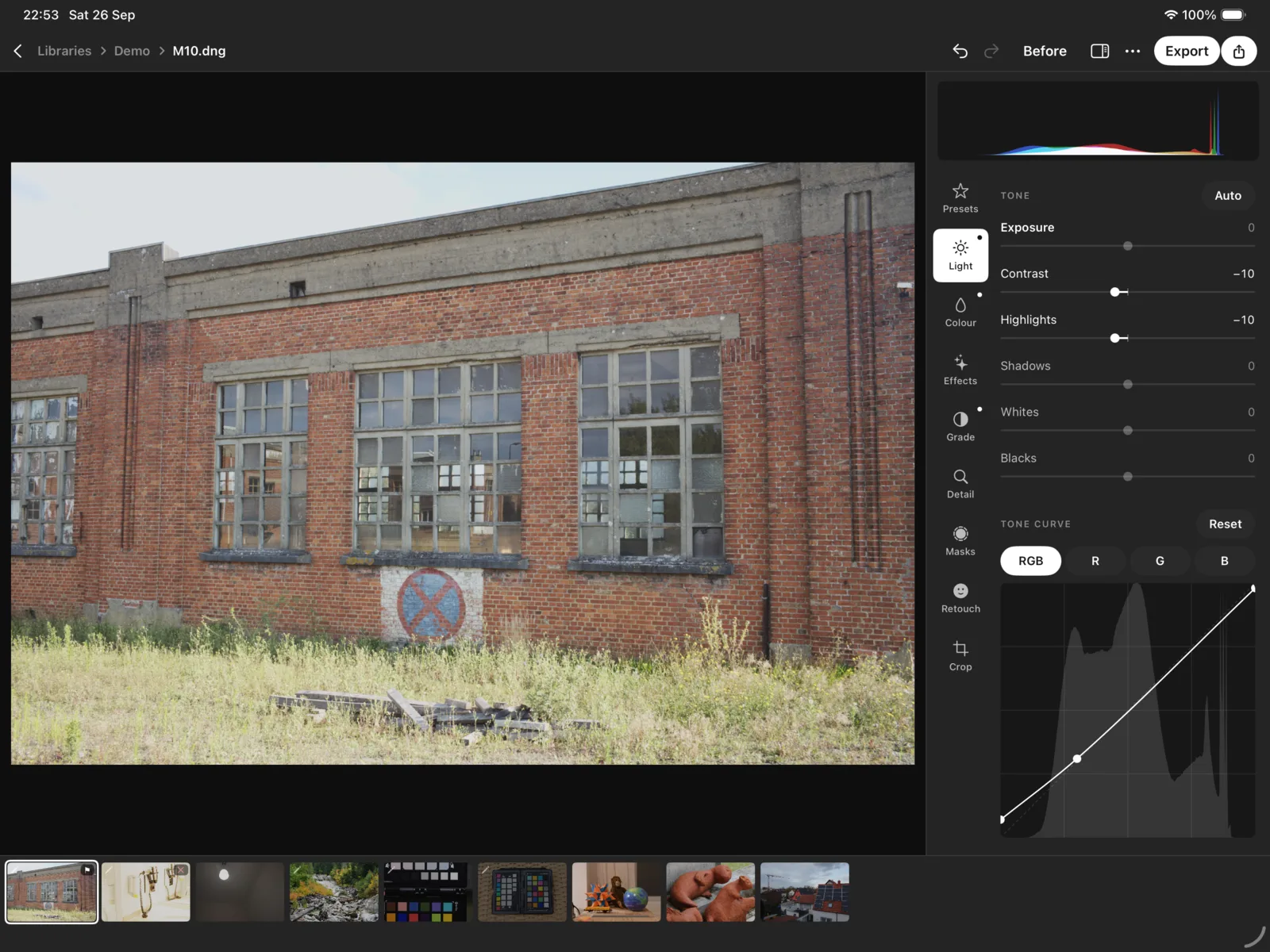
iPad The classic editor is laid out as on Linux: the panel with its rail at the side, the filmstrip below, for a pencil, a keyboard or a finger. The modern editor puts the photograph edge to edge for holding the iPad in two hands: the tabs under one thumb, the sliders under the other. Choose between them in the ⋯ menu; Swap Hands mirrors the modern editor for the left-handed. The modern editor has the sliders; the curve, the mixer, presets and retouching are a tap away in the classic one.
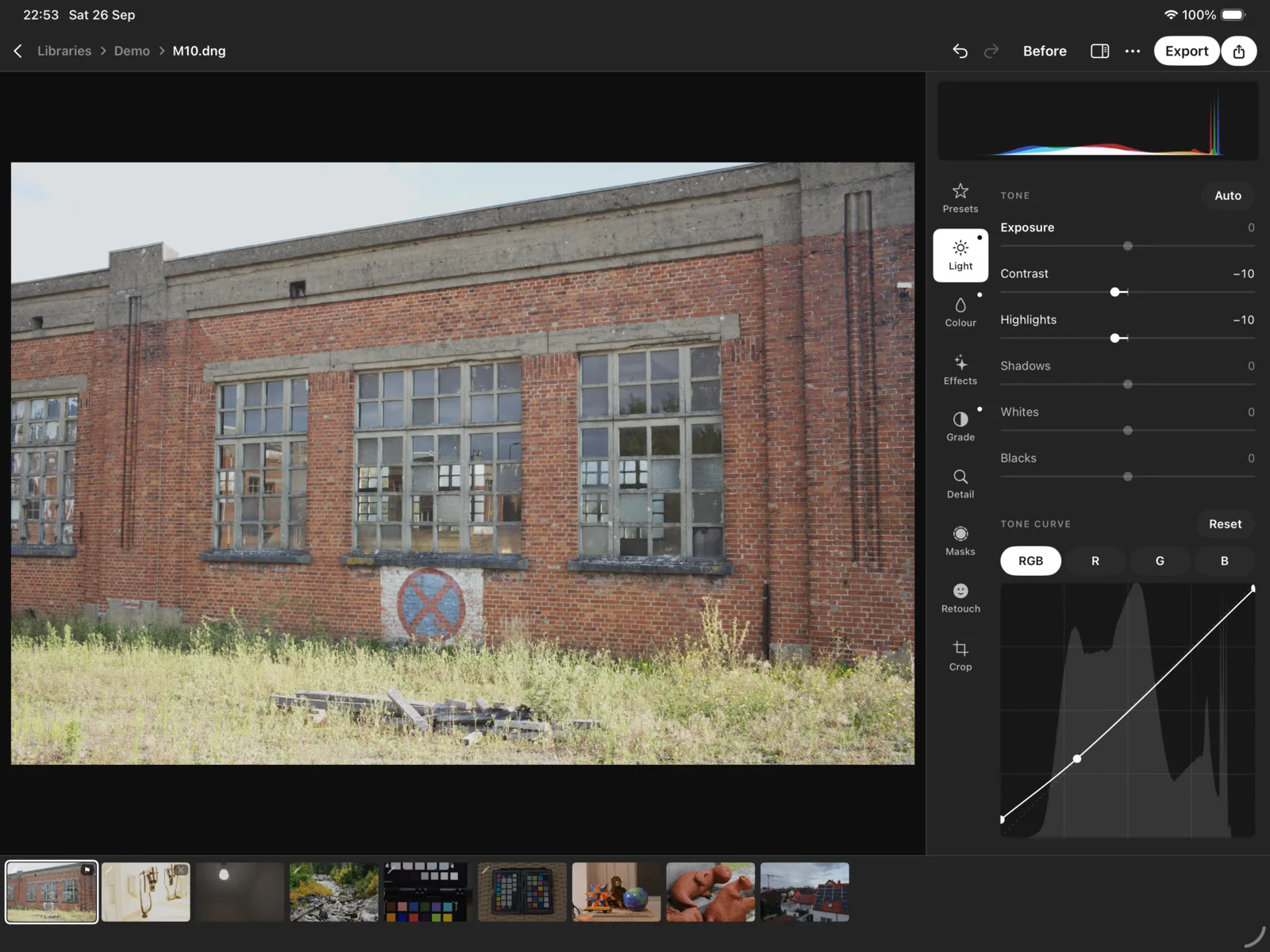
Mac The Mac's editor is the iPad's classic one, with a menu bar that lists every command and its key, windows, and a slider you drag with the mouse.