Crop
Crop, straighten, turn and flip, and correct perspective, by hand or by the lines in the photograph.
Cropping
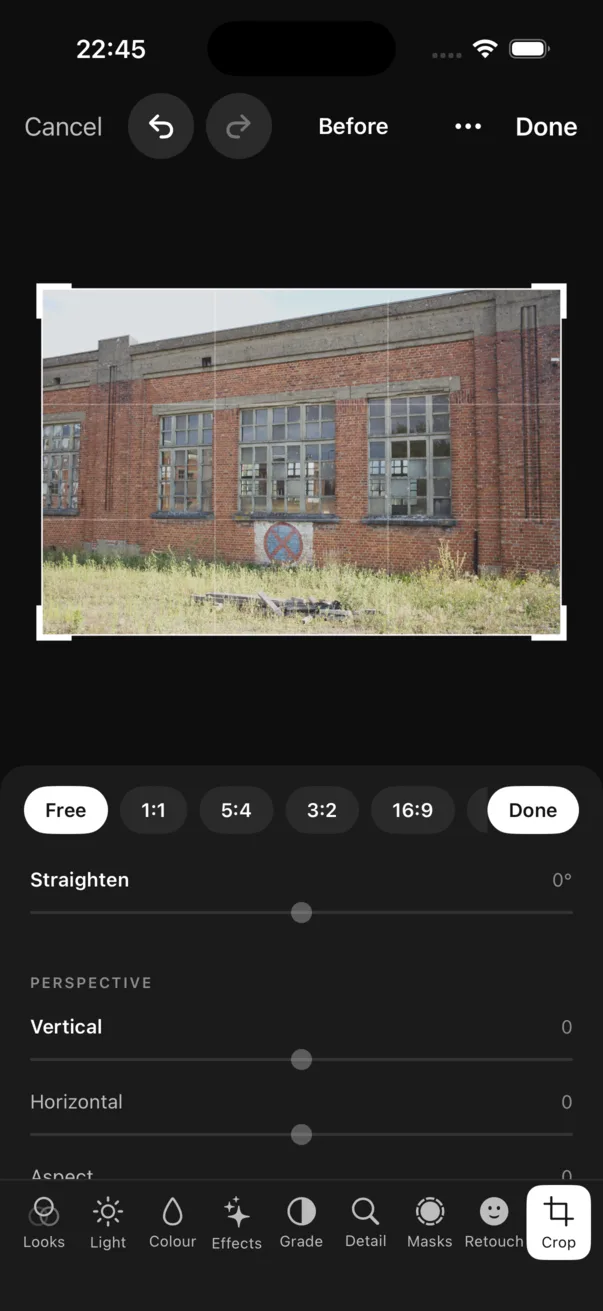
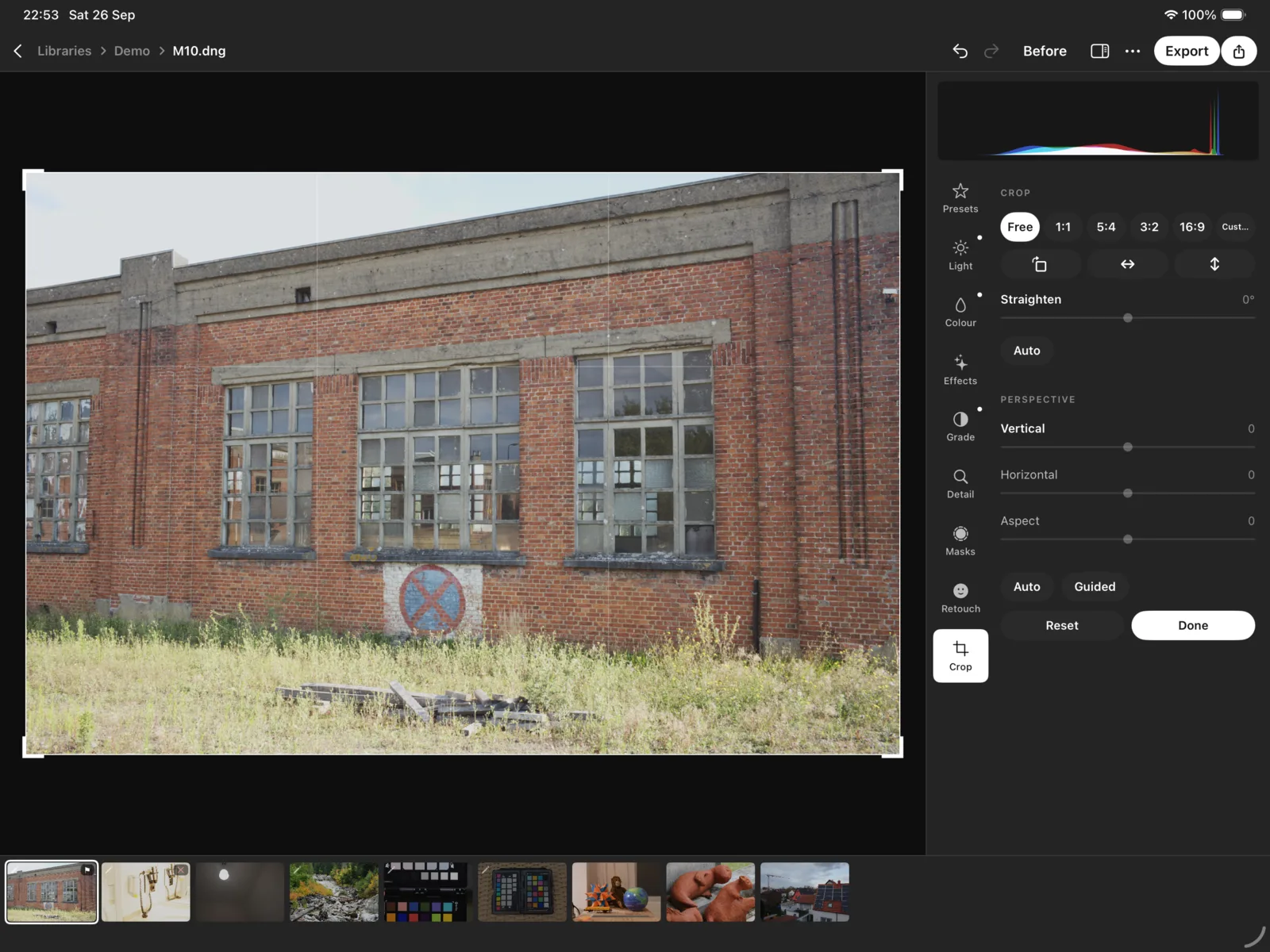
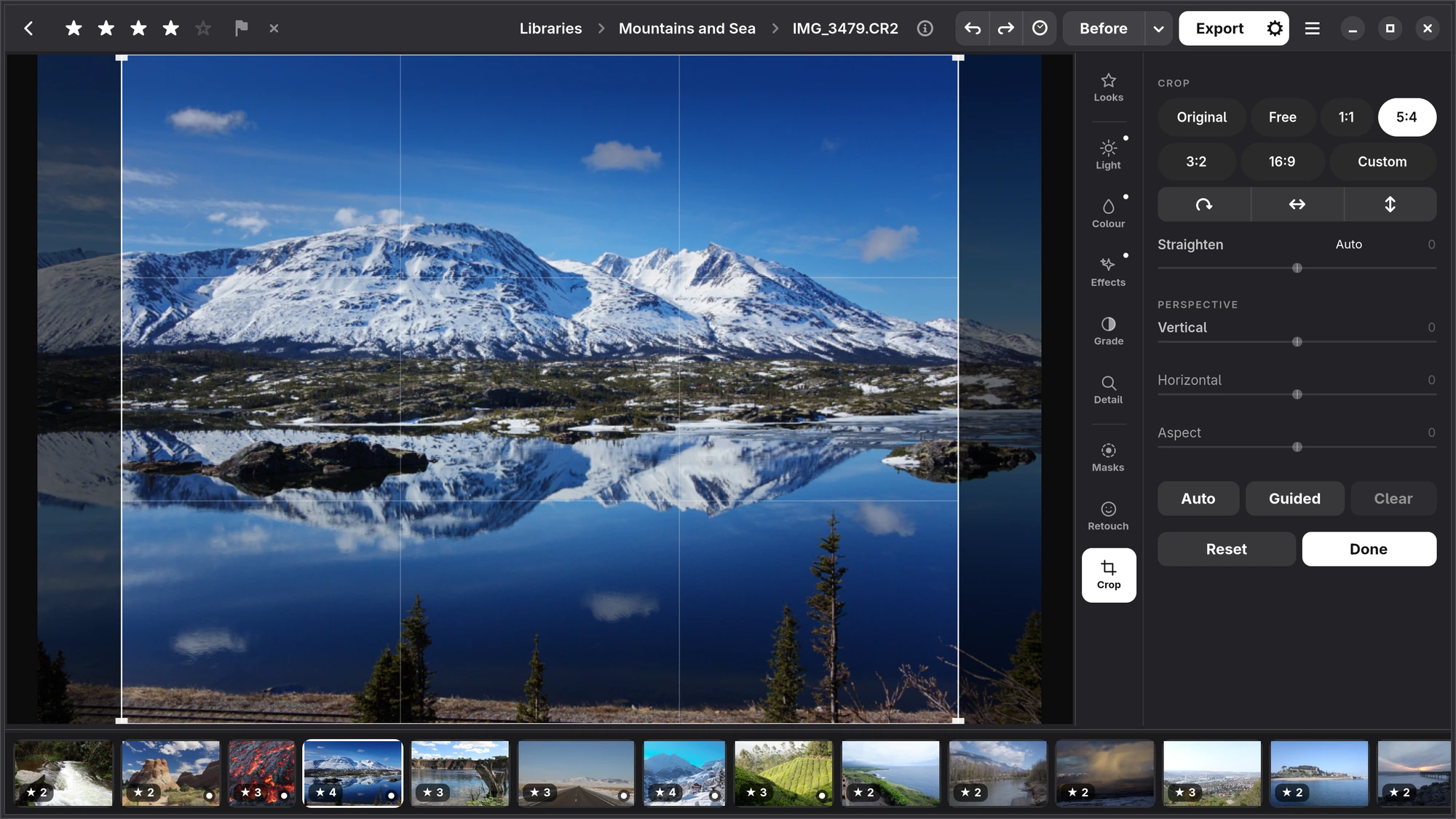
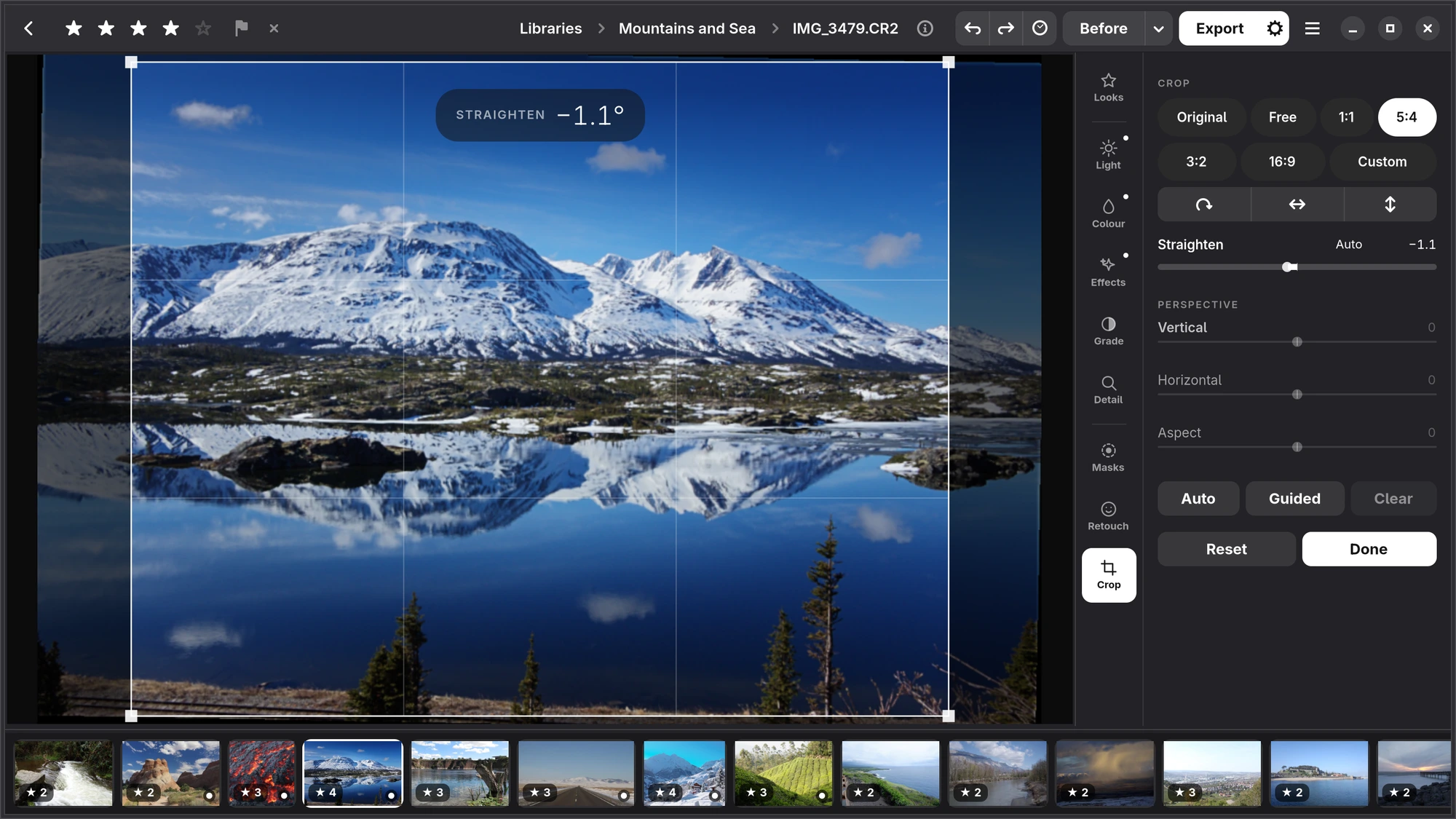
Open Crop and drag the corners or edges of the frame; drag inside it to move it. A grid of thirds helps with the composition. Choose a shape to keep while you drag, from its row of chips: Original, the photograph's own shape, Free, 1:1, 5:4, 3:2, 16:9, or Custom, a ratio of your own. Press a ratio again to switch between landscape and portrait.
Done, in white, keeps the crop and leaves the tool; Reset gives you the whole frame again. The crop never throws anything away: open Crop again and everything outside it is still there.
Turning and flipping
The three buttons under the shapes turn the photograph a quarter, flip it left to right, and flip it top to bottom. A photograph taken on its side is already the right way up: Numa follows what the camera recorded.
Straightening
Drag Straighten to level a horizon, in degrees. While it moves, the angle is shown large at the top of the photograph (“STRAIGHTEN −1.1°”). Auto beside it levels the photograph by the sea's horizon, the verticals of buildings, or upright trunks and posts, and says which; a tilt of more than 8° that looks meant, or lines that disagree, it leaves and says why.
Perspective
- Vertical: verticals that converge, when the camera pointed up at a building or down.
- Horizontal: horizontals that converge, when the camera was turned to one side.
- Aspect: stretches or squeezes the result back to its natural proportions.
Auto, under Perspective, squares up the converging verticals of buildings; the sliders show what it did and are yours to change. It waits while the photograph has masks or healed spots, which would not move with it. Guided lets you draw up to four lines on the photograph that should be vertical or level, and Numa corrects to them. Clear removes the lines.