Libraries
Add the folders you keep your photographs in, move between them, and bring new photographs in from a card or a camera.
The side list
Down the left of the window, as at Numa Home: Today, Photos (every library on this computer as one grid), Libraries, People, Albums and Places, and under ARCHIVE, Import… and Tidy Up. The arrow beside Libraries, People or Albums opens it to every one of them, with how many photographs each holds: a library with its colour (the one it has on the scrubber), a library at Numa Home with a house, a person with their face, and New Album… under the albums. Numa remembers which are open. Hold the pointer on a library, person or album a moment to see its stack of prints beside the list, with how many photographs and when they were taken, so two libraries with one name are easy to tell apart. The Numa mark at the top goes to where Numa opens.
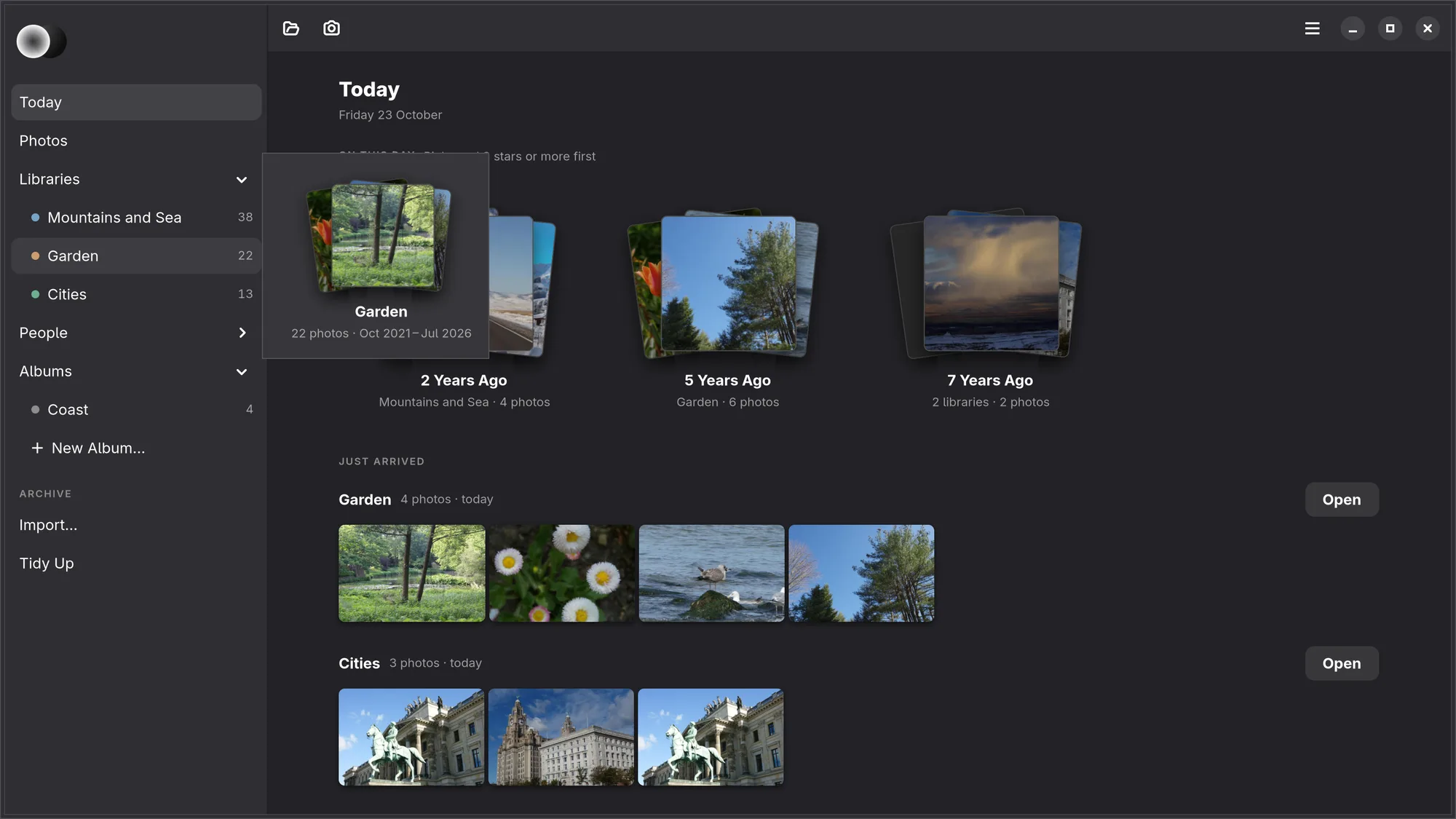
In a narrow window the side list folds away behind the button at the start of the header, and opens over the page. In the editor and the loupe it is not there.
Today
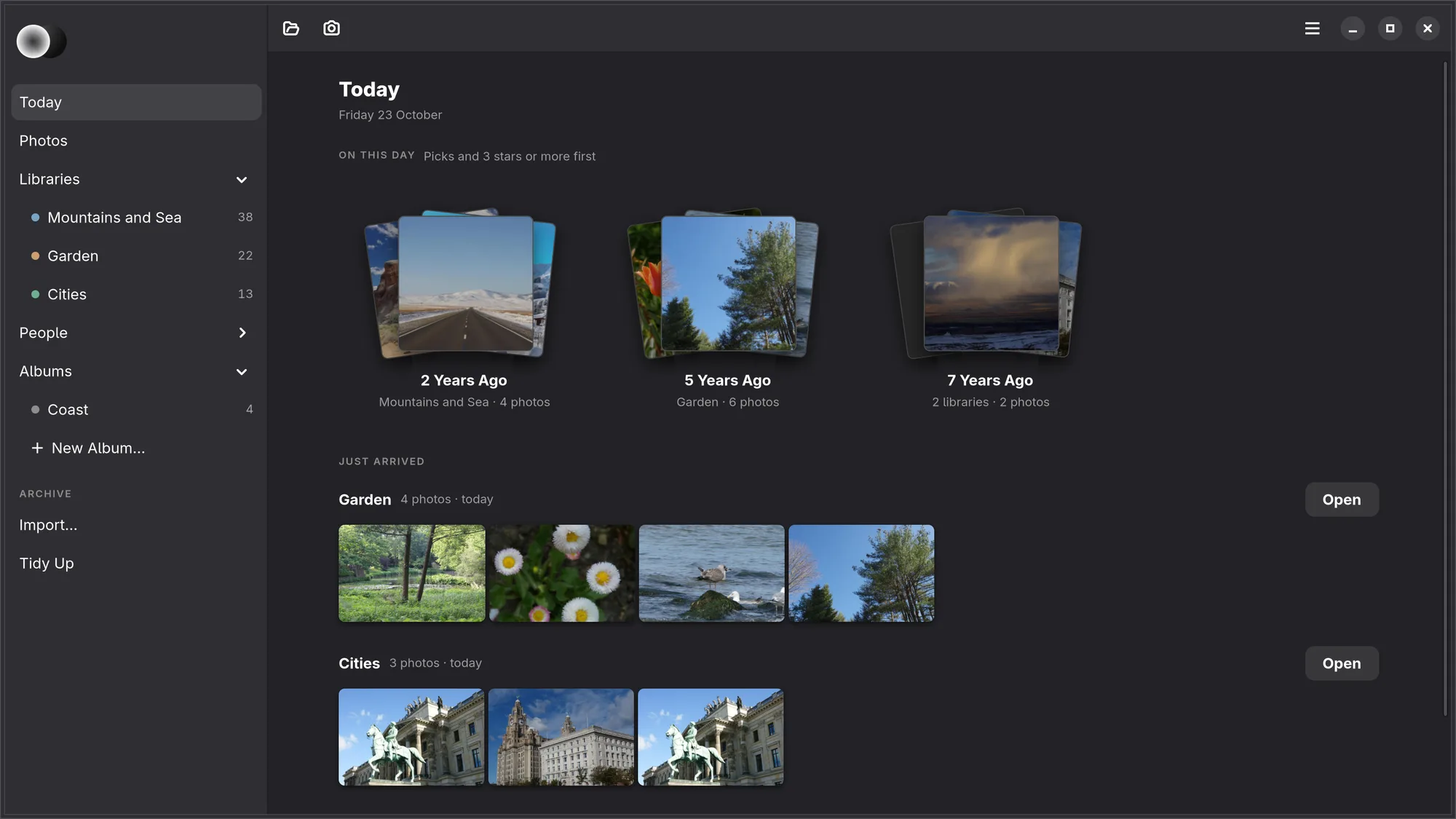
Numa opens on Today: the date, and what there is to look at.
- On This Day: a stack for each earlier year with photographs taken on this day, picks and 3 stars or more first, with the library they are in and how many (“2 Years Ago · Mountains and Sea · 4 photos”). A stack opens those photographs in the loupe.
- Just Arrived: each library's photographs that came onto this computer in the last two weeks, by an import, a copy or a sync, as a strip with Open for the library.
- Waiting for You: sets to choose from in Tidy Up, with Choose, and faces to name, with Name for the People page.
A part with nothing in it is left out. To open on Photos instead, switch on Start on Photos in Preferences.
The Libraries page
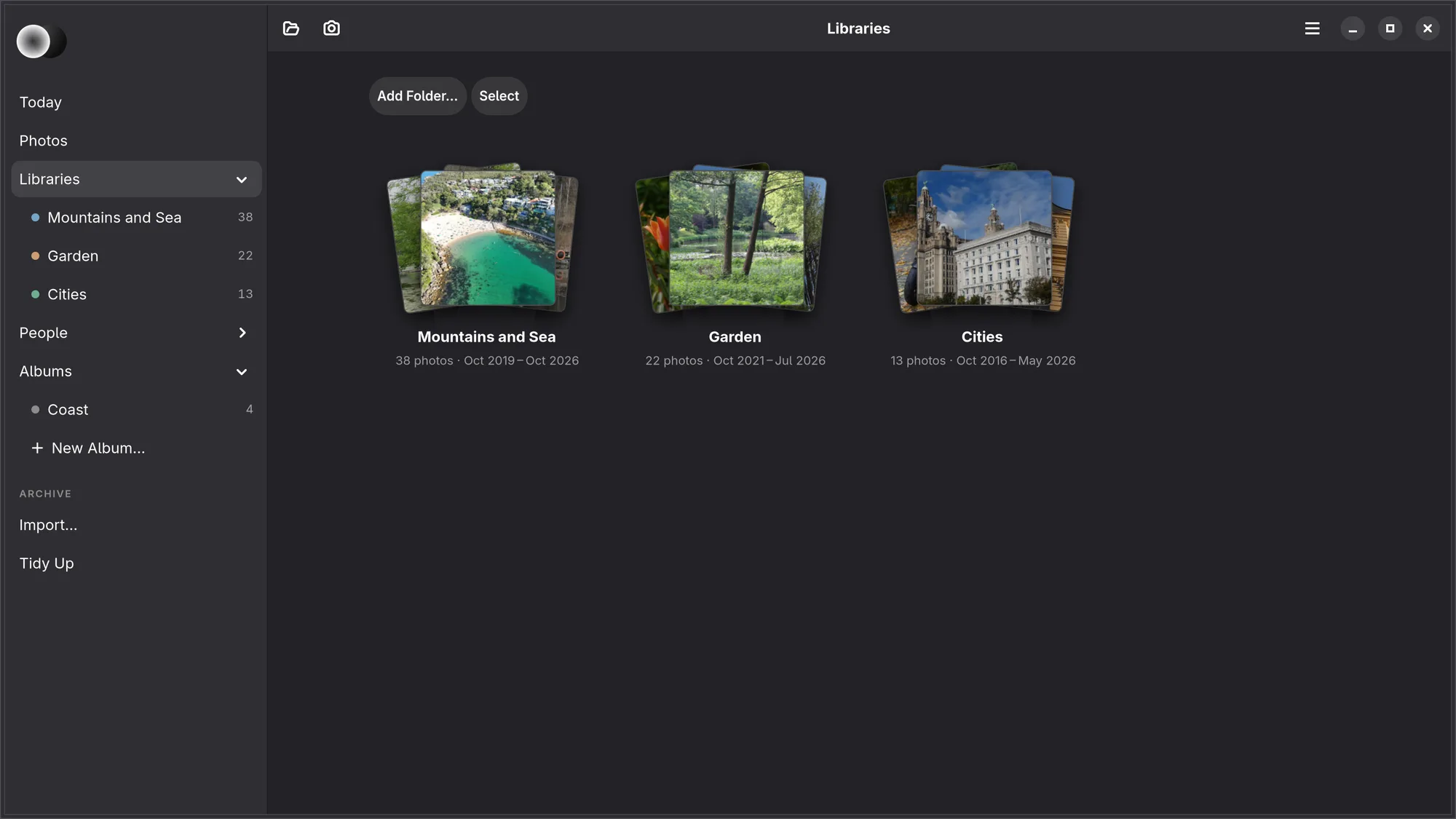
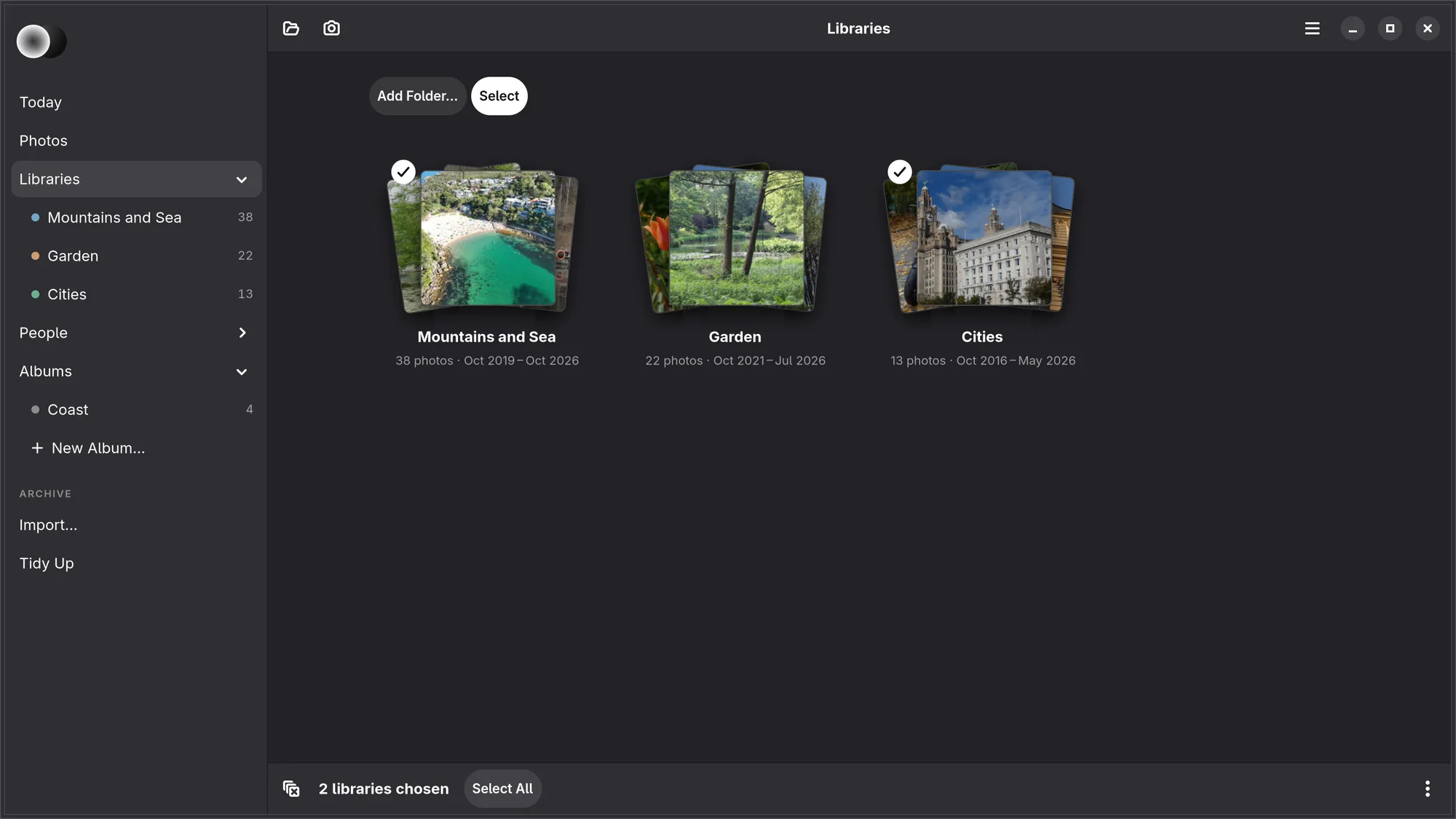
Libraries in the side list opens a page with every library as a small stack of its best photographs, with how many there are and when they were taken (“1 150 photos · Jun 2024”): the library with the newest photograph first, and so on back in time; empty libraries come last. The shelves of a year folder run the same way, the newest year first, and the libraries at Numa Home have a shelf of their own. Add Folder… and Select head the page.
The three prints on a stack, turned a little each, are a library's best: the highest stars first, then picks, then edited photographs, then what Analyse suggests, and never a rejected one.
Choosing libraries. Press Select, and a click on a stack chooses the library instead of opening it, with a tick on its stack; Ctrl-click starts choosing without it, and Shift-click chooses a run. A bar at the foot says “Choose libraries” or how many are chosen (“2 libraries chosen”), with Select All; with one chosen it has Open and Rename…, and ⋯ holds Remove from Numa… and Move to Trash… (see below). Esc, the clear button at the start of the bar or Select again lets them go. A library at Numa Home is not chosen: it is Numa Home's to change.
While Numa is not signed in to Numa Home, the Libraries page shows a card for it once: Set Up… opens its sign-in (in Preferences on Linux, in Settings on the iPhone, iPad and Mac), and the × closes it. Closed, or once Numa Home is set up, it does not come back; you can still sign in from Preferences or Settings at any time.
iPhone, iPad The Libraries page also has a Photos shelf: Your Photos opens your Photos library as a library of its own, with its albums. Each shelf is one row of stacks that scrolls sideways; See All beside its name shows all of them at once, and Show Less folds it back.
A library's page
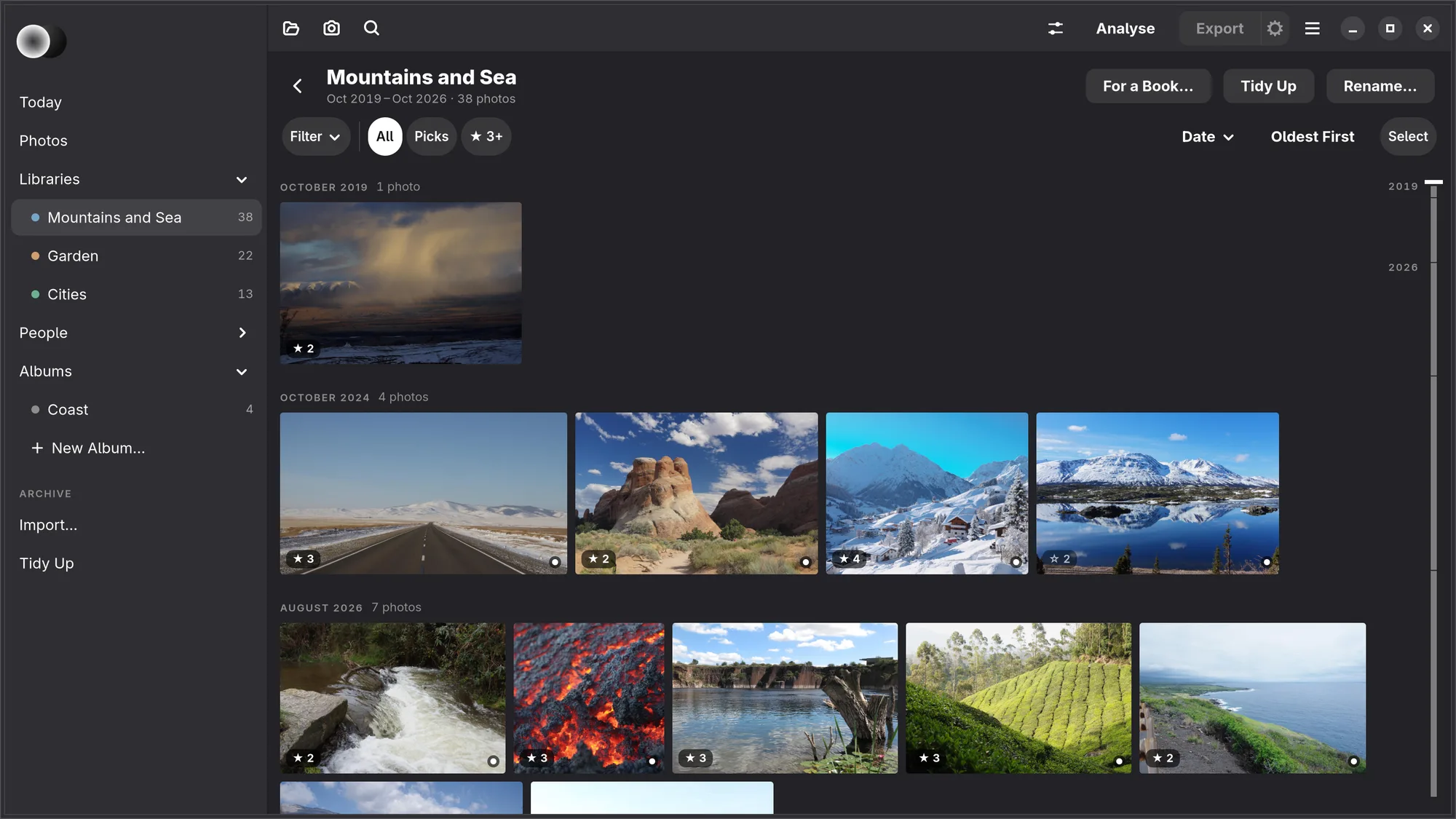
A library, an album or a person opens as its photographs under a head: the way back to its page of stacks, its name, when its photographs were taken and how many (“Oct 2019 – Oct 2026 · 38 photos”), and for a library or an album For a Book… (see For a Book); a library also has Tidy Up and Rename…. Photos has the same head, without the way back.
Places
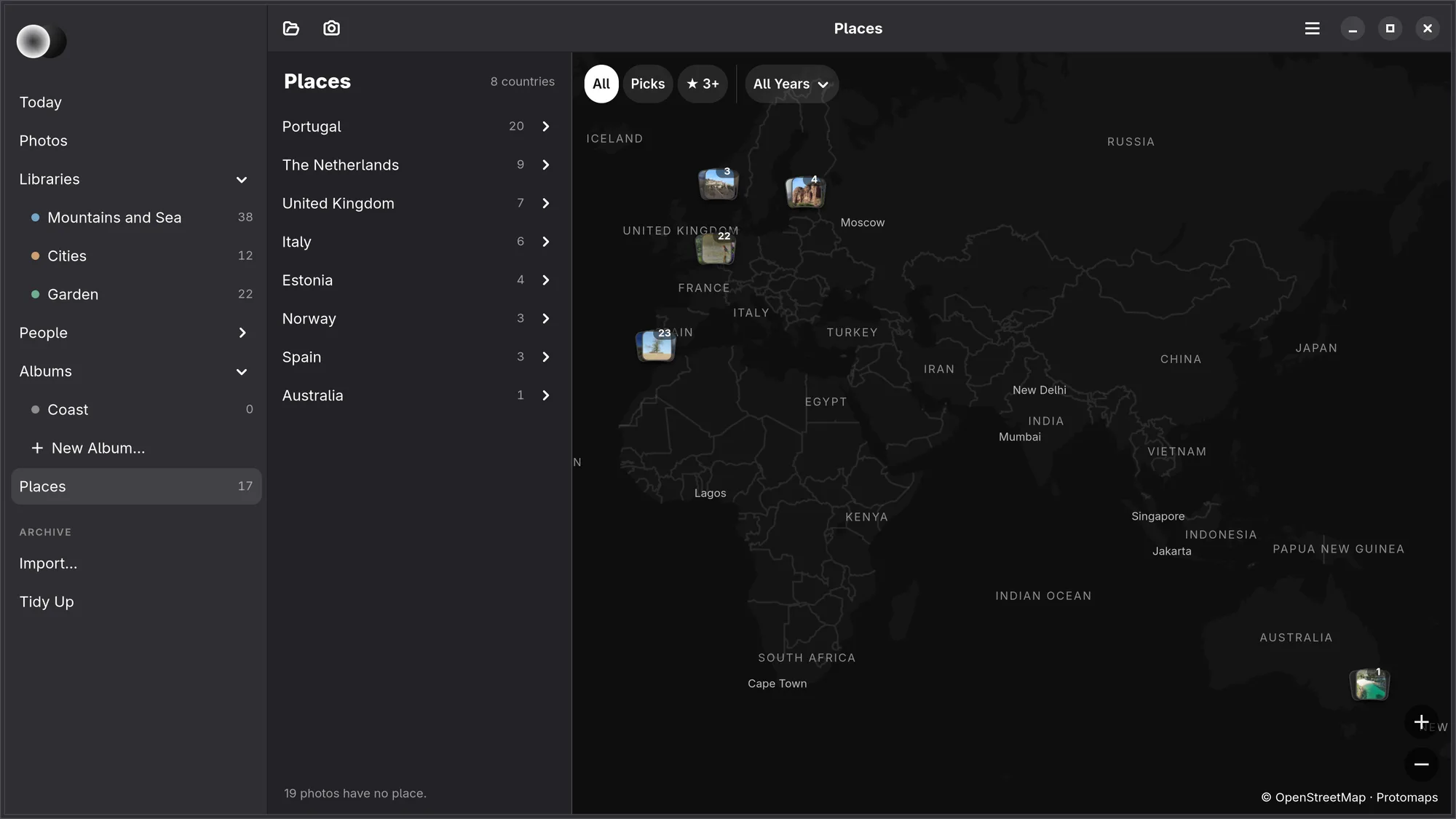
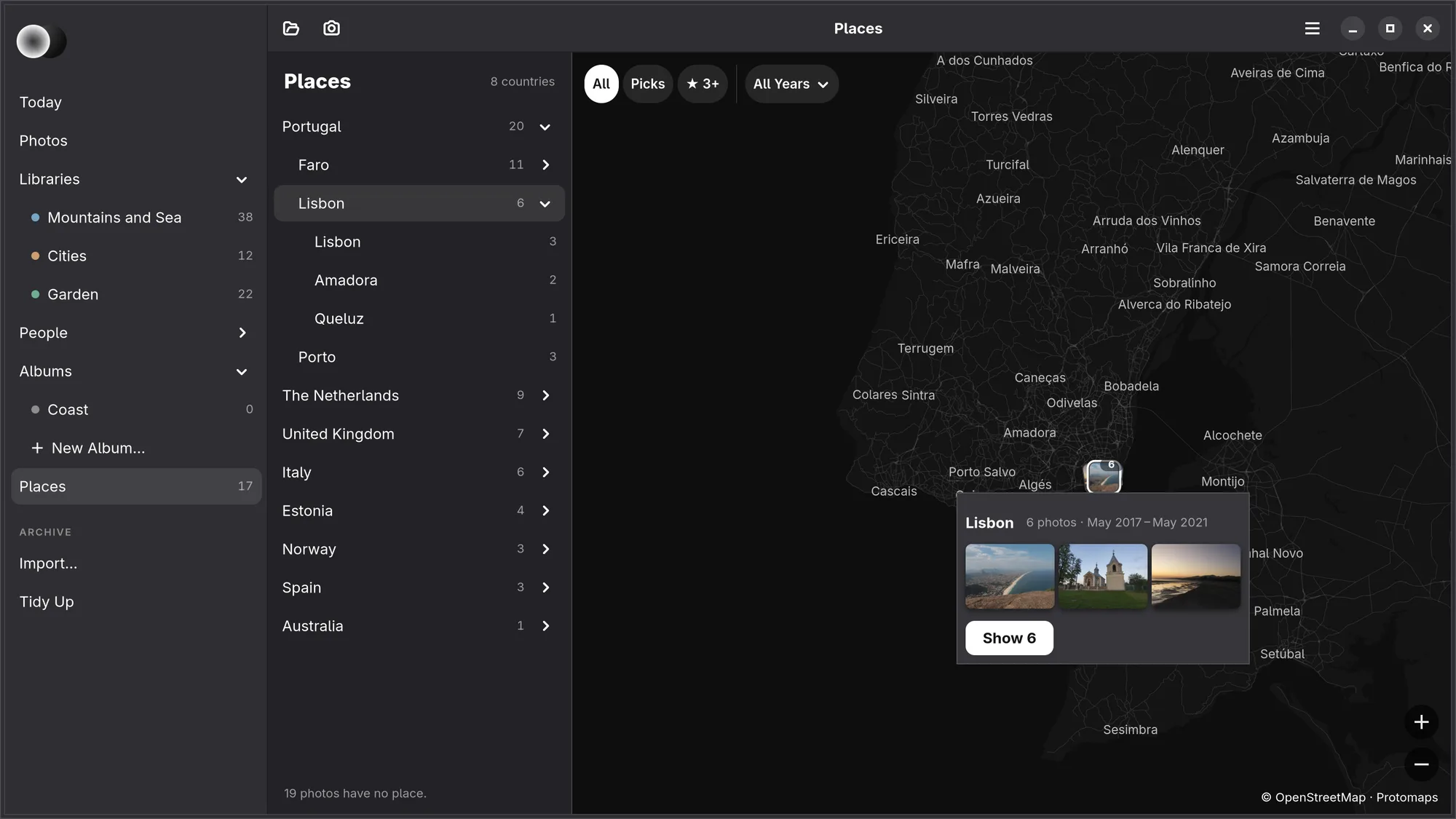
Places, in the side list after Albums, shows where your photographs were taken, as at Numa Home. It goes by their GPS, or the place a track gave them. Numa reads each file once and keeps what it found in the library’s catalog (“Looking where these were taken…” while it reads), so its entry says in how many towns from the start. On the left, every country with how many photographs, the most first; the arrow beside one opens it to its regions and towns. Under the list, how many photographs say nothing of where they were taken (“19 photos have no place.”).
Beside the list is the map, in quiet greys under the photographs. Each place on it is a small stack of its prints with how many; places that would cover each other stand as one stack, and a click on it zooms in until they stand apart. Scroll or pinch to zoom, drag to move, or use + and −. Choose a place, on the map or in the list, to see its name, how many photographs and when they were taken, three of them, and Show 6, which opens Photos narrowed to that place: a chip after ★ 3+ says which, with its ×. The chips over the map narrow the map itself: All, Picks, ★ 3+ and the year.
The map is OpenStreetMap's, as Protomaps builds it. The first time Places opens, Numa fetches the world, about 45 MB: the map’s place shows how far it is (“Bringing the map… 12 of 45 MB”), and the map appears by itself once it has come. Then come the streets around each place, with a small line on the map while they do. If the download stops, Places says why and offers Try Again. All of it stays in Numa's cache on this computer, and from then on the map needs no internet. Which town, region and country a photograph is named after is worked out on this computer too, from GeoNames' list of places.
Adding, renaming and removing
- Add a library: the folder button in the header, Add Folder… on the Libraries page, Libraries… in the main menu, or drop a folder on the window.
- Rename: Rename… in a library's head, or in the bar with one library chosen on the Libraries page (or Libraries… in the main menu). Renaming a library renames its folder on disk, in its place,
.numaand all. - Remove: choose libraries on the Libraries page and pick Remove from Numa… under ⋯, or right-click one, or use Libraries…. It only takes the library off the list; the folder and its photographs stay where they are, with everything done to them, and adding the folder again brings it all back. A Numa Home library has no Remove: Numa would bring it back.
- Move to Trash: choose libraries and pick Move to Trash… under ⋯. Numa says how many photographs go with them, takes the libraries off its list and moves their folders to your desktop's trash, photographs, edits and all. Put back from there, a folder added again has everything it had.
- A folder that moved: if you moved or renamed a library's folder outside Numa, Find this folder where it is now points Numa to it again, with everything it knew.
Numa Home can also combine libraries; here a library is your own folder, which Numa does not move, so there is no Combine….
Folders inside a library
A library includes every folder inside it. To look at one of them, open Filter, at the start of the row under the library's head, and choose it under Folder: the grid narrows to that folder and everything under it. It is a filter, so the rest of the library is one click away (see Filtering).
Numa notices new and deleted files by itself: when you come back to the window, and every minute while it is open. Rescan Library (F5), in the main menu, looks again at once.
A library on a drive that is not connected
A library on an external drive, an SD card or a network share stays on the list while the drive is away, marked Not connected. You can still browse it from the thumbnails Numa already made, and rate and flag; your stars and flags are added to the library when the drive comes back.
One library, two versions of Numa
A library can be opened by more than one Numa: on two computers, on an iPad and a Mac, or a newer build beside an older one. Numa writes a photograph's edits back only when you change them, so opening a photograph in an older Numa and moving on leaves an edit made in a newer one as it was. When the edit uses something the older Numa does not have yet, the older one shows the photograph as far as it can, but it does not change it: it says This photograph was edited in a newer version of Numa until you update it. Numa Home does the same with an edit from a newer Numa than itself.
Camera clocks
A second body, a second shooter's camera or a phone a few minutes off would put its photographs out of order. Each library keeps an offset per camera, and everything that goes by when a photograph was taken uses the corrected time: the grid's date order, bursts, the same scene again and a library's dates. A burst is always one camera's; frames of two cameras can be the same scene, never one burst.
Camera Clocks…, in the library's main menu, lists each camera with its photographs and its offset, and a switch to apply it. A change re-sorts the grid at once and can be undone. The photograph's info shows the corrected time and, where an offset applies, the camera's own clock beside it.
Numa finds an offset by itself, and offers it rather than applying it:
- One moment two cameras both saw: nearly the same frame from two bodies, at least three of them agreeing.
- The rhythm of shooting, for two shooters who never framed the same thing: everyone presses at the ring, the kiss, the goal.
- A clock photo: Clock Photo…, in Camera Clocks, shows the time with a code that changes ten times a second. Photograph that screen with each camera before the day starts. When the library is analysed, the frame gives that camera's offset; it is left out of bursts and suggestions, and its info says what it is.
Or set it yourself with Set by Hand…: the camera, whether its clock runs ahead or behind, and by how many minutes and seconds.
What Numa finds is offered in a banner over the library, with the frames that show it (“Two cameras saw the same moment · The A7 IV's clock runs 3 min 12 s ahead of the X-T5”). Line Up applies it, with Undo in its toast; Not Now is remembered. With one camera, or matches that do not agree, nothing is offered.
Importing from a card or camera
When you put a card in a reader or connect a camera by cable, a banner appears under the header with what is new on it (“EOS_DIGITAL · 312 new photographs”) and Import…, which opens the import dialog on that card. If nothing on the card is new, Numa says nothing, and the banner goes when you take the card out. The import button in the header opens the same dialog at any time, from a Card or camera or from Another folder….
- What is already in one of your libraries (same name, size and content) stays on the card.
- When the import is done, Numa analyses the new photographs, as Analyse would, and reads them for search by words if you have set that up. The same happens to each photograph that comes in while you shoot tethered.
- The rest is split into shoots: two days without a photograph starts a new one. Each shoot goes to the library whose dates it fits, or to a new folder named after its date, which you can type over.
- You can rename the files on the way in, with a pattern such as
{date} {time} {n} {name}. - Copying is safe: nothing is ever overwritten (a different photograph with the same name gets
-2), the files keep their times, and Stop leaves nothing half-copied.
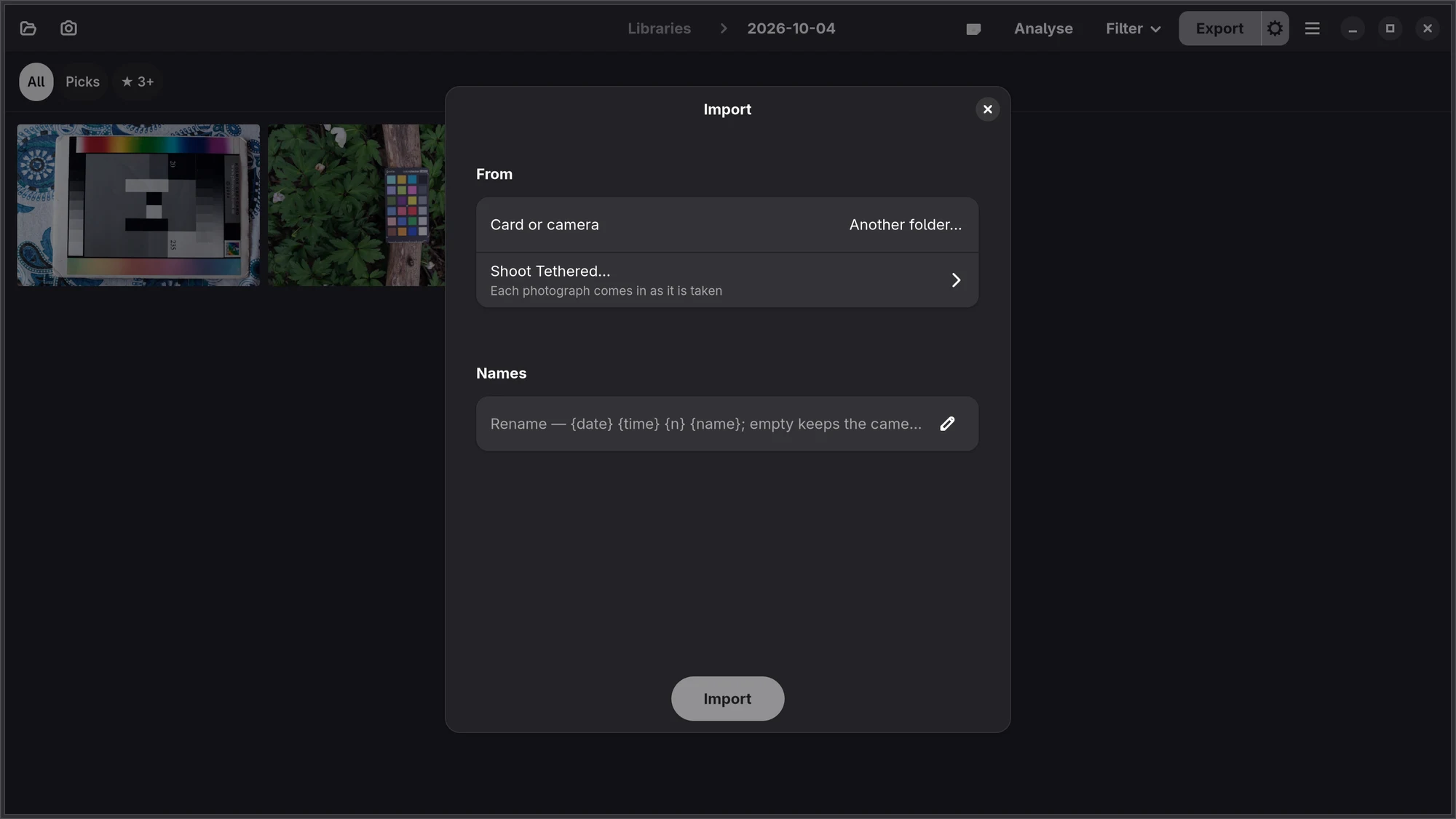
Only the Raws. A switch under From. With it on, a camera's JPEG or HEIF beside its raw stays on the card, and the raw comes in alone; a JPEG with no raw beside it still comes in. Numa remembers whether it was on.
Look first. Under Look First, the dialog shows the new frames on the card in a strip. Look at the Card…, or a frame in the strip, steps through them full size: ← → to move, X to leave a frame on the card, P to pick, 0–5 for stars and U to clear. A frame you leave on the card is not copied (“2 left on the card”, and the button says Import 10); your marks come into the library with the rest.
Stars from the camera. Stars you gave a photograph in the camera come into the library with it, unless you marked it on the card. The done page says how many (“2 rated in the camera”).
Previews first, the raw later. If a camera's phone app (Fujifilm XApp, Sony Creators' App, Nikon SnapBridge) brought JPEGs of these frames across and they are in one of your libraries, the dialog shows them under Already Here as JPEGs (“14 from the X-T5 app”), with a switch that is on. Each raw then takes its JPEG's place: the stars and flag (where you gave none on the card) and the albums move to the raw, and so do the names given to faces, the place, and the crop, straightening, perspective, turn and flip. Colour and tone you set on the JPEG stay with the JPEG, and the done page says what was carried. The JPEG stays beside its raw as its pair, as when you shoot raw and JPEG together, so one frame is never picked or exported twice. A JPEG that was renamed, saved again by another program, or already has its raw beside it is left alone.
You can also drag photographs or folders from your file manager onto a library: they are copied into it, a folder as a folder, never overwriting anything, and each copy keeps its time. Afterwards Numa says what was copied, what was already there and what could not be copied.
From Numa Home. Signed in to Numa Home, From also offers Numa Home: a library there, its months ticked, comes into Pictures/Numa Home and is kept in step with Home both ways (see Numa Home libraries).
iPad, Mac Import, in the toolbar of a folder library, copies photographs into it from anywhere Files can reach, a card included.
Two copies, both checked
A card is safe to format once every photograph on it is in two places and both copies have been read back. The Copies group in the import dialog sets that up:
- Add a Second Copy… asks once for a folder on another drive. Numa remembers it on this computer; a switch leaves it out.
- Keep at Numa Home, when Numa is signed in to Numa Home, sends the library the import goes into home and keeps it in step from then on (see Keeping an import at Home).
- Check Both Copies, on by default, reads every file back from the disk once it is written and compares it with the card. Without a second copy it is Check the Copy.
The second copy is made from the library's checked copy, so a slow drive does not hold up the card. Every raw is also opened once in full, while you can still take the picture again; one that does not open is named (“DSCF4204.RAF could not be read — reshoot while you can”). A copy that does not match the card is not kept. The library opens as soon as it has every file; when the rest is done, the done page says how it went:
- Safe to Format: two places, every copy of every file the same as the card, every raw opened, and every frame on the card with a checked copy.
- Copied and Checked, without a second copy: add one to be safe to format.
- Copied, with the check off: not read back, so not safe to format.
- Not Safe to Format: the page says what is missing and lists every problem by name. Try Again copies those files again.
Most cards are never formatted, and still hold frames a library already has. The done page has a row for them (“13 older frames · Already in Spring Walks”), with how long reading them off the card takes, and Check Them Too: Numa reads each one off the card, compares it with its copy in the library and in the second place, and then says Safe to Format, or names the frame whose copy is not the same and keeps the card from being safe. There is no Try Again there: which side is right is yours to say.
Eject Card, on the done page, ejects the card when it is a drive of its own.
Every import leaves a receipt: a plain list of every file with its checksum, kept in the library (in .numa/receipts) and in the second place (in .numa-receipts). Show, beside Receipt on the done page, shows it in your file manager; xxh128sum -c checks it without Numa.
Check These Copies Again, on the done page and on by default, keeps checking: once a month, ten minutes after Numa opens and never on battery, Numa reads every file a receipt lists that is still there and compares it again. It says something only when a file no longer matches. The same switch is Check Copies Again in Preferences, under Imports.
Shooting tethered
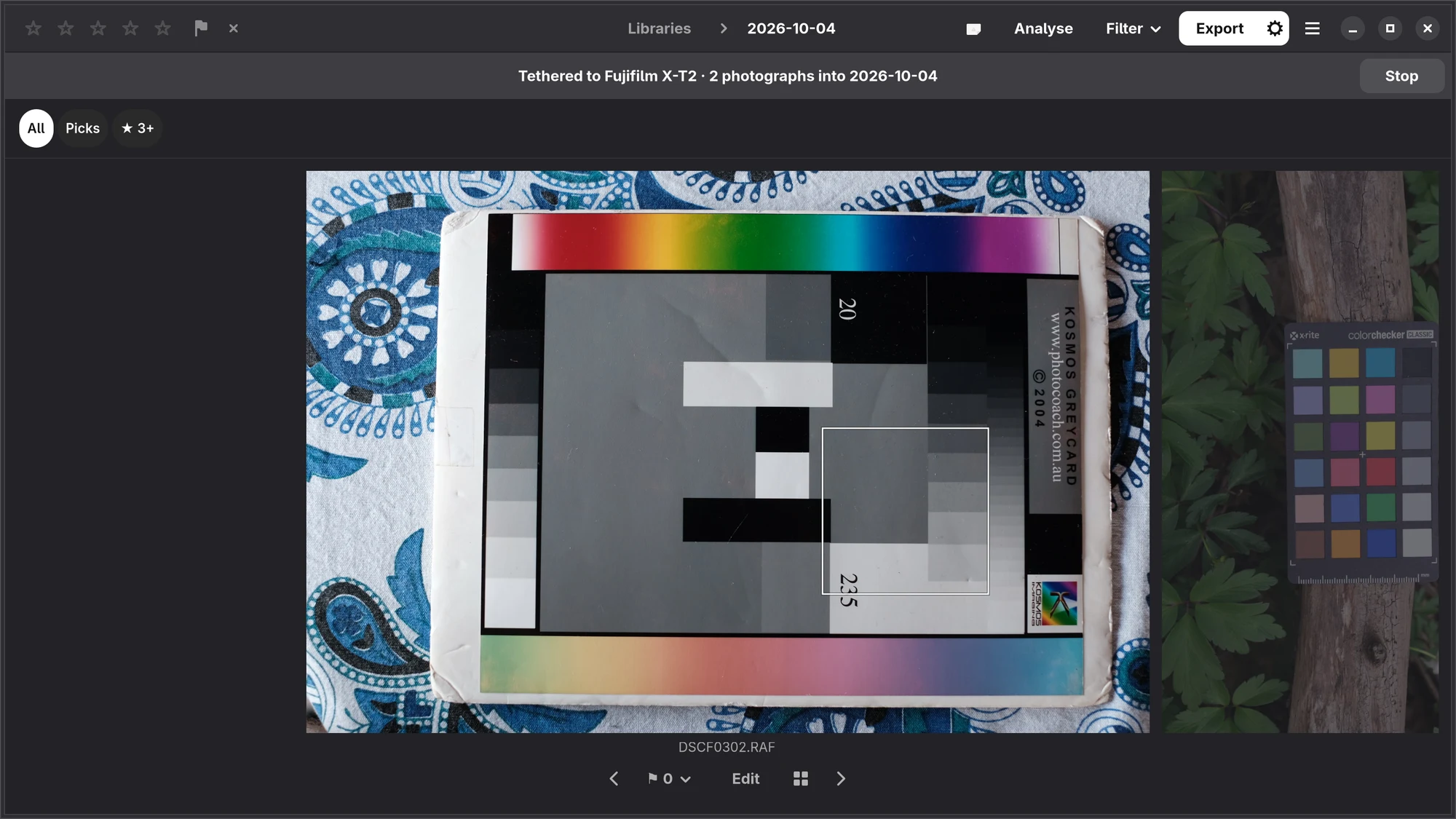
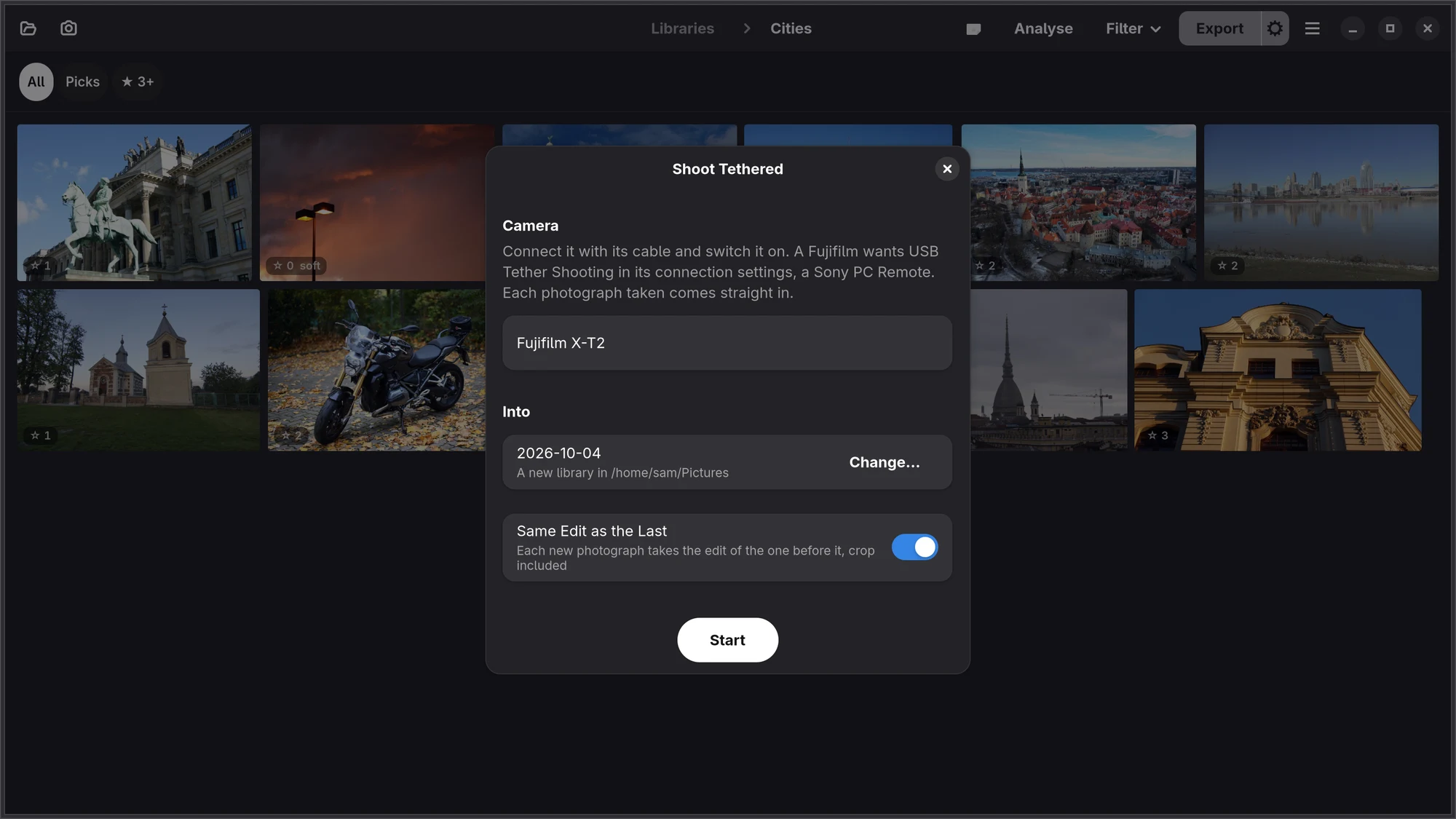
With the camera on its cable, each photograph you take comes straight into a library and onto the screen. Plug the camera in and switch it on: its name appears beside the camera button at the top left of the library. Click it and choose Shoot Tethered… (or Import… for what is already on its card). Shoot Tethered… is also in the main menu, and in the import dialog under From.
- Camera: the camera on the cable, by name. Set it to tethering in its own menu first: on a Fujifilm, USB Tether Shooting in the connection settings; on a Sony, PC Remote. You can also start first and plug the camera in after. If the camera is still set to read its card, the bar under the header says which setting to choose, and Numa carries on as soon as you switch it.
- Into: the library whose dates are today's, or a new library named after today's date where your new libraries go, as for an import. Change… picks another folder.
- Same Edit as the Last: each new photograph gets the edit of the one before it, crop included. Edit the frame that just came in, and the next one arrives looking the same. Numa remembers whether this was on.
While Numa is tethered, a bar under the header says so (“Tethered to Fujifilm X-T5 · 12 photographs into 2026-10-04”), with Stop. Stop is also in the main menu as Stop Tethering.
Each photograph opens large in the loupe, where you can pick or reject it with one key, and the next one takes its place. After a second or two Numa says what it noticed in a pill at the photograph's top left (“Soft”, “Eyes closed?”). It never rejects anything itself. If you go back to an earlier photograph, or close the loupe for the grid, new photographs come in without taking you away from it. In the editor, a new photograph opens in the editor instead.
The files are copied whole into the library's folder under the camera's names (-2 if a name is taken; nothing is overwritten) and stay on the camera's card. A camera that is switched off, goes to sleep or is unplugged is waited for, and Numa picks up again when it is back. If your file manager opens the camera when you plug it in, Numa takes it back.
iPhone, iPad, Mac Not yet.
Opening a single photograph
Open… (Ctrl O) in the main menu, Open With in your file manager, or numa photo.RAF in a terminal. The photograph opens in the loupe with its folder behind it; if the folder is not a library yet, Numa offers to add it. To make Numa your default app for photographs, switch on Open photographs with Numa in Preferences. Photographs you open or export also appear under Recent in your file manager.
What Numa opens
Raw files from most cameras (Canon, Fujifilm including X-Trans, Nikon, Sony, Panasonic, Olympus/OM, Pentax, Leica, DJI and DNG), HEIF and HEIC (Fujifilm's .HIF too), JPEG, PNG, TIFF, WebP and BMP. Raw files from monochrome cameras, such as a Leica Monochrom or the Pentax K-3 Mark III Monochrome, open in black and white. When you shoot raw and JPEG together, both appear as their own cards; File Type, in the Filter menu, shows RAW Only or JPEG and Others. If a raw file cannot be read, Numa says so after adding the library.