Light
Exposure and the five tone sliders, Auto, and the tone curve.
Tone
| Slider | What it does |
|---|---|
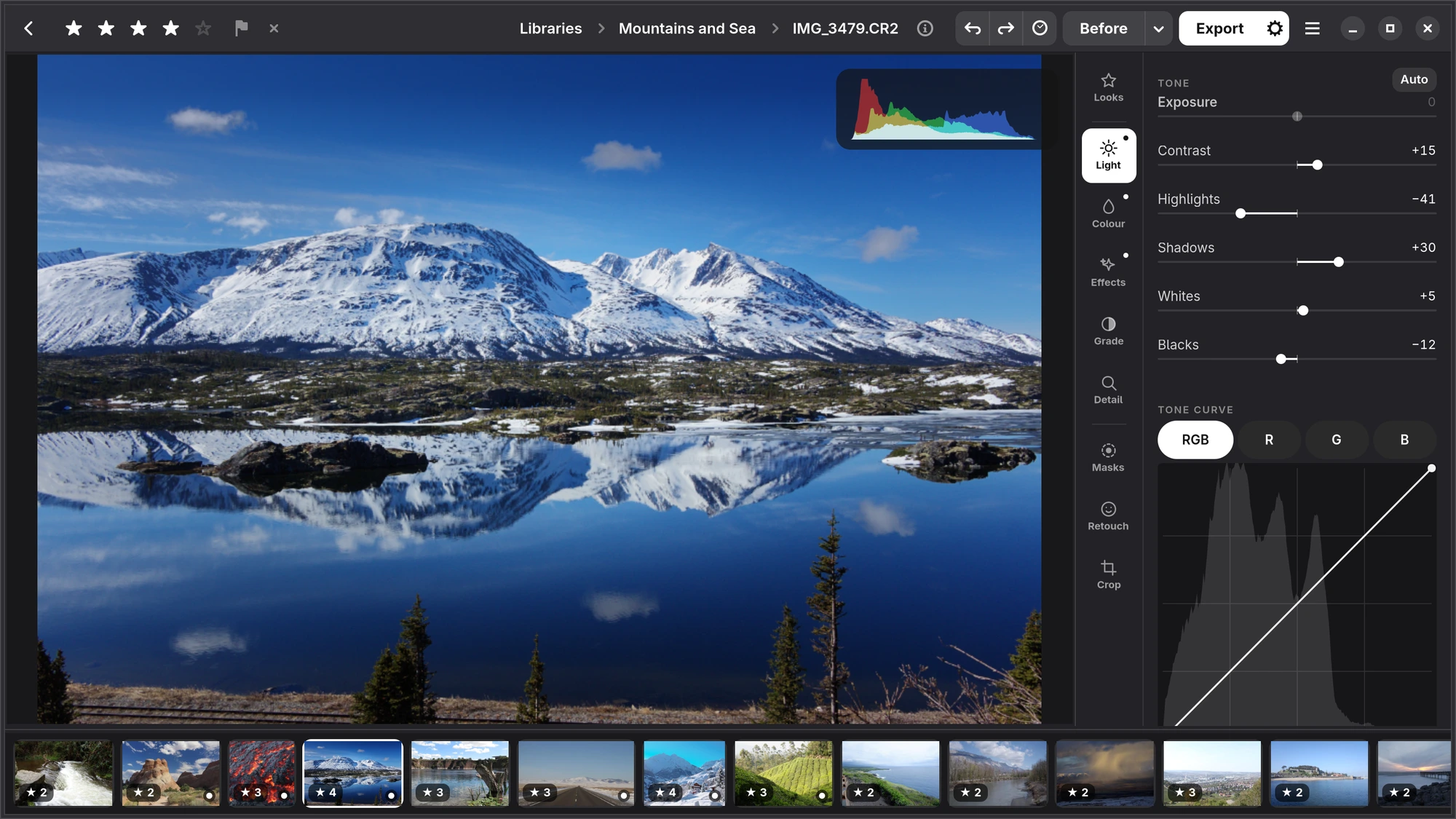
| Exposure | Brighter or darker, in stops, from −5 to +5. Numa has already matched each raw file's exposure to what the camera showed you, so 0 looks like the camera's own picture. |
| Contrast | More or less difference between light and dark, around the middle grey. |
| Highlights | Brings back or brightens the bright parts: a sky, a white shirt. |
| Shadows | Opens up or deepens the dark parts. |
| Whites | Where the brightest tones end: pull down to recover what is almost blown, push up for crisp whites. |
| Blacks | Where the darkest tones end. |
Auto
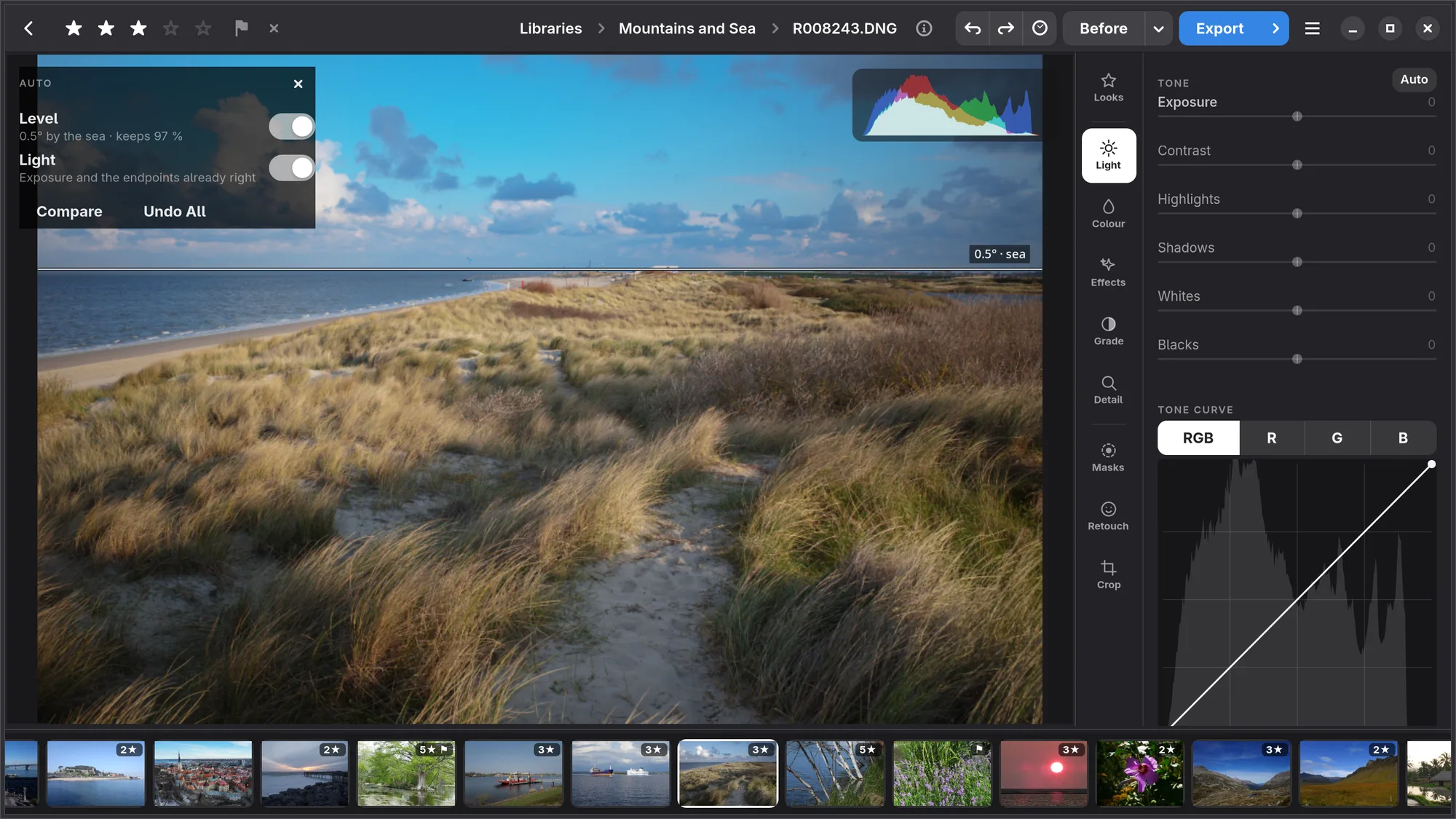
Auto, small, at the end of the Tone label, or A, looks at the photograph and does two things in turn. First it levels it, by the sea's horizon or by the verticals of buildings, if it finds one clearly enough and the turn costs little at the corners. Then it sets exposure and the black and white points from what is in the frame. A bright sky does not take the rest of the photograph down with it: the exposure stays, and the white point and Highlights bring the sky back where they can. When there is a person or an animal in it, filling a fair part of the frame, the exposure is set for them: up when they stand in shadow or against the light, down when they burn out. That may let a bright sky go white or deep shadows go black; the card says so. A dark figure against a sunset stays a silhouette. Auto reads what the camera recorded, too: a stop or more of exposure compensation down is taken as a photograph meant dark, so it is not brightened; with DR200 or DR400 the white point is not pushed out; a frame shot in black and white gets no colour added. A lamp may stay white, and so may the points of light in a night street. Auto never adds a mask. It is a button, never a default: nothing happens until you press it. Each part is its own step, so Ctrl Z takes back the light, and pressing it again takes back the level. A straighten you set yourself is left alone.
A card at the top left says what Auto did and what it left, part by part: “0.5° by the sea · keeps 97 %”, or why not, such as “No horizon or upright lines clear enough to level by”. Every part has a switch: on where Auto did it, off where it would rather ask — a level that would cut a face or someone at the edge, one read off trunks and posts alone, or squaring up leaning buildings. Turn a switch and the light is measured again. Where a crop would serve the photograph, the card offers up to three, each with its reason, dashed over the photograph: choose 1, 2 or 3 to crop, or As shot to keep the frame; Auto never crops on its own. Point at a number to see that crop on its own, the others faint, and rest there a moment to see the photograph as that crop would leave it. A crop keeps an animal whole, wingtips included, never cuts a face, and passes through a person only at the chest, the hips or mid-calf, never at the neck, waist, knees or ankles; it leaves room on the side a face looks to, and no sliver of a passer-by at its edge. It may leave out a passer-by whose face it does not show, whole, never a sliver of them. In a crowd the crop is placed round the person you focused on, or the one whose face shows; when no one stands out it offers none rather than guess. With healed spots on the photograph it offers none, since they would not move with it. In a burst whose sharpest frame is another one, the card says which, with Open, and Same Light gives the burst's other frames this one's light, each exposed so they look alike (once Analyse has run on the library). Hold Shift Space to see the photograph as it was before Auto, or press Compare on the card to keep it beside the photograph; Undo All puts the photograph back as it was. Close the card with its ×; it goes when you move to another photograph.
Tone curve
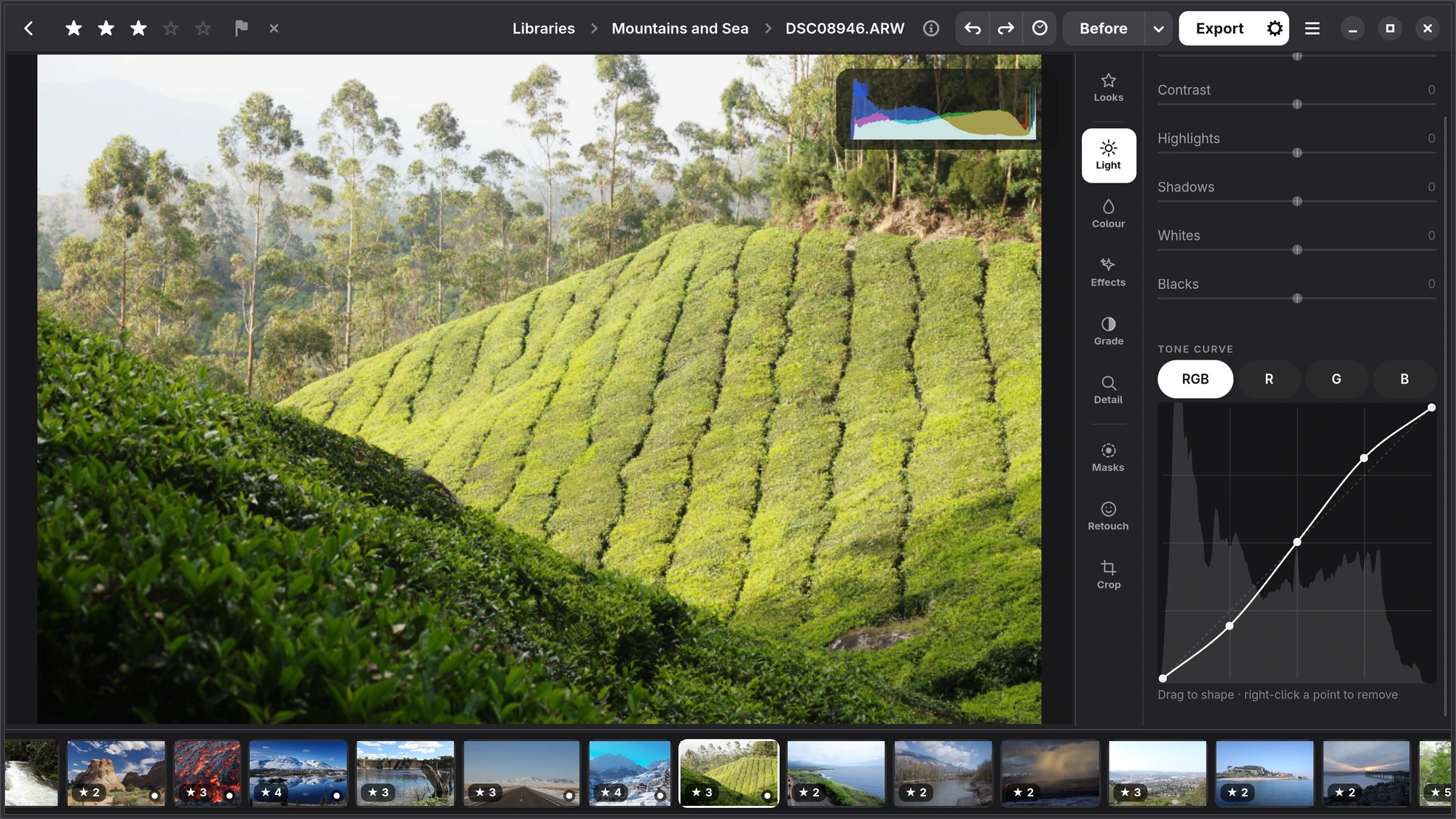
The Tone curve is drawn over the photograph's own histogram, so you see which tones you are moving. Click on the curve to add a point and drag it to shape the curve; right-click a point to remove it. RGB changes brightness; R, G and B change one colour channel at a time, for a cast or a cross-processed look. The curve never folds back on itself, however you drag.
iPhone, iPad The same six sliders under Tone, with Auto beside them and the histogram above. On the iPhone, the curve is drawn over the photograph itself.