Getting started
Install Numa, give it a folder of photographs, and choose which of its optional models to download.
Install
Linux
Numa for Linux is free and open source, for 64-bit Intel and AMD. Install it as a package for your distribution, or download a Flatpak or an AppImage from numa.photo/beta.
- Package: for Fedora 44, openSUSE Tumbleweed, Debian Testing, Ubuntu 26.04 and Arch. The download page has the lines to add Numa's repository, after which Numa updates with the rest of the system. On Arch the package is called
numa-photo, because Arch has a DNS resolver callednuma; its lines are in the README, not on the download page. - Flatpak:
flatpak install --user Numa-*-x86_64.flatpak, then open Numa from your applications. - AppImage: make the file executable and open it. It needs FUSE 3; without it, run it with
--appimage-extract-and-run. On the first start Numa offers to add itself to your applications menu. If you move the AppImage later, the menu entry follows it the next time you open it. A banner asks once whether Numa may look for new versions; a package or a Flatpak is updated by what installed it.
iPhone, iPad and Mac
One purchase covers all three. The public beta runs through Apple's TestFlight: write “beta” and your device to support@numa.photo and you get the link as soon as Apple has reviewed it. Open the link on the device and install Numa from the TestFlight app. The Mac app needs Apple silicon.
Your first library
Numa works on folders: a folder of photographs, and everything in it, is a library. Numa never changes, moves or renames your files. What it knows about them (stars, flags, edits, thumbnails) lives in a small .numa folder inside the library, so the library's folder must be writable, and a library you move to another disk takes all of that with it.
On Linux, Numa starts on an empty page, No Libraries Yet: choose Add Folder… there (or the folder button at the left of the header), or drop a folder on the window. Import from Card… copies photographs from a card first; see Importing. Numa makes thumbnails as it goes (“Making thumbnails — 38 of 42”), then says which cameras it found, whether it has a colour profile for each, and whether any raw file could not be read.
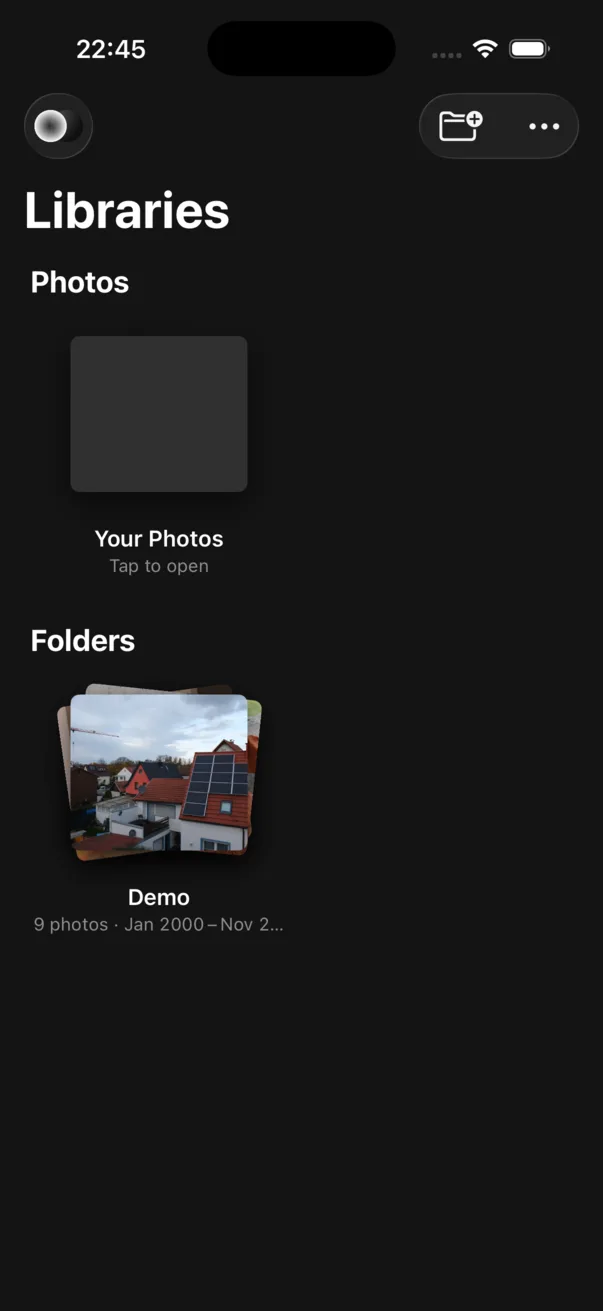
iPhone Numa opens on Libraries: Your Photos is your Photos library, and the folder button adds a folder from Files (iCloud Drive, a USB drive, a server you have connected in Files).
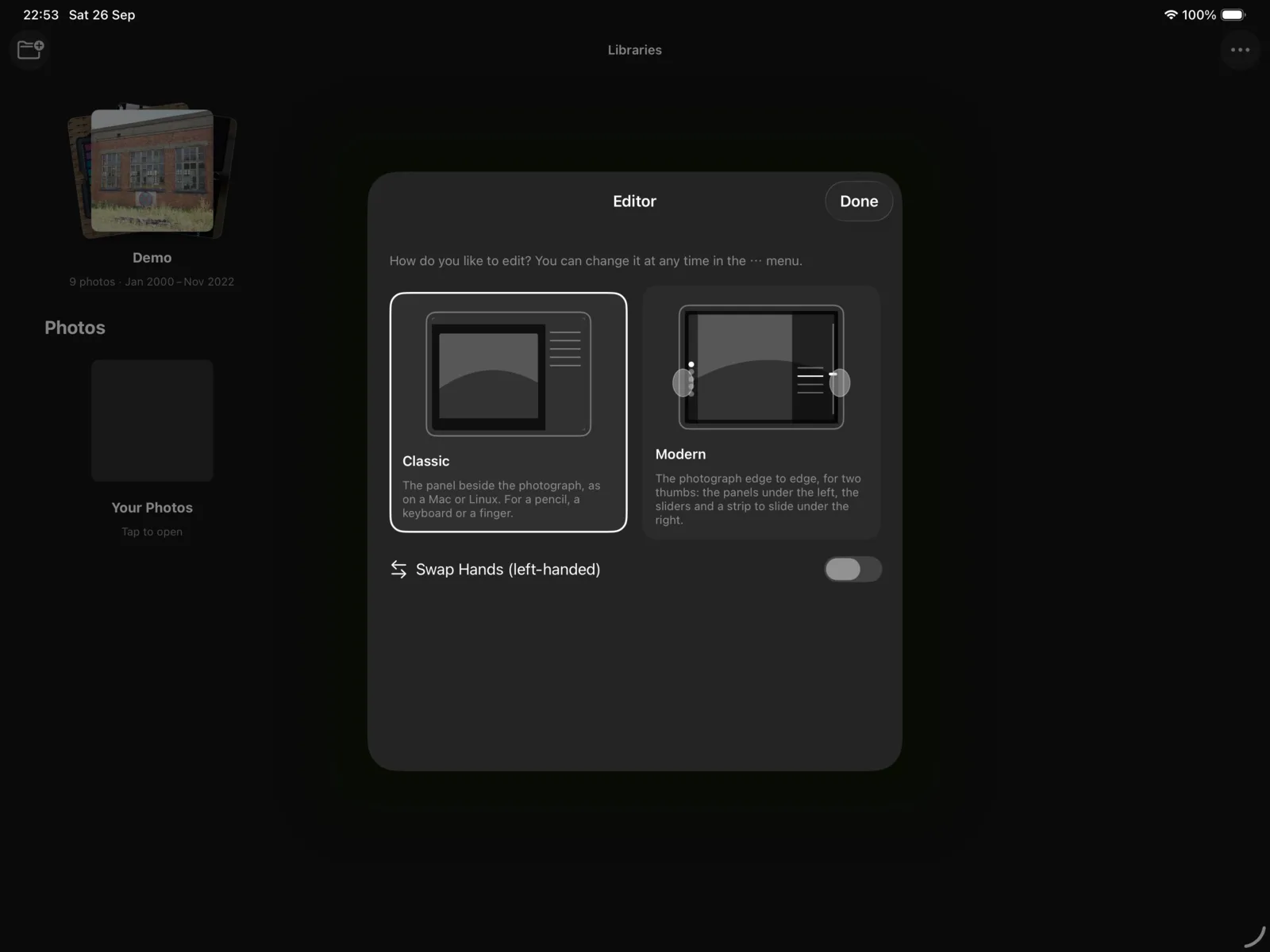
iPad The same, and the first time you edit, Numa asks which editor you want: Classic, the panel beside the photograph as on a Mac or Linux, or Modern, the photograph edge to edge for two thumbs. You can change it any time in the ⋯ menu.
Add-ons: models and profiles
Some features use machine-learning models or camera profiles that are too large to ship inside Numa: finding the sky or a person for a mask, AI denoise, removing things, recognising faces. You choose which to download; each says what it is for, its licence and its size, and nothing is downloaded until you say so. Everything they do runs on your own device.
On Linux, a banner over your libraries says so once (“Some tools need extra files: Select, Faces, AI Denoise”); Download… opens the list. The same list is in Preferences (Ctrl ,), and when a feature needs a model you do not have yet, it says so and where to get it.
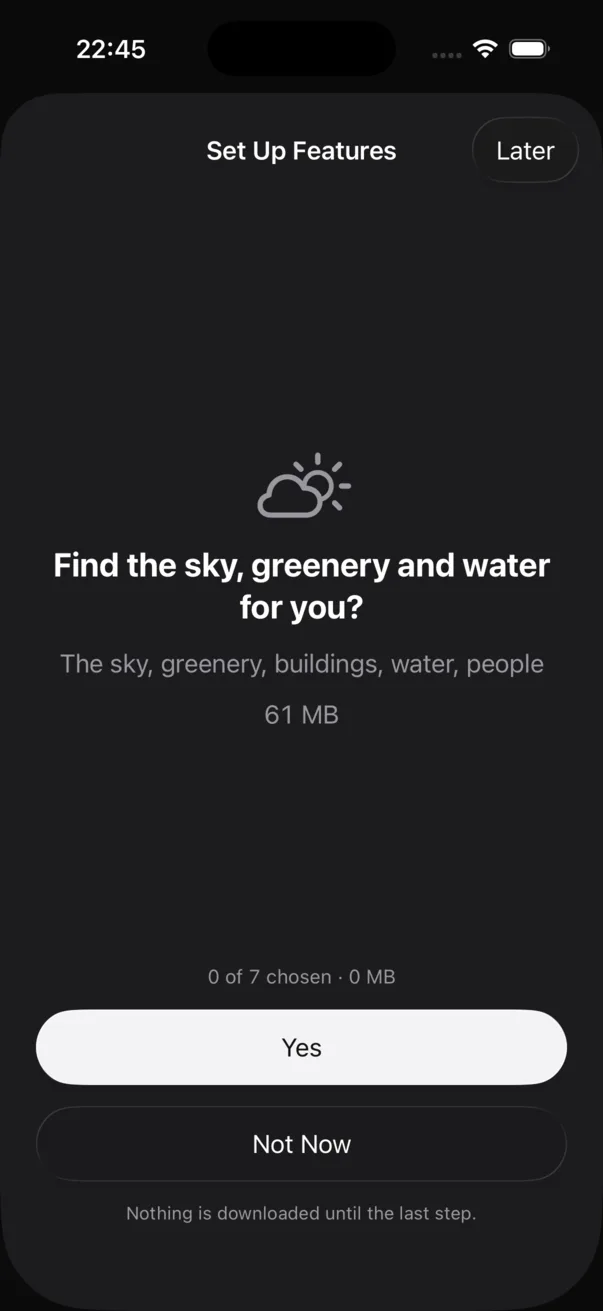
iPhone, iPad, Mac On the first start, Set Up Features asks about each group of features (“Find the sky, greenery and water for you?”), with the size of each. Later skips it; the same choices are in Add-ons…, in the ⋯ menu on the Libraries page.
Where things are kept
Your photographs stay wherever you keep them: a folder, an external drive, a NAS, a synced folder, your Photos library. Numa has no account and no cloud of its own, and does nothing with your photographs but show and edit them on this device.
- In each library's
.numafolder: the catalogue (stars, flags, edits, history), with a weekly backup, and the thumbnails. - In your home folder (Linux:
~/.local/share/numaand~/.cache/numa): presets, downloaded models and profiles, and larger thumbnails. Preferences lists every folder with its size and a button to open it.