Culling
Stars, picks and rejects with one key each, and Analyse, which measures every frame and suggests which to keep.
Stars and flags
Every photograph can have 0 to 5 stars and a flag: picked, rejected, or none. The same keys work in the grid (on the selection), in the loupe and in the editor (on the photograph on screen):
| Key | What it does |
|---|---|
| 0–5 | Stars, 0 clears them |
| P | Pick; again to clear |
| X | Reject; again to clear |
| U | Clear the flag |
You can also click the stars at the top left of the loupe and the editor, and at the foot of a card in the grid while the pointer is on it (that photograph only; click the stars it has to take them off); use Rate, Pick and Reject in the bar for a selection; or use the right-click menu. Stars and flags live in the library's catalogue, never in your files.
iPhone A photograph from your Photos library has no stars: the flag is Favourite, the heart Photos uses. Photographs in a folder library have stars as everywhere else.
iPad Touch and hold a photograph to rate or flag it; with a keyboard, the same keys as on Linux work.
Culling in the loupe
The loupe (Space) is made for going through a shoot quickly. A mark moves on to the next photograph, so one key per frame is enough:
| Key | What it does |
|---|---|
| ↑ | Pick and go on to the next |
| ↓ | Reject and go on to the next |
| P X | The same as ↑ and ↓: pick or reject, and go on |
| Backspace | Take back the last mark |
| ← → | Previous and next photograph |
| Ctrl ← Ctrl → | Previous and next burst, on its best frame |
| Shift ↓ | Reject the rest of the burst and go on to the next |
| Z | One frame of a burst alone, and back to the burst side by side |
| Shift Space | Review: run through the shoot at full size |
| F | The neighbouring photographs at the sides, on or off (off at first) |
| Enter | Open in the editor |
While the loupe is up, the library's chips, its key hint and the end of the header (size, Analyse, Export) step aside, so the photograph is what you see.
Only the selection. Select several photographs in the grid and press Space: the loupe goes through those only. The arrows, the tape and a burst side by side keep to them, and Shift ↓ rejects only the selected rest of a burst. When you close the loupe, they are still selected.
iPad, Mac Tap Select, choose several and tap Loupe (or press Space): swiping, the arrows and the photographs at the sides keep to those, and Shift ↓ rejects only the chosen rest of a burst.
Cull to a number. If you want, say, 50 photographs from a shoot, press the pick counter in the line under the photograph and give it the number. The counter then shows how far you are (“⚑ 73 / 50”).
Where the camera focused. For Fujifilm raw files, the loupe draws the camera's focus point on the photograph; double-click there to see it at 1:1.
What Numa noticed. After an Analyse, what Numa noticed about the photograph is one pill at its top left: “Soft · slow shutter”, “Eyes closed?”, “Nearly black”, “Same scene as DSCF3274, 4 min later”. When there is more, the pill shows the first and how many more (“+2”), and its tooltip has all of them. When there is nothing to say, there is no pill.
The tape
Under the photograph in the loupe, the shoot runs as a tape: every photograph of the grid you opened the loupe from is a short mark at the time it was taken, in time order whatever the grid's order. Frames taken close together stand close; a pause leaves a gap, and from five minutes on the gap carries the time (and the day, where it changes). The frame on screen is the tall white mark. A picked frame is white, a rejected one dimmed, and each star makes its mark a little taller, so the tape shows how much of the shoot you have judged. A raw's own JPEG or HEIF is one mark with its raw.
Move the pointer along the tape to skim: the loupe shows the frame under the pointer, and goes back when the pointer leaves. A key while skimming acts on that frame and makes it the one on screen; a click goes there.
Drag along the tape to choose a run of frames, or Shift-click to choose up to a frame. The line above it says what you chose (“Frames 27–38 · 12 photographs”), with Reject 12, Pick 12 and Rate. X, P, U and 0–5 act on all of them as one mark, so one Backspace, or Undo in the toast, takes it back. Esc lets them go. Choosing frames works with the pointer only; there are no keys for it yet.
The tape's line also holds the photograph's name, the burst it is in, previous and next, the pick counter, Edit, Review and the way back to the grid.
Review
Review, in the tape's line, or Shift Space, runs through the shoot at full size: from the frame on screen to the end, or through the frames chosen on the tape. It shows about six frames a second, stays half a second on a frame with nothing within three seconds of it, and goes faster, ten a second, through a long run of frames taken close together. “Reviewing · 6 a second” is at the top of the photograph while it runs.
Any key stops it on the frame on screen and then does what it does there: X rejects that frame, ↑ picks it and goes on, ← goes back one for a key pressed a frame late. Space and Esc only stop. What you see is what you mark: a key acts on the frame on screen, never on one shown a moment before.
Analyse
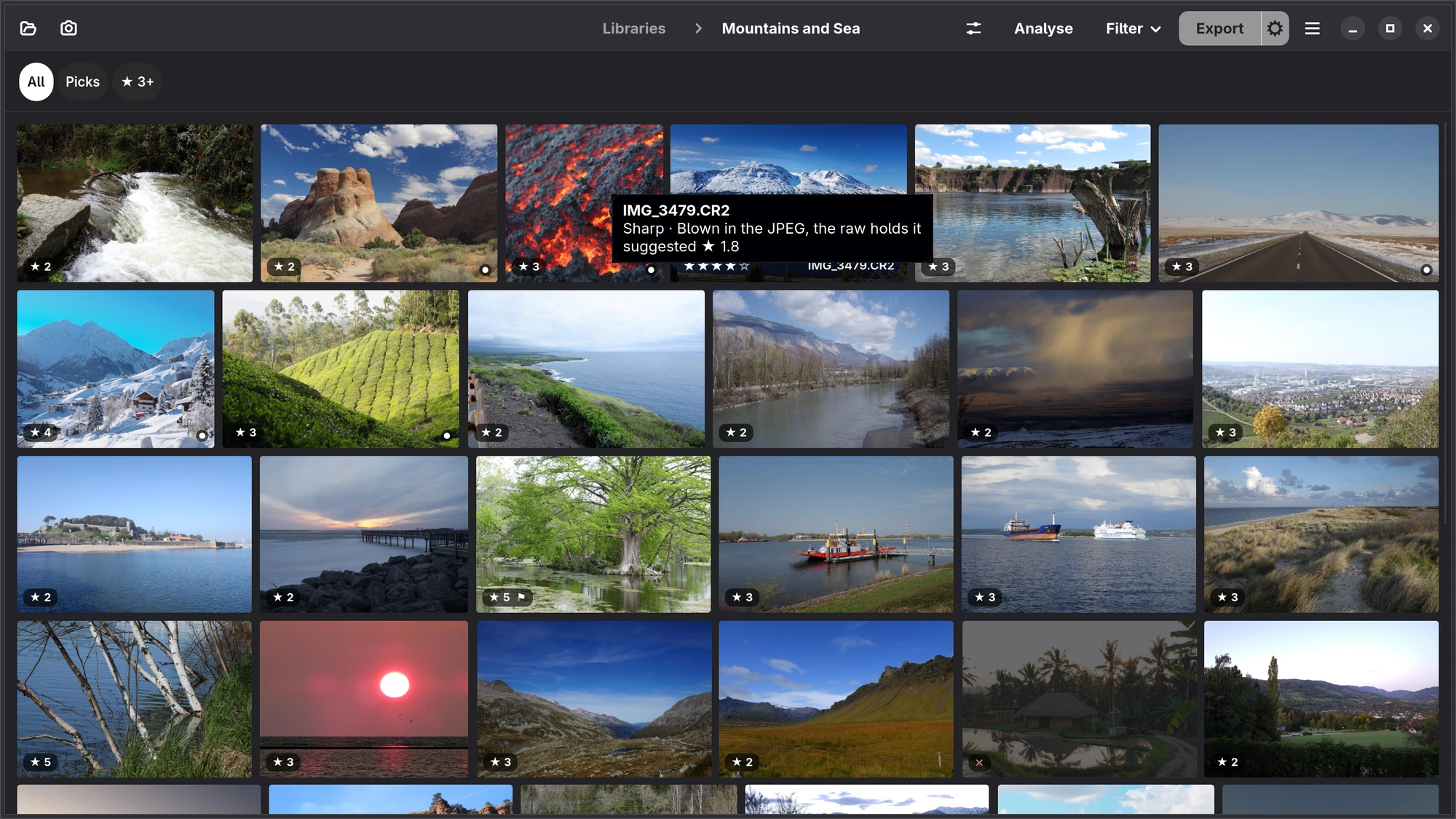
Analyse, in the header of the grid, goes through the library in the background and measures every photograph: how sharp it is (independent of its contrast and its number of megapixels), how much of it is blown out, and whether it is nearly black or white. It finds bursts and scenes you tried again, and, with the Faces add-on, the faces. You can go on working while it runs; the progress is at the bottom of the window, with Stop. Numa offers the first Analyse when you add a library.
With the results, each photograph gets a suggested rating. It shows only on a photograph you have not rated or flagged yet, as a dimmer, hollow star in the corner of the card (“☆ 3”, and “soft” if it is soft), and it never replaces a rating you gave. Rest the pointer on the card to see why: the tooltip says what stands out (“Sharp”, “Soft”, “Blown highlights”, “Eyes closed?”, “Slow for the lens”) and the suggestion. It is a rule you can read, not a model that judges taste.
Two filters use the results, under Analyse in the Filter menu:
- Only Questionable: the frames Numa thinks you may not want, so you can decide about them first.
- Only Best of Each Burst: one photograph per burst, the sharpest.
Sharpness and Suggestion, under Sort By in the main menu, use the same measurements.
Bursts and scenes
Frames that belong together are grouped as a burst, and the sharpest is marked best of the burst. In the loupe, Ctrl → jumps to the next burst on its best frame, and Shift ↓ rejects the rest of the burst in one go. When you came back to a composition later, the loupe says so in its pill (“Same scene as DSCF3274, 4 min later”).
A burst side by side. In the loupe, a frame in a burst opens the whole burst side by side, up to twelve at once, each as large as the window allows. The frame the keys act on has a white ring, as a selection has in the grid; a rejected one is dimmed. Coming into a burst from outside it, you land on its sharpest frame, so ↑ keeps the frame Numa measured best while the others are there to tell you whether it is; Shift ↓ rejects the rest and goes on. Two keys a burst.
Z, or a double-click on a frame, looks at that frame alone, with 1:1 and the camera's focus point; the next burst opens side by side again. Each frame of a burst says what Numa noticed in one word, what all the frames share is said once over the burst (“Soft · all 6”), and the sharpest says so.
Faces
With the Faces add-on, a photograph where the background is sharp but the face is soft is suggested as a reject, even though the frame as a whole measures sharp. Whether someone's eyes are closed is asked, never decided for you.
iPad, Mac Analyse is in the toolbar of a library's grid.
The client's picks
A proofing gallery gives you a list of the file names your client marked. Choose Paste the Client's Picks… in the library's main menu and paste the list as it comes: commas, spaces, semicolons or a name a line, quoted or not, with or without the extension, “A OR B”, a gallery's copies (“DSCF2210-2”, “DSCF2210 (1)”) and the names Numa's export gave (“DSCF2210 - edited #007”), in any case.
Numa looks through the whole library on screen, not only what the filter shows, and through every library when the grid shows them all. A raw and its JPEG are one name, and both are marked. Under the list it says how many it found (“41 of 42 found”), how many in each folder, and every name it did not find. Under Make Them, choose Picks, 5 Stars or Add to Album… (an album by that name, made if it is new). One Undo, in the toast, takes it all back.
The other way round, Copy File Names, in the selection bar's ⋯ and the right-click menu, puts the names of the selection on the clipboard, each frame once, to paste into the gallery's search.