Browsing
The grid, the filters, the loupe for one photograph at a time, and comparing a few side by side.
The grid
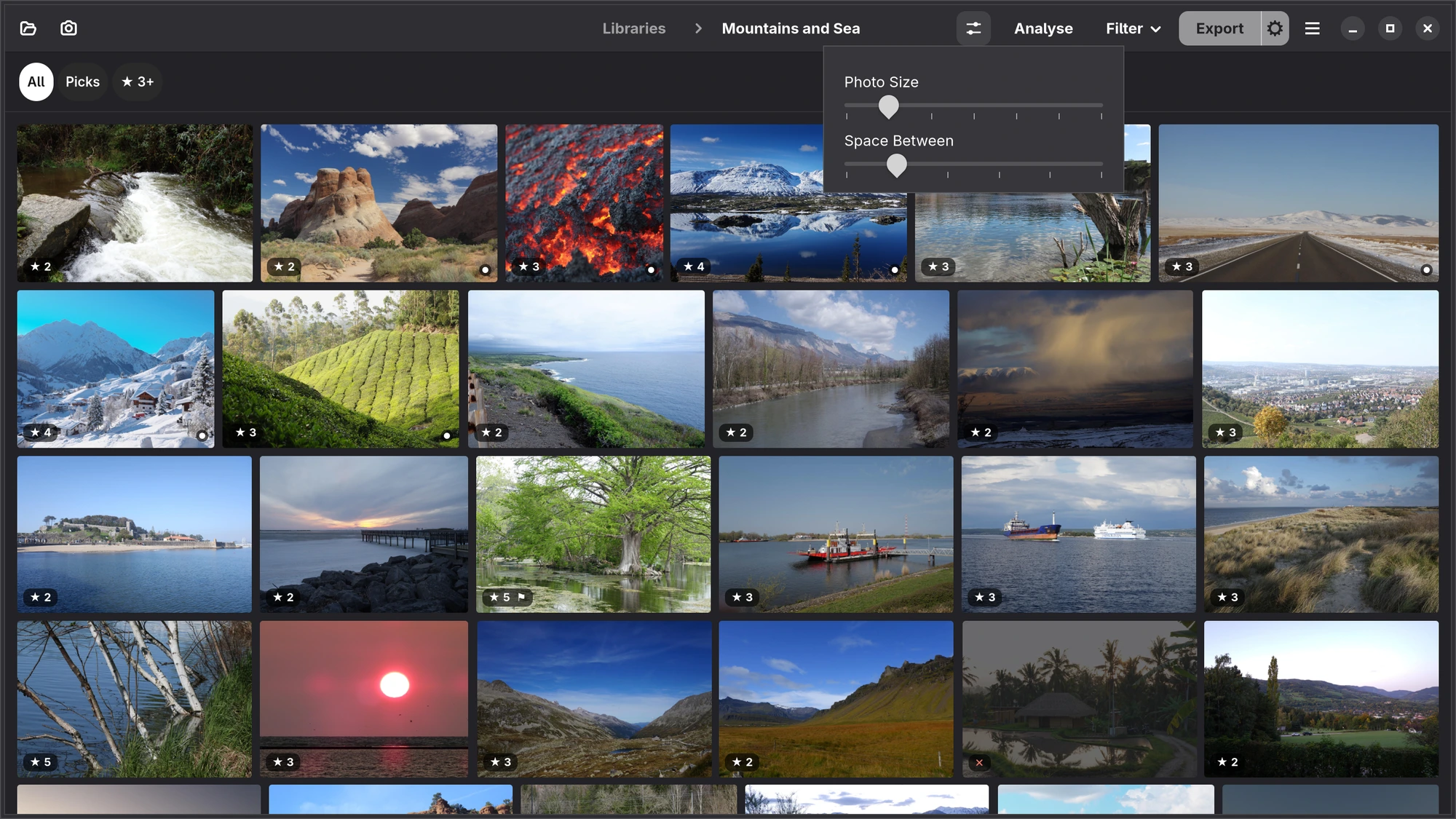
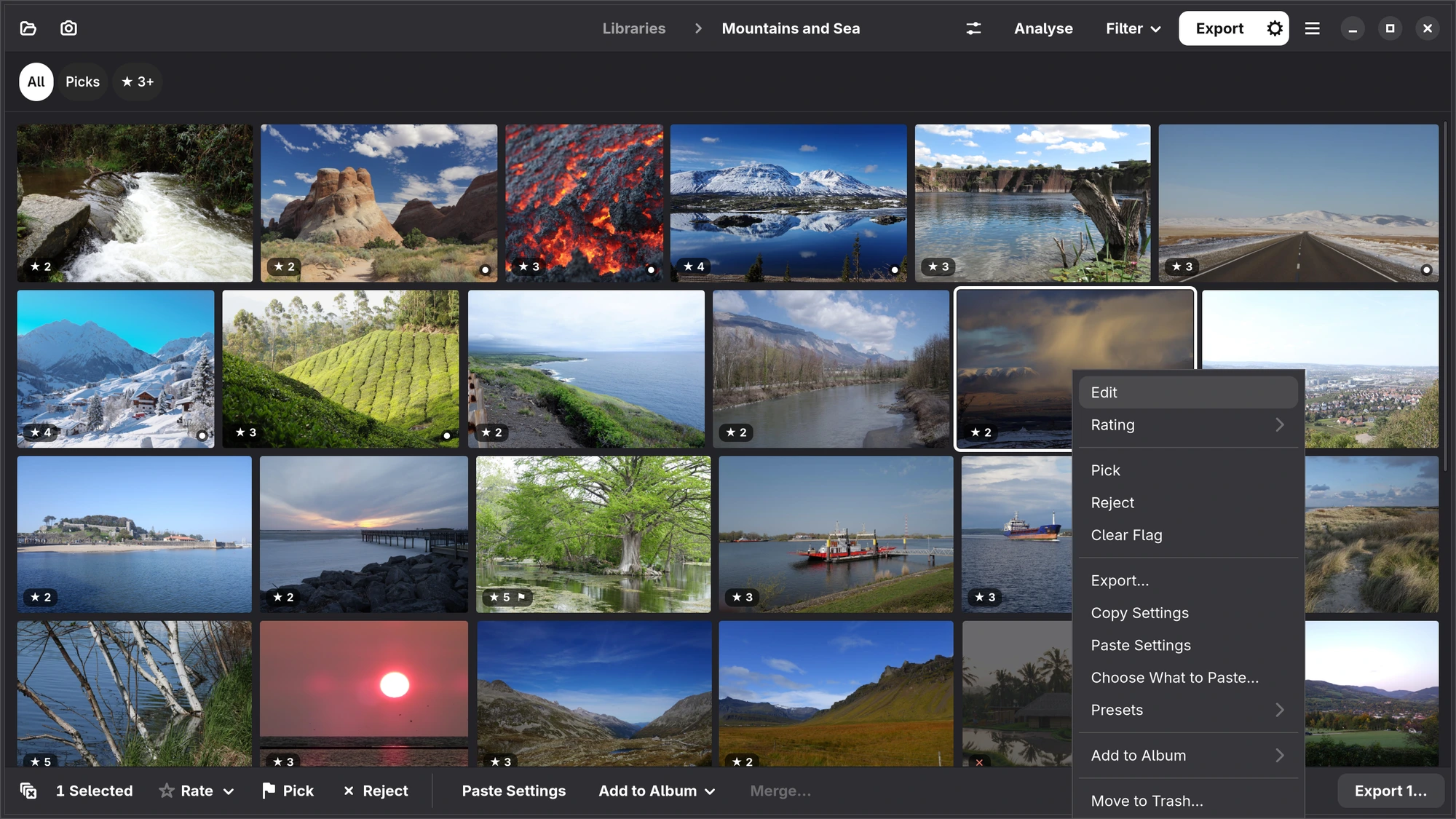
A library opens as rows of photographs, each at its own shape, so portraits and landscapes sit side by side without cropping. A card is only the photograph: what you have set is said on it in small dark pills. At the foot on the left are its stars (“★ 3”) and the pick flag; a rejected photograph is dimmed, with a cross. A white dot on the right marks a photograph you have edited, and its thumbnail shows your edit rather than the camera's; only opening a photograph does not count as editing it. The best frame of a burst says how many frames it stands for (“×6”), and a photograph on a drive that is not connected has the drive's icon.
With the pointer on a card, its foot shows the five stars, to click, and the file name. Rest there a moment for a short tooltip: the name, what stands out (Sharp or Soft, blown highlights, closed eyes), how it was taken and what Analyse suggests.
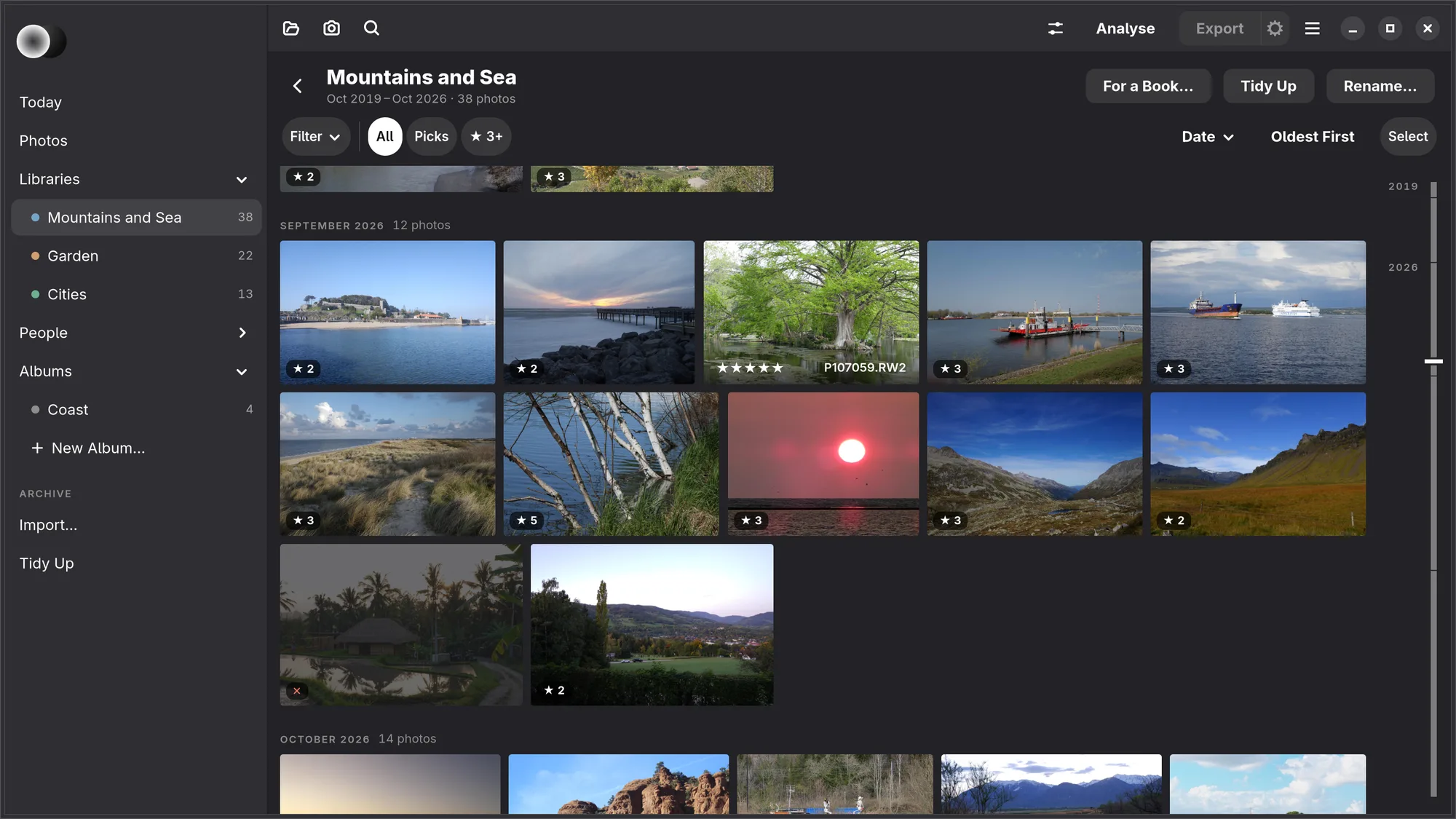
Months. In date order the grid is in months, as at Numa Home: each month starts on a new row under its name in small grey capitals and how many photographs it holds (“AUGUST 2026 · 12 photos”). In any other order one such line names the order and counts everything; a search by words, best first, has none.
The scrubber. With two months or more, a bar at the right edge stands for the whole grid: the years down its side and each month as long as the photographs it holds. Point at it to see the month and its count; drag to go there. A white mark shows where you are. In Photos, an album or a person, each library has its own quiet colour on the bar, and the library under the pointer is named with it.
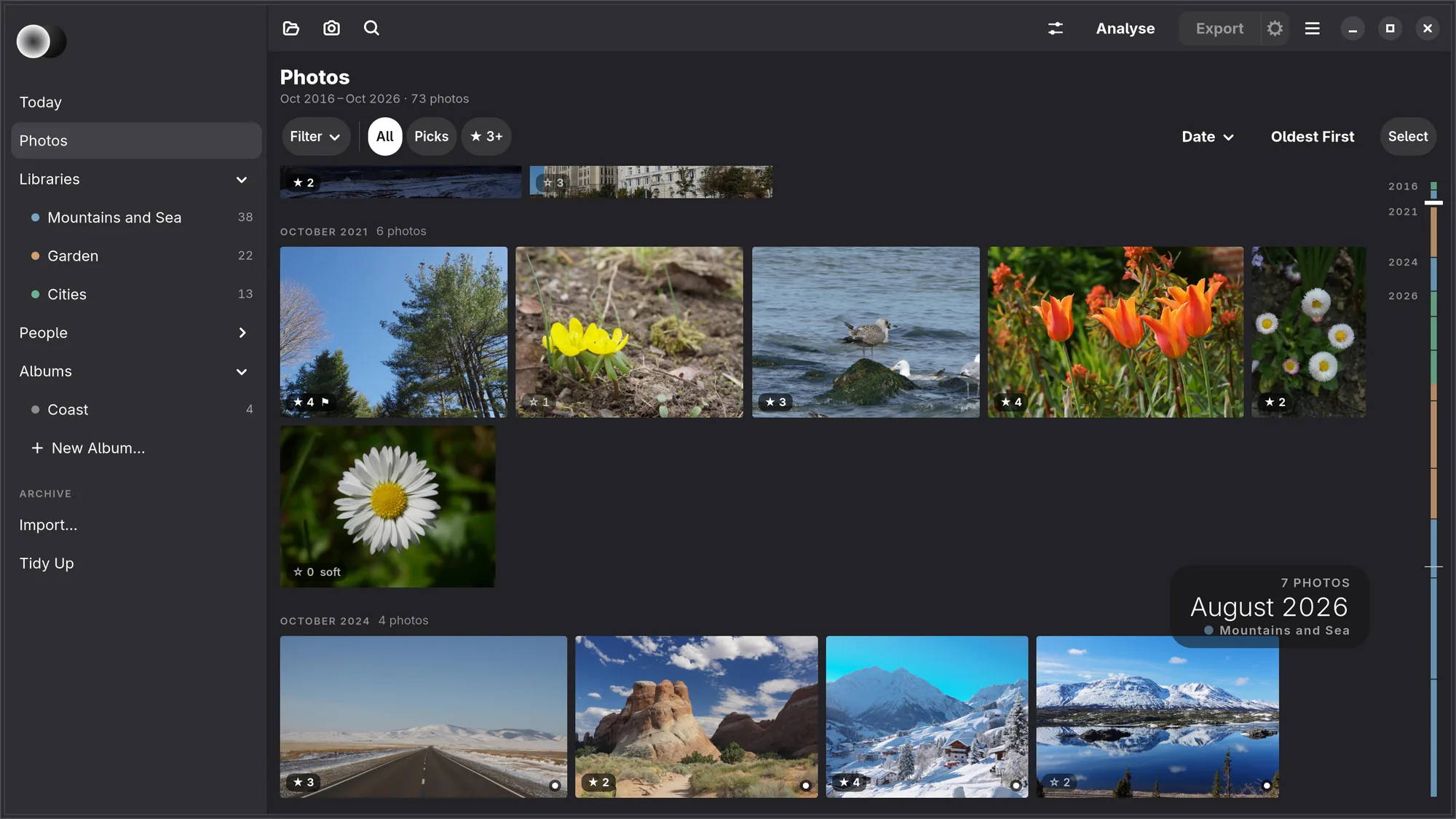
The button before Analyse in the header has two sliders: Photo Size, how tall a row is, and Space Between. Numa remembers both, and keeps the photograph at the top of the view where it was.
iPad Pinch the grid to make the photographs larger or smaller.
iPhone, iPad, Mac The grid is in months too; there is no scrubber yet. On the iPad and the Mac the row above it is Filter, then All, Picks and ★ 3+, then a chip with its × for anything else Filter has set (see iPhone, iPad and Mac).
Filtering and sorting
Under a place's head, the row starts with Filter, then three chips that are always there: All, Picks and ★ 3+, the narrowings you use most while going through a shoot. One press each, and the chosen ones are white: Picks shows only picked photographs, ★ 3+ three stars and up (both can be on), and All lets everything through again.
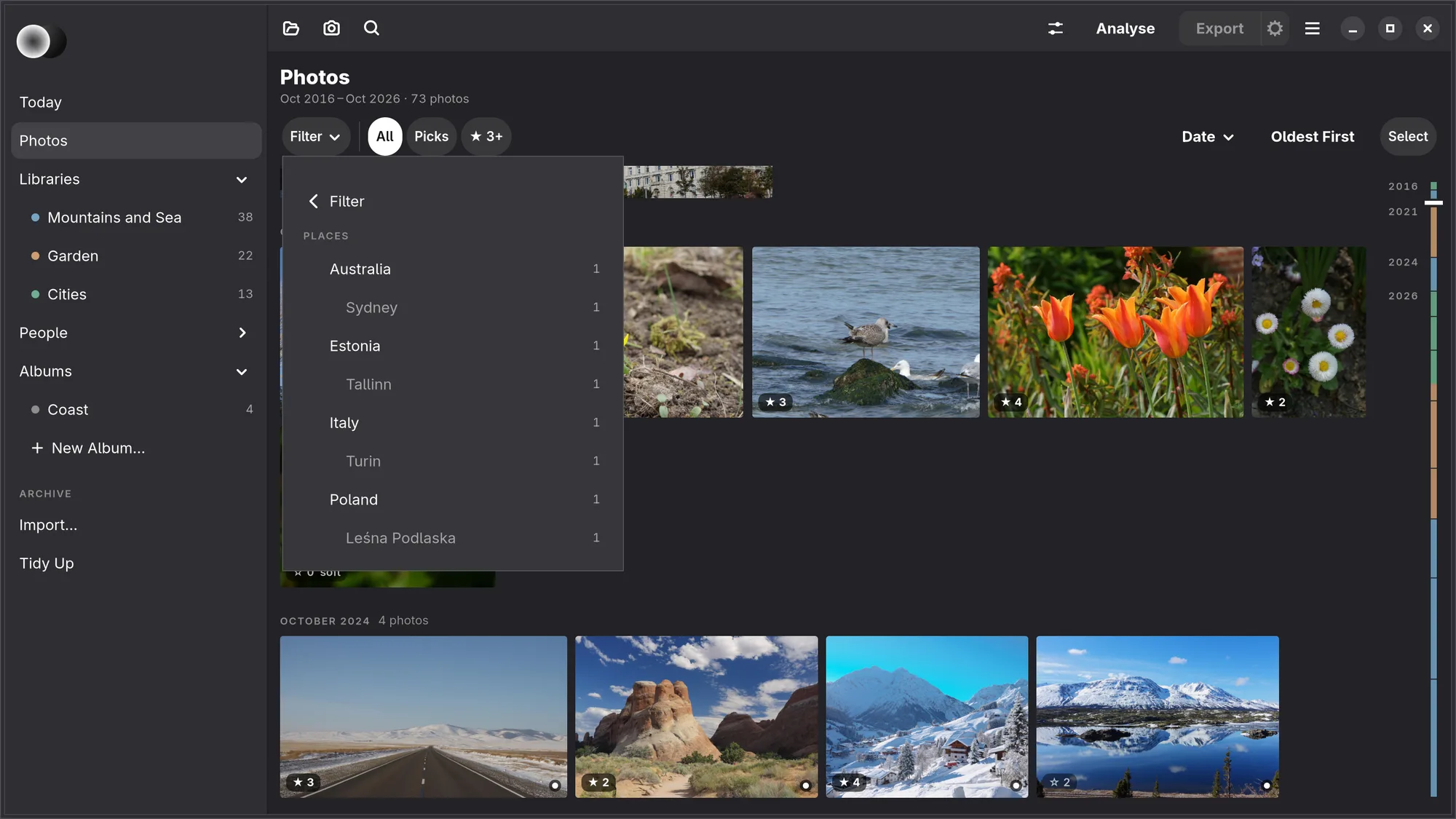
Filter narrows further, as at Numa Home. Its menu names each way of narrowing with what it is set to; choose one to see its choices, each with how many photographs it would leave among the other filters:
- Library: All Libraries (that is, Photos) or one library, which opens it, with its own filters.
- People: someone in the photographs, as People has them.
- Places: the countries, and the towns in each, nearest to where the photographs were taken, by their GPS (see Places for the map). The first time, Numa reads where they were taken beside the window and says so (“Looking where these were taken…”).
- Cameras: the camera, by its model.
- Dates: the year (a search can choose a month or a day too).
- Flag: Picked, Rejected or No Flag.
- Rating: ★ 1+ up to ★ 5.
- Things Numa Saw: see below.
After a line come Numa's own: Analyse (Only Questionable and Only Best of Each Burst, see Analyse), File Type (RAW Only or JPEG and Others) and, when the library has folders, Folder: one folder and everything under it.
A choice narrows the grid and closes the menu; choosing it again lets go. What the three chips cannot say follows them as chips of its own, each with its ×, and the row shows how many photographs you are seeing (“23 of 38”). Only with nothing narrowing is All white, so you can always tell when photographs are hidden. Numa remembers the rating, flag, Analyse and file type for each library; a person, a place, a camera, a date and a folder last until you open another place.
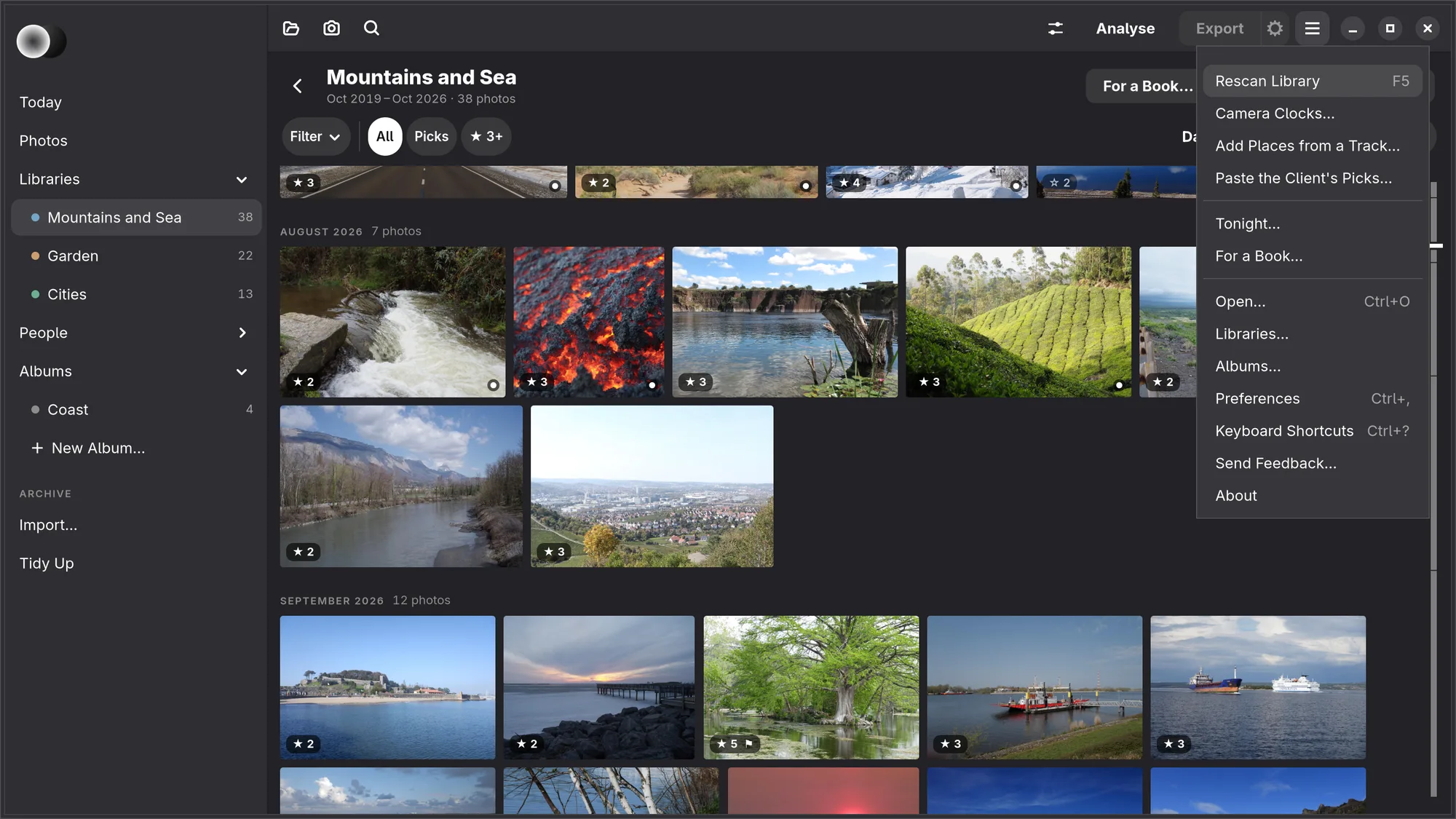
The order is at the end of the row: Date ▾ (Date, Name, Rating, Sharpness or Suggestion) and beside it the direction in words, Oldest First or Newest First, A to Z and so on; a click turns it round. The main menu (☰) in a library has Rescan Library (F5), Camera Clocks…, Add Places from a Track…, Paste the Client's Picks…, Tonight… and For a Book….
Searching
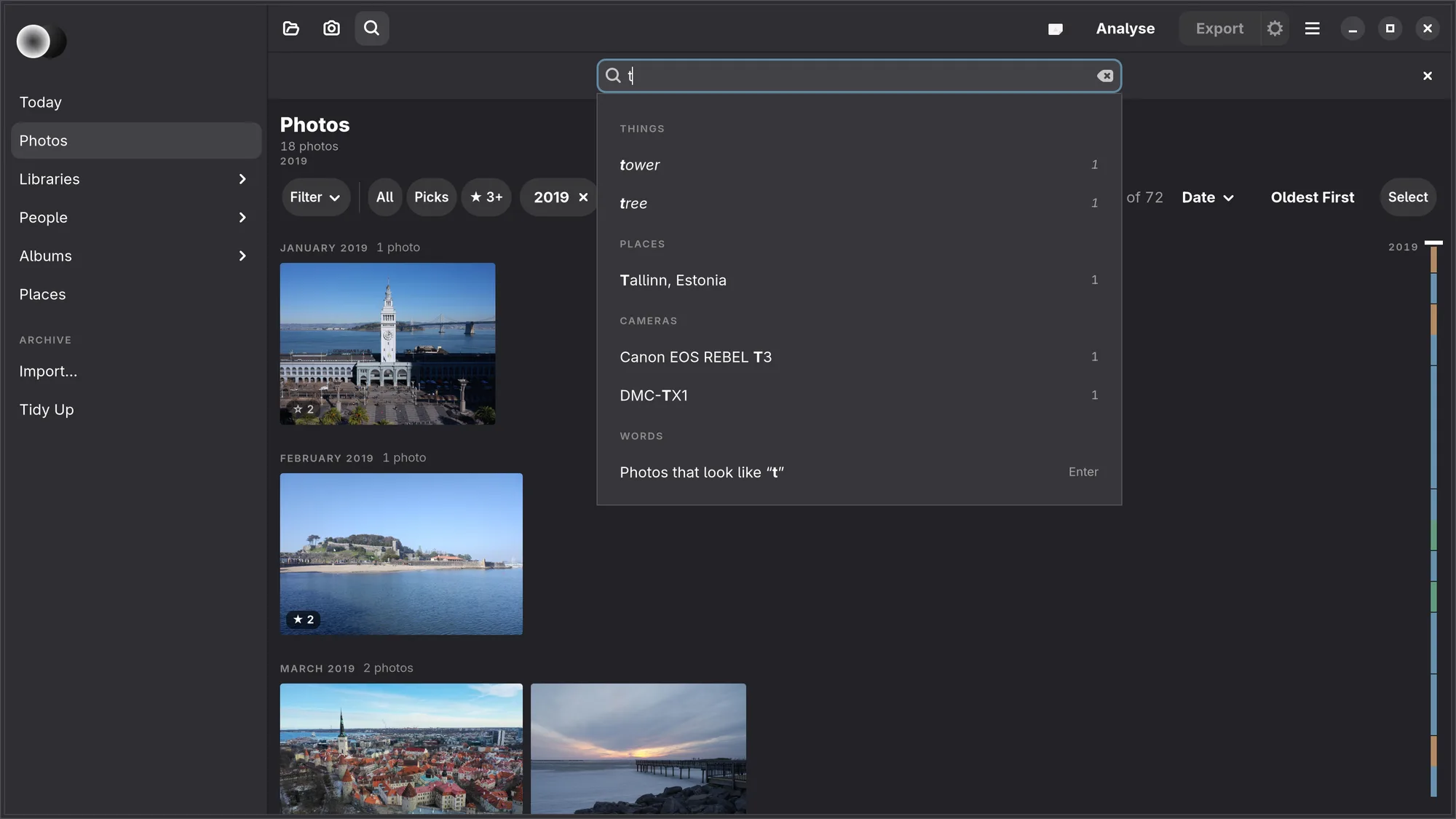
Ctrl F, or the magnifier at the start of the library's header, opens a field under the header: Search by names or words. As you type, suggestions open under it, as at Numa Home: Things Numa saw, Places (countries, regions and towns), People, Cameras, Dates and Libraries, up to three of each, with the part you typed in bold and how many photographs each would leave with what you have chosen already. A name is found by the start of any of its words, whatever its capitals and accents: “bea” finds Beach and Beatrix, “sao” finds São Paulo. A date is a year (“2025”), a month (“2025-03”, “March 2025” or “mar 2025”) or a day (“2025-03-14”), offered only when there are photographs from it.
Click a suggestion, or go to it with ↓ and ↑ and press Enter; Esc closes the suggestions. A suggestion narrows the grid as the same choice in Filter does, so it shows as a chip after ★ 3+ with its ×, and the field is empty again for the next one. They add up: a person, a place and a year show that person's photographs from there, that year. Each kind holds one: a second person takes the place of the first. A library opens it, and the other chips stay. Backspace in the empty field removes the last chip. While you search, the head under the place's name says how many photographs answer, and to what (“TALLINN · 2019”).
Words. The last suggestion is always Photos that look like “…”, and Enter runs it: a search by what is in the photographs, in English or Dutch, such as “bride with bouquet”, “reiger” or “kitchen”. The answer is one more filter, within the chips, best first; its chip says “Words: …”, with its ×, and the head shows the words in quotes. It all happens on this computer.
The first time, Numa asks before it downloads what it reads the photographs with (412 MB). Then it reads the libraries the grid shows in the background, one at a time, never on battery or power saving. A photograph whose file changes is read again. An import, and each photograph that comes in tethered, is read as it lands.
Names in the words find people too: type someone's first name, or a whole name, and press Enter, and the grid narrows to the photographs that person is in, as People has them. Two names find both. Words after the names (“on the beach”) put those photographs in order. Names alone, and the suggestions, need no download.
Things Numa Saw. In the Filter menu, after Rating, a section lists everyday things Numa found in the photographs (bride, bouquet, beach, dog, mountain, church, car, food, sunset…), only those some photograph has, the most frequent first, each with how many. They are in italic, so they read as Numa's rather than yours, and so is the chip of the one chosen. One narrows the grid like any filter. They are never written into your keywords, the catalogue or an exported file. Until Numa has read the photographs for words, the section says so.
Selecting
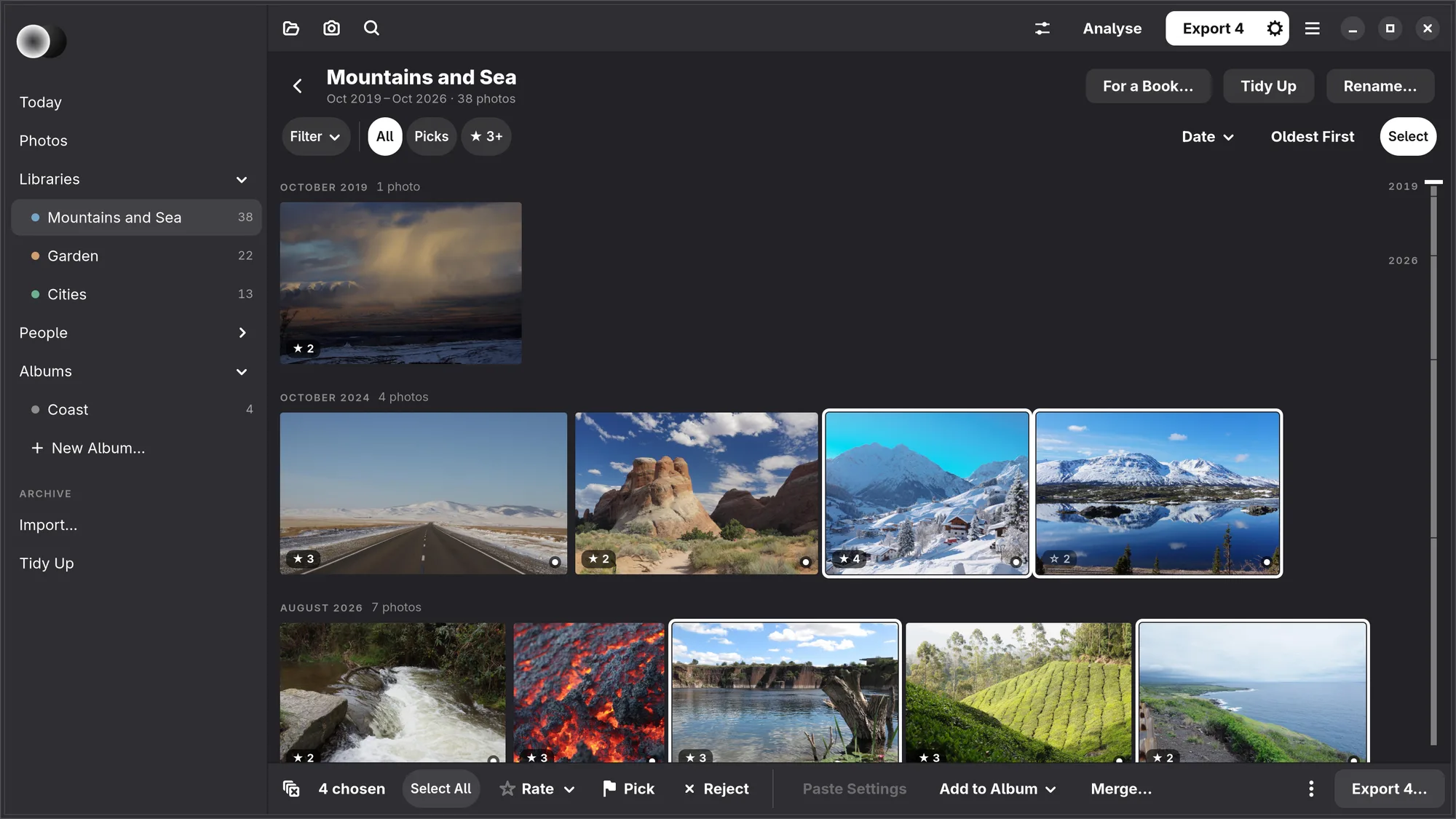
Click a photograph to select it; Ctrl-click adds or removes one, Shift-click selects a run, a drag across the grid selects what it covers and Ctrl A selects everything shown. A selected photograph has a white ring.
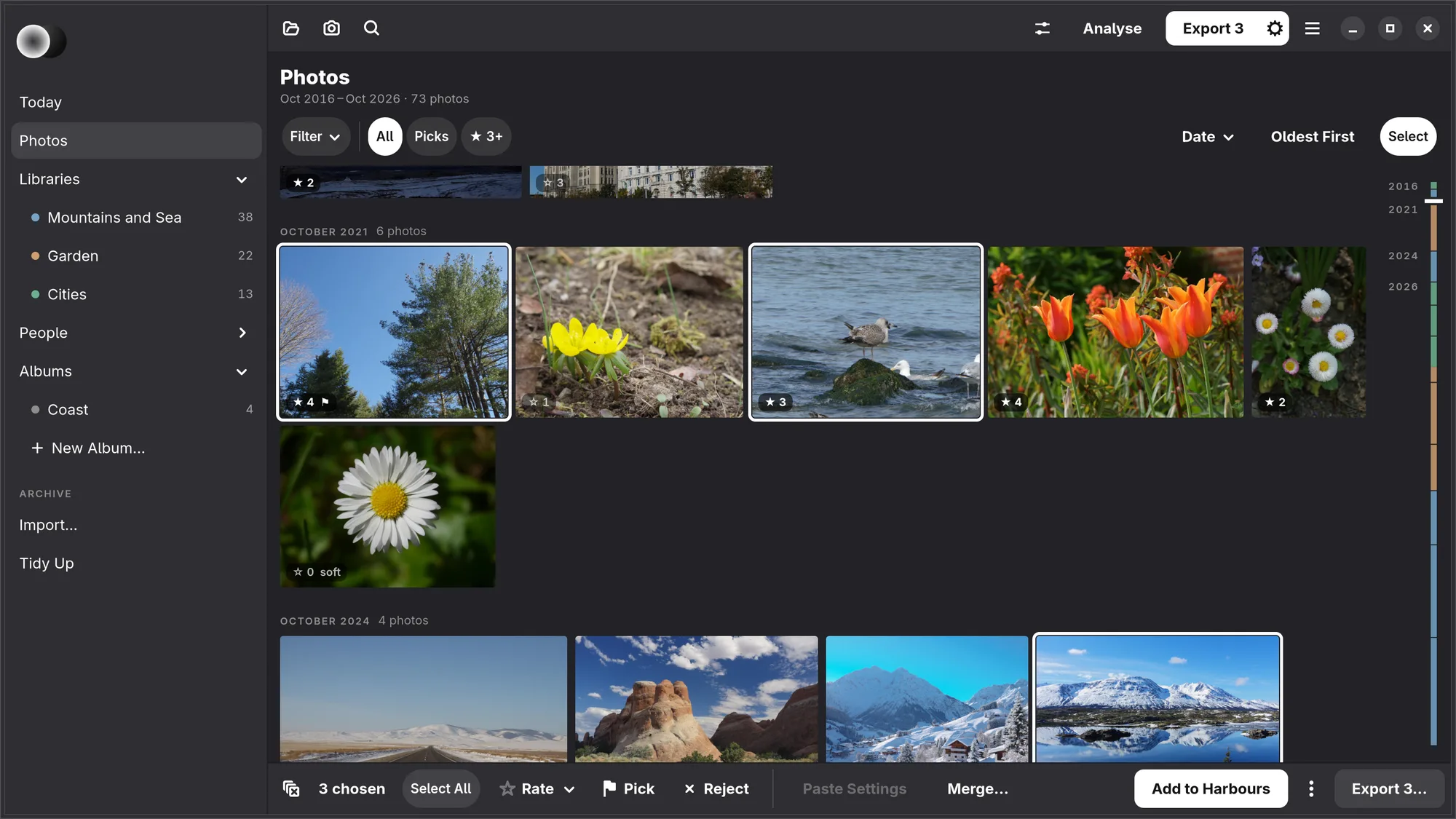
Select. To choose several with plain clicks, as at Numa Home, press Select at the end of the row of chips. It turns white, and a click now chooses a photograph or lets it go again. The bar at the foot says “Choose photographs” until you do, then how many are chosen (“4 chosen”), with Select All beside it. Esc, the clear button at the start of the bar or Select again lets them all go and leaves Select (Ctrl Shift A does the same).
While photographs are chosen, the bar acts on all of them: after the count and Select All come Rate, Pick, Reject, Paste Settings, Add to Album, Merge… (for two or more, see HDR) and, at the end, Export 4…. The keys still work: 0–5 to rate, P to pick, X to reject; the tooltips say which.
Right-click a photograph (or a selection) for everything that can be done to it: rating and flags, adding to an album, presets, copying and pasting edits, export, and moving it to the trash.
iPad, Mac Select is at the top right; its bar has Select All beside the count, and with a keyboard ⌘ A, Esc and Delete work as here. On the Mac, a drag, ⌘-click and ⇧-click choose, and so does the ring on a photograph under the pointer (see Mac).
The loupe
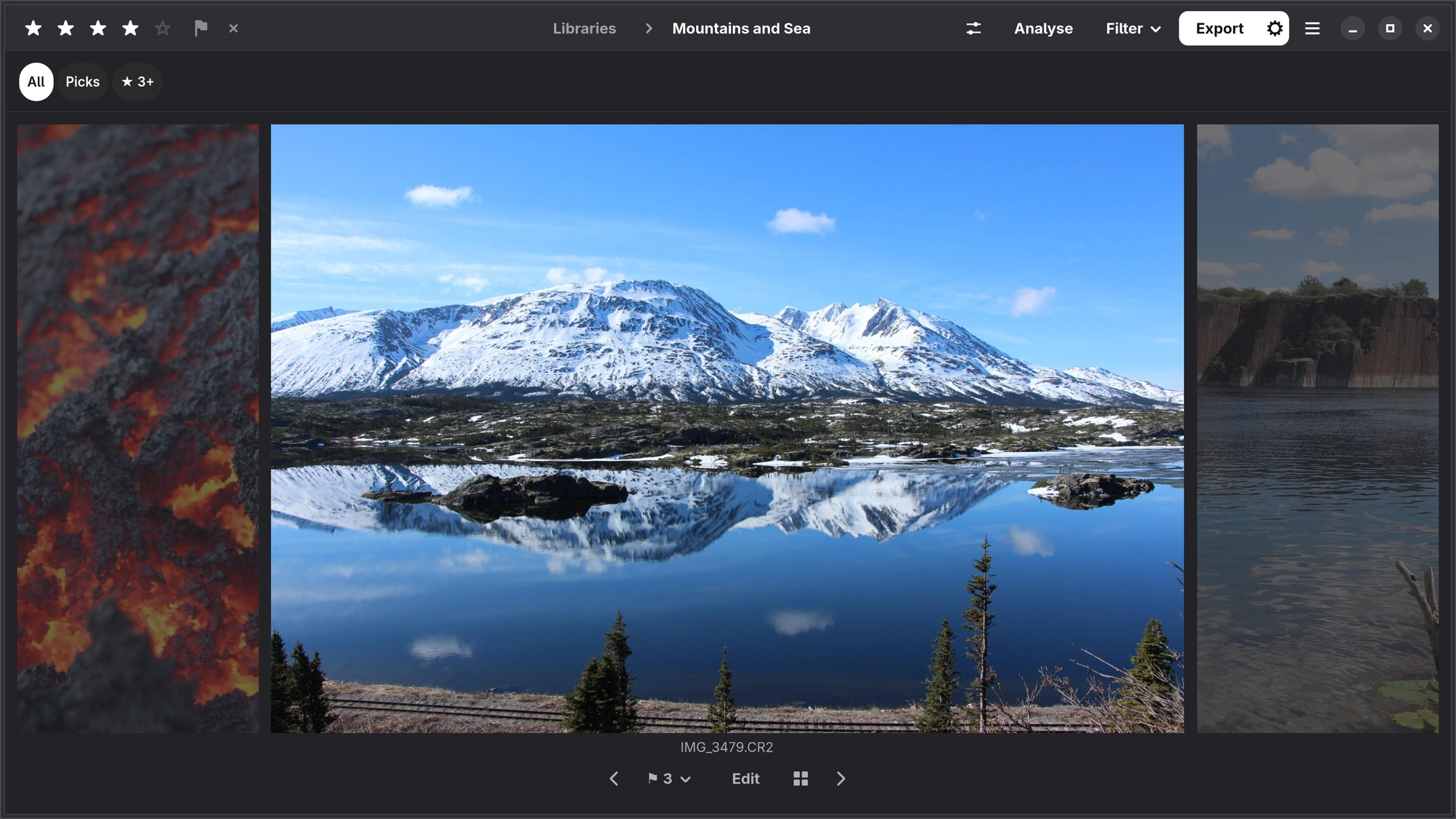
Press Space to see the selected photograph as large as the window allows. The grid stays behind it, so Space or Esc puts the loupe away and you are where you were. ← and → step through the photographs, Enter or Edit opens the one on screen in the editor, and double-click shows it at 1:1.
While the loupe is up, the five stars, pick and reject are at the left of the header, where the editor has them. Under the photograph is the tape, the shoot in time order; its line has previous and next, the pick counter, Edit, Review and the way back to the grid. The loupe is also the fastest place to cull; see Culling.
iPhone, iPad Tap a photograph to see it on its own; swipe to the next. The bar underneath has i for what the camera recorded, the stars and the flag. On the iPhone, the flag for a photograph in your Photos library is Favourite.
Comparing photographs
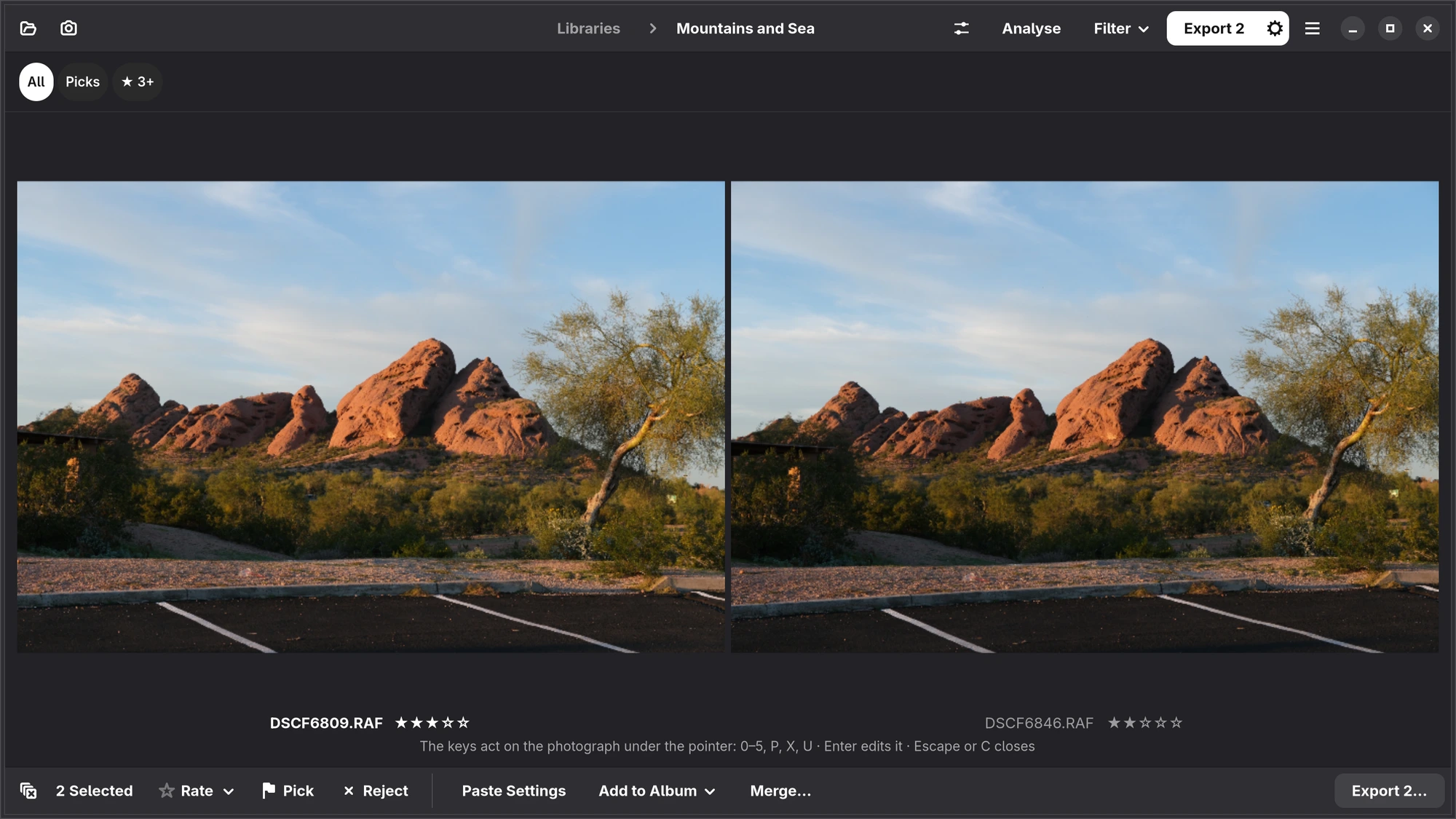
Select two to four photographs and press C. They appear side by side, and zooming or moving one moves them all, so you can judge which is sharpest. The rating and flag keys act on the photograph under the pointer. Esc goes back to the grid.
Albums
An album holds photographs from any folder and any library, without moving them. Albums are in the side list under Albums, and on the Albums page as stacks, with New Album… first, as at Numa Home: give the album a name, and Photos opens with Select on and the bar saying “Choose photographs for Harbours”; choose them and press Add to Harbours. To add photographs to an album that is there, select them and choose Add to Album in the bar at the foot, or right-click. Albums… in the main menu renames and deletes them. Deleting an album leaves its photographs where they are.
Deleting a photograph
Press Delete, or choose Move to Trash from the right-click menu. Numa asks first, and says that the photograph's stars and edits go with it. The file goes to your desktop's trash, so it can be restored from there.